- Product

- Pricing
- Affiliate Program
- Developers
- Resource
 EN
EN
Facebook work often starts on a personal phone. That is fine until more people, Pages and clients become involved.
Then the small problems add up. A video stays on the wrong device. A login code reaches someone who is off duty. One employee has access to files for several clients. A Page needs an urgent update, but the phone is in another office.
A cloud phone for Facebook gives this mobile work a fixed place. Facebook, Messenger, media files and the current app state remain inside a remote Android environment. An authorized team member can open it from a computer without taking possession of a physical phone.
It is useful when the work still depends on Facebook’s Android app. It is less useful when Meta Business Suite or Ads Manager already handles the full job.
A cloud phone runs Android on remote infrastructure. You control it from a computer, but the apps and files stay inside the remote Android environment.
With MoreLogin Cloud Phone, a team can install Facebook and Messenger, upload media and return to the same app state later. The device can remain assigned to a client, brand or regional project instead of following one employee.
This matters during handovers. A content manager can upload a Reel on Monday. A reviewer can open the same device on Tuesday. The file, app and login state are still there.
A cloud phone is also different from a local Android emulator. An emulator relies on the computer’s processor and memory. A cloud phone handles the Android workload remotely. That becomes more noticeable when a team needs several active mobile environments.
The useful difference is continuity. The device state stays with the project.
A cloud phone should solve a specific mobile problem. Adding one without a clear use case only gives the team another tool to maintain.
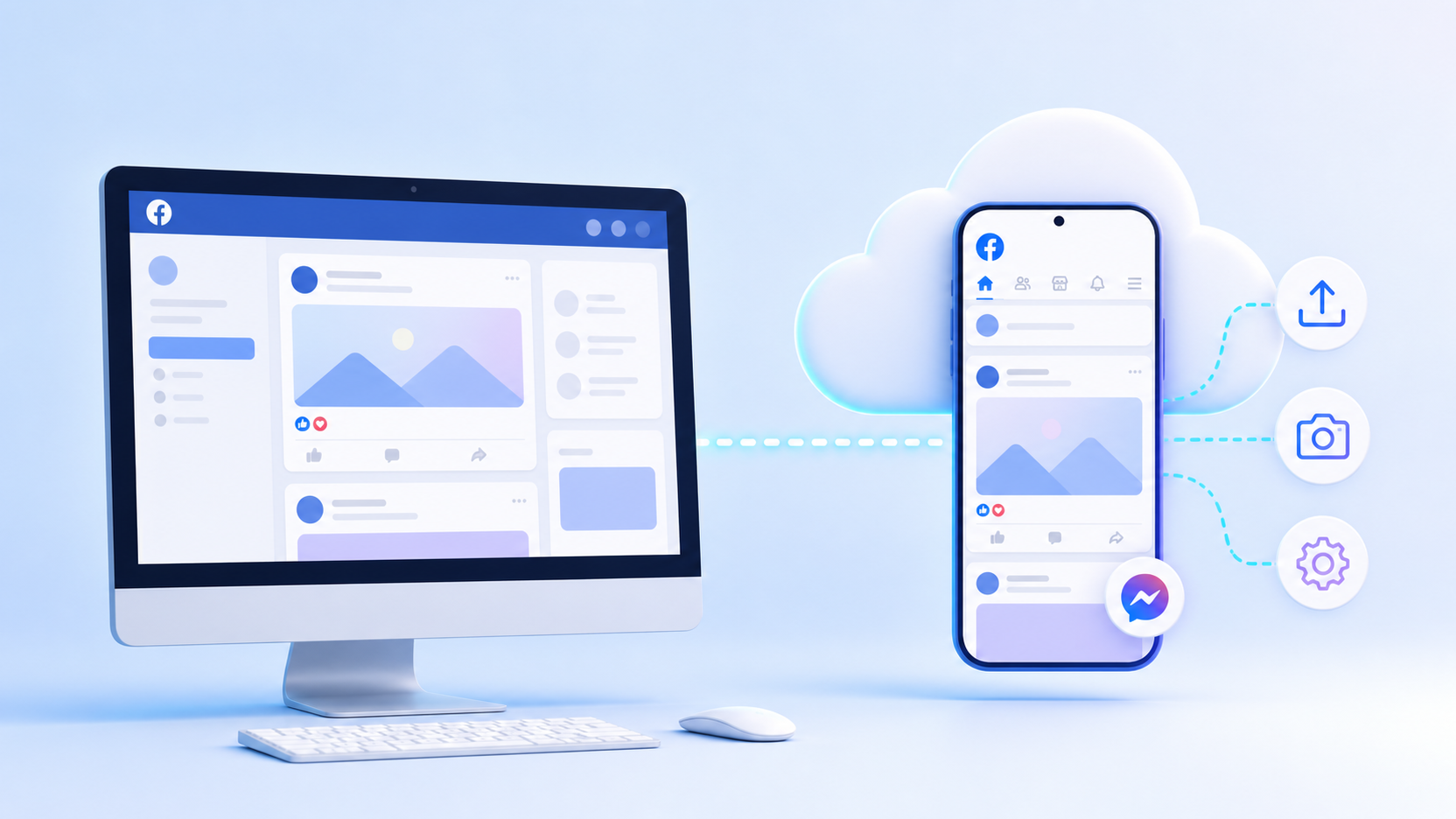
Facebook’s web version covers many daily tasks. It does not reproduce every part of the Android app.
A cloud phone lets an operator use Facebook and Messenger in a mobile environment while working from a desktop. This can help with:
Checking notifications
Reviewing a Page in the Facebook app
Opening Messenger
Checking comments and mentions
Previewing mobile content
Testing app based workflows
Reviewing regional app experiences
The account owner still controls recovery and Meta permissions. The cloud phone provides the Android workspace. It does not replace Facebook’s access system.
A video can look fine on a computer and still need changes inside the Facebook app. Cropping, captions, audio and mobile playback can affect the final result.
Files can be uploaded from the computer to the cloud phone. The operator can then open Facebook and review the content where it will be published.
Before approving a post, check:
The active Facebook identity or Page
The selected file
The crop and aspect ratio
The caption
The audio
The playback quality
The publishing destination
This extra check feels slow until it prevents a mistake. Publishing the right creative to the wrong client Page takes far longer to fix.
Agencies often manage several Pages from the same office. The accounts may be authorized and legitimate, but the work can still become messy.
A clear profile name helps:
Client A Facebook US
Brand B Facebook UK
Store C Facebook Germany
Each workspace can hold the apps, media and notes needed for that project. Groups and tags can show the operator, market and current status.
The benefit is simple. A team member can understand what belongs in the device before opening Facebook.
Assigning one authorized account or client workflow to one cloud phone can also make troubleshooting easier. This is an operating choice, not a Facebook requirement.
Cloud phones can support mobile tasks for Facebook Pages. Common examples include Reels checks, comment review, Messenger and content approval.
Page ownership should still be managed through Meta’s official access tools. Facebook allows trusted people to receive Facebook access or task access for a Page. The available controls are explained in Facebook Page access.
These permissions work at different levels:
Meta controls access to the Page and business assets
MoreLogin controls access to the cloud phone workspace
A person may need one type of access without needing the other. Keep those decisions separate.
Passing a physical phone between employees is simple in one office. It becomes awkward across cities, shifts or time zones.
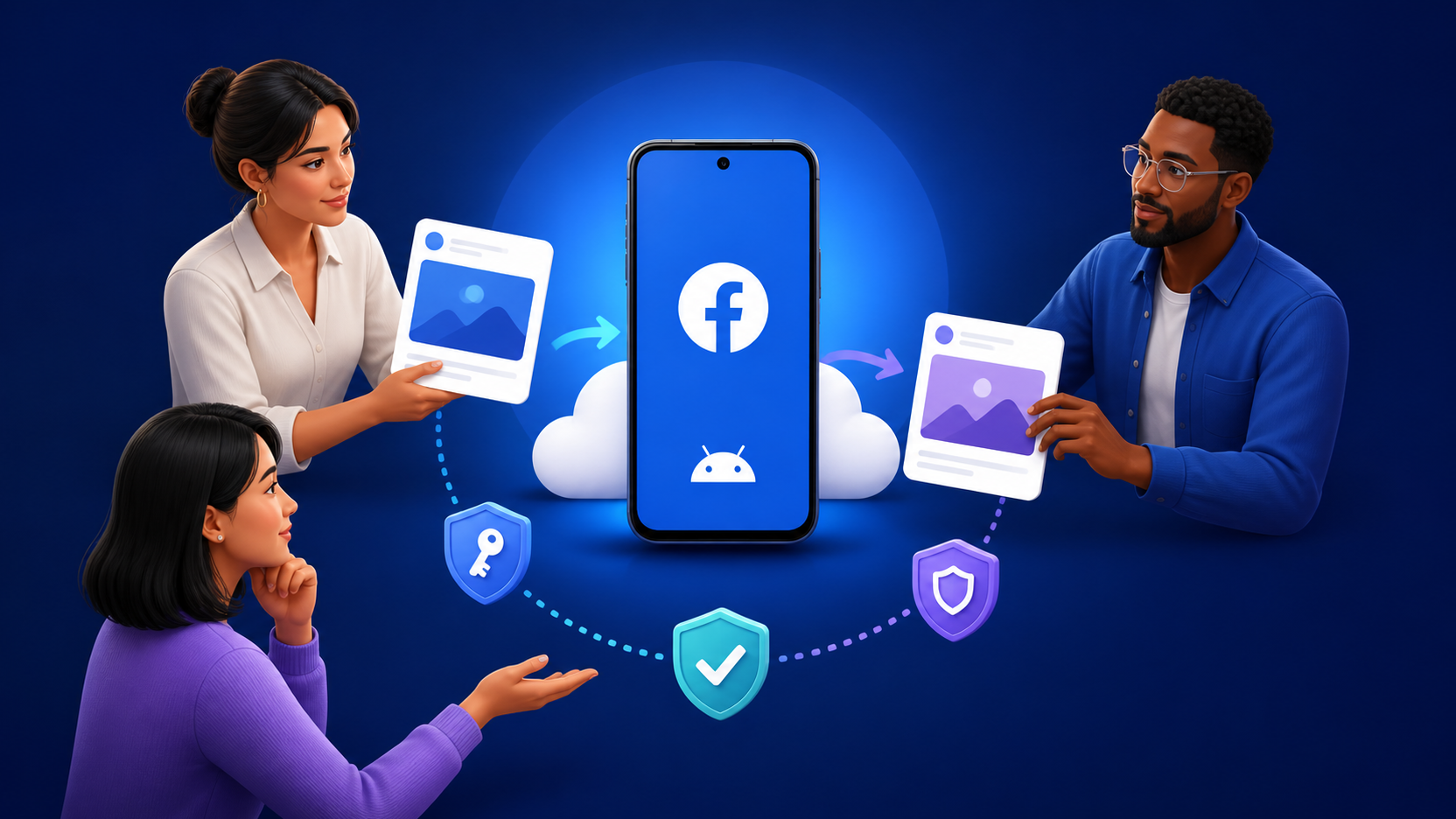
A cloud phone can stay available to the project. Administrators can assign access to the people who need it. They can remove that access when responsibilities change.
A practical role structure might include:
The account owner manages recovery and Meta permissions
The administrator controls the cloud phone
The operator handles approved daily tasks
The reviewer checks sensitive content
Do not give every team member access to every device. Broad access is convenient until something goes wrong.
These tools handle different parts of Facebook work.
A cloud phone is a good fit for the Facebook and Messenger Android apps. It can also help with mobile previews, Reels and remote device handovers.
Meta Business Suite is usually better for official Page access, content planning, inbox management and business assets.
Ads Manager is easier in a browser. Campaign settings, reports, audiences and budgets benefit from a larger screen.
An antidetect browser can help organize separate browser sessions for authorized client projects. It does not provide a complete Android app environment.
Facebook and Messenger Android apps
Reels and mobile content checks
File uploads
App based workflows
Remote Android access
Team handovers
Mobile advertising previews
Page permissions
Task access
Content planning
Official inbox management
Page insights
Business asset controls
Ads Manager
Campaign reports
Business settings
Large dashboards
Browser based client work
For teams using both mobile and browser workflows, the better answer is often a combination. Forcing every task into one environment makes the process harder, not cleaner.
MoreLogin offers several configurations for social media, ecommerce and short video work.
Basic configuration
Supports automation, camera and audio functions, and file uploads.System version
Android 12 to Android 15.Applicable scenarios
Social media, ecommerce, short video account management and remote Android workflows.Minute billing
$0.006 per minute, capped at $1.50 per cloud phone per day.Monthly billing
$23 to $25 per cloud phone for 30 days, depending on the selected configuration.Proxy cost
Proxy service is not included. Users can choose and purchase a preferred proxy separately.
Minute billing suits short or irregular sessions. Charging starts when the cloud phone runs and stops after it is turned off.
At $0.006 per minute:
30 minutes a day costs about $5.40 over 30 days
One hour a day costs about $10.80 over 30 days
Two hours a day costs about $21.60 over 30 days
The daily charge is capped at $1.50 per device
A reviewer who opens Facebook for short checks may spend less with minute billing. A device used for several hours each day may be easier to budget with a monthly plan.
Profile count does not show the full cost. Runtime, proxy fees and the number of active devices matter too. A broader Android cloud phone pricing comparison can help when estimating a larger device pool.
Proxy service is separate from the cloud phone fee. This lets users select a provider based on location, quality and budget.
It also means the proxy belongs in the cost calculation.
Choose a stable connection that fits the legitimate location needs of the project. Frequent location changes create more problems to explain and troubleshoot.
The proxy is only one setting. Timezone, language and location should also make sense for the account and business.
Start with one device and one authorized Facebook workflow. A small test reveals app, network and process problems before they spread.
Open MoreLogin and create a cloud phone profile.
Choose minute or monthly billing based on expected runtime. Then select the Android version required by the apps.
Use a clear profile name. Client A Facebook US is more useful than Device 08.
The name should tell the next operator what belongs in the workspace.
Enter the proxy host, port, username and password.
Run the network check. Confirm that the connection works and that the detected location matches the project.
If the connection is unstable, stop there. Fixing it before login is easier than diagnosing a broken session later.
Check the Android version, timezone, language and location.
These settings should follow the real business need. Random values make the environment harder to maintain and hand over.
Write down any choice that the next operator may not understand.
Use the Cloud Phone App section to install supported applications. Install Facebook and Messenger through the official app source available in the cloud phone. Check the publisher before signing in.
After installation, open the parts of the app the team needs:
Feed
Notifications
Page view
Messenger
Reels
Media upload
Settings
The app being installed does not prove that the whole workflow is ready. Test the actual features.
Keep the account owner available during the first login. Facebook may request a code or approval from another device.
Record who controls:
The email address
The phone number
Two factor authentication
Recovery codes
Page access
Business asset permissions
Do not share one personal Facebook password across the team.
Facebook states that maintaining more than one personal account goes against its rules. Brands and businesses should use Pages and official permissions. Meta explains this in its policy on multiple personal Facebook accounts.
Upload one image and one short video.
Open both files inside the cloud phone. Check that they transferred completely and play correctly.
Keep the first publishing test low risk. Confirm the Page, caption, crop, audio and final quality.
If the upload is slow or the video loses quality, solve that before adding more devices.
Grant access according to responsibility.
An operator may need the cloud phone without needing full Page control. A reviewer may need to inspect content without changing device settings.
Test the full process:
Add a team member
Confirm that the correct device is visible
Check the available actions
Remove access
Confirm that the device is no longer available
Access removal is part of the setup. Do not leave it until an employee departs.
Automation works best on stable, low risk steps. Device preparation and file handling are better starting points than publishing or customer replies.
The Cloud Phone Synchronizer can repeat supported actions across selected devices.
That is useful when several devices need similar preparation.
It is less useful when every client has different media, captions or approval rules. At that point, synchronized actions can create more review work than they save.
Good uses include:
Starting approved apps
Preparing devices
Moving approved files
Repeating tested setup steps
Running internal checks
Keep a person responsible for:
Choosing the correct Page
Approving the final post
Responding to sensitive messages
Changing Page access
Editing ad budgets
Reviewing claims and disclosures
Recovering an account
Automation should make the workflow easier to supervise. It should not hide failures.
A cloud phone provides a persistent Android workspace. It does not guarantee that Facebook will never request verification or restrict an account.
Facebook may review identity, content, login history, network changes and policy compliance.
There are practical limits too:
Weak connections can affect Facebook and Messenger
Large video uploads may take time
Camera and microphone features need testing
Test Facebook Live on the intended device before relying on it for an important campaign
Proxy service costs extra
App updates can break automation steps
Meta permissions are still required for business assets
If your workflow requires SMS, phone calls or eSIM support, confirm availability with MoreLogin before purchasing a device
Do not use automation for fake engagement, spam messages, unauthorized account creation or misleading activity.
A cleaner environment can improve organization. It cannot make prohibited activity acceptable.
MoreLogin is worth testing when:
The workflow depends on Facebook or Messenger for Android
Several authorized client projects need separate workspaces
Team members hand mobile tasks between shifts
Client files should stay outside personal phones
The project needs Android 12 through Android 15
File upload, camera, audio or automation matters
The team uses both mobile apps and browser dashboards
Flexible minute and monthly billing is useful
A simpler setup may be enough when:
One person manages one Page
Meta Business Suite covers the full process
Most work happens in Ads Manager
The project depends heavily on live camera use
The goal conflicts with Facebook’s identity or account rules
Test one real workflow before expanding. Check app compatibility, upload quality, team access, proxy stability and total cost.
If the process works, repeat it. If it does not, adding more devices will only make the problem larger.
A cloud phone for Facebook is most useful when the mobile device has become an operating bottleneck.
It keeps Facebook app work, files and project context in one Android workspace. It also makes remote handovers easier than passing physical phones between employees.
The strongest setup still uses more than one tool. Meta permissions protect business assets. Browsers handle complex dashboards. Cloud phones support work that genuinely needs an Android app.
MoreLogin offers minute and monthly billing, while proxies are purchased separately. Start with one device. Measure how it performs in the real workflow. Then decide whether more devices are worth the cost.
It is a remote Android environment that lets you install and use Facebook from a computer. The apps, files and login state remain inside the cloud phone.
Yes. MoreLogin supports Android 12 through Android 15 and allows supported Android apps to be installed. Test the exact Facebook and Messenger features required by the team before expanding.
Yes, when the team owns or has permission to manage those Pages. Meta Page access should control the business assets. MoreLogin permissions should control the cloud phone workspace.
Minute billing costs $0.006 per minute and is capped at $1.50 per device each day. Monthly pricing ranges from $23 to $25 per cloud phone for 30 days, depending on the selected configuration. Proxy service is purchased separately.
It depends on the task. A cloud phone suits Facebook and Messenger Android apps. Meta Business Suite suits official Page management. A browser is usually easier for Ads Manager, reports and business settings.
It cannot guarantee that. Facebook may still review identity, content, network changes, account history and policy compliance.

 EN
EN