EN
You can start using a cloud phone for free with MoreLogin, PhoneGrid, Multilogin, or UgPhone. MoreLogin and PhoneGrid each give new users 100 minutes. Multilogin offers 30 minutes on a free plan, and UgPhone lets you try a device for four hours.
Before you choose, check how the offer works. PhoneGrid gives you seven days to spend its 100 minutes. Multilogin keeps the free plan open after the 30 minutes run out, but you’ll need to upgrade to start the phone again. That difference matters if you want to come back to the same device later.
New users get 100 minutes to run a MoreLogin Cloud Phone. After creating a cloud phone in MoreLogin, assign a proxy to it. You can only use the device once a proxy is assigned. The free plan also includes two browser profiles. The 100 minutes apply to the cloud phone.
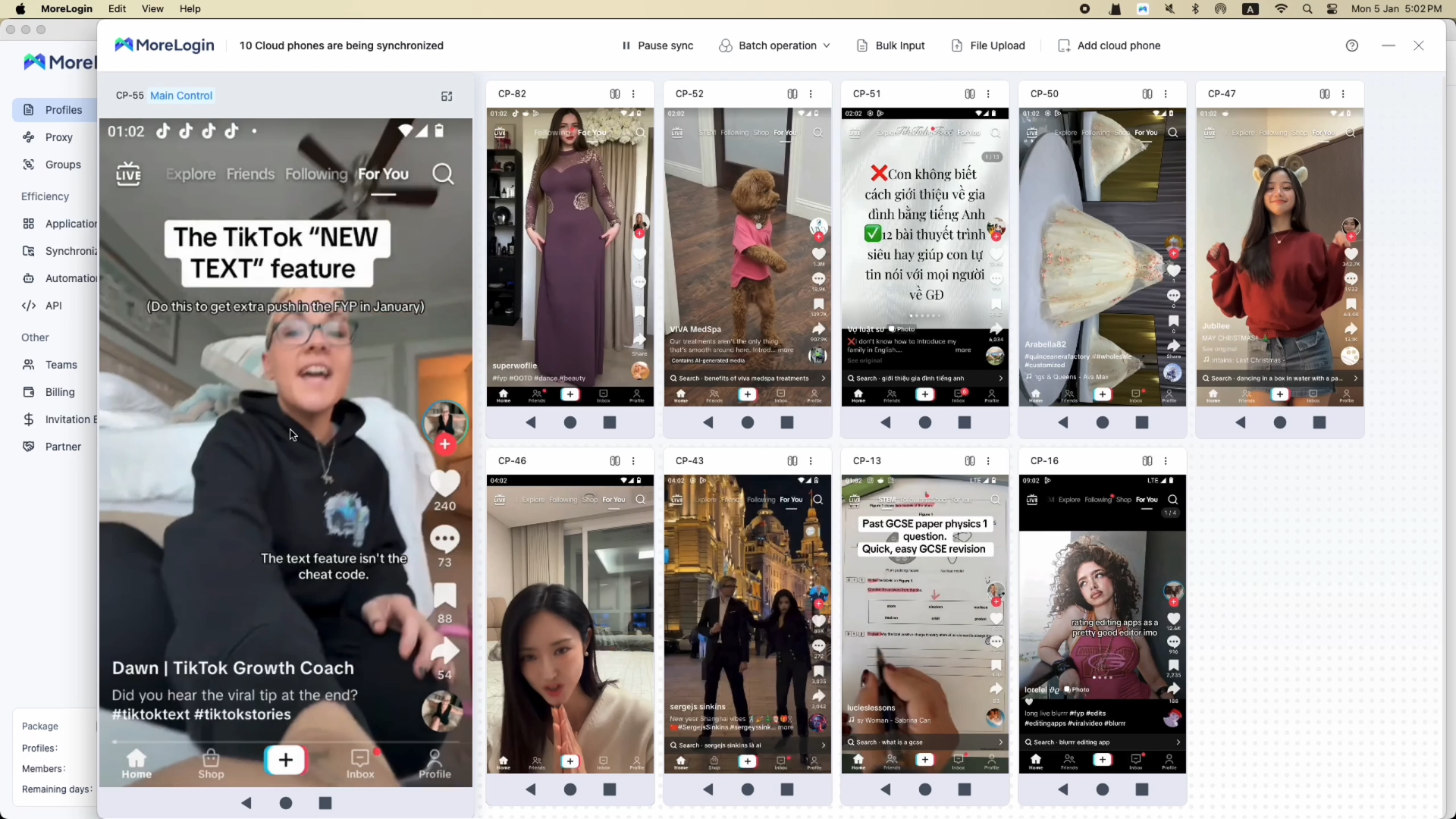
If you need to see whether an app fits your workflow, use the time on a task you actually do. Open the app, sign in, and complete one action you’d want to repeat. A successful file upload or a saved draft tells you more than opening the app and stopping at the home screen.
PhoneGrid adds 100 minutes to a new account automatically. They expire after seven days, so sign up close to when you intend to use them. You’ll need to configure your own proxy before the phone can connect to the internet.
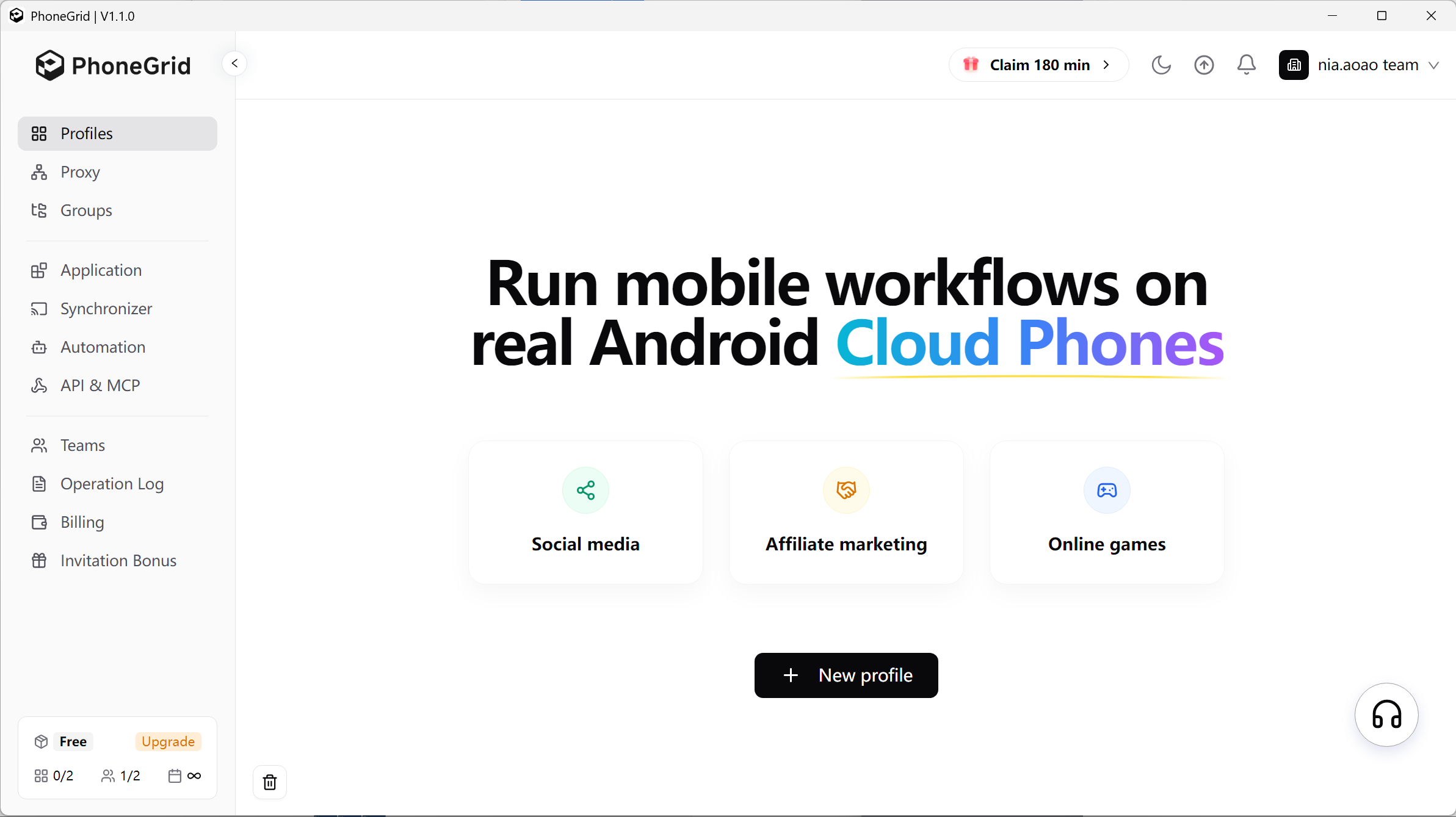
PhoneGrid also offers 180 minutes per person for a qualifying referral. The inviter joins the promotion and shares a referral link. The new user signs up through that link and receives the standard 100 minutes. To earn the bonus, the new user must log at least one hour of cloud phone use within seven days and use the phone on more than two qualifying days.
Once those conditions are met, both people receive 180 minutes. The invited user can receive 280 minutes in total. If you only plan to use the phone once, count on the 100 minutes that arrive at signup.
Multilogin lets you sign up for its free plan without a credit card. You get one cloud phone profile and 30 minutes of runtime. The client shows a separate allowance of 300 MB of proxy traffic. If you plan to upload media or stream video, check both balances. You can use a fair amount of data in a short session.
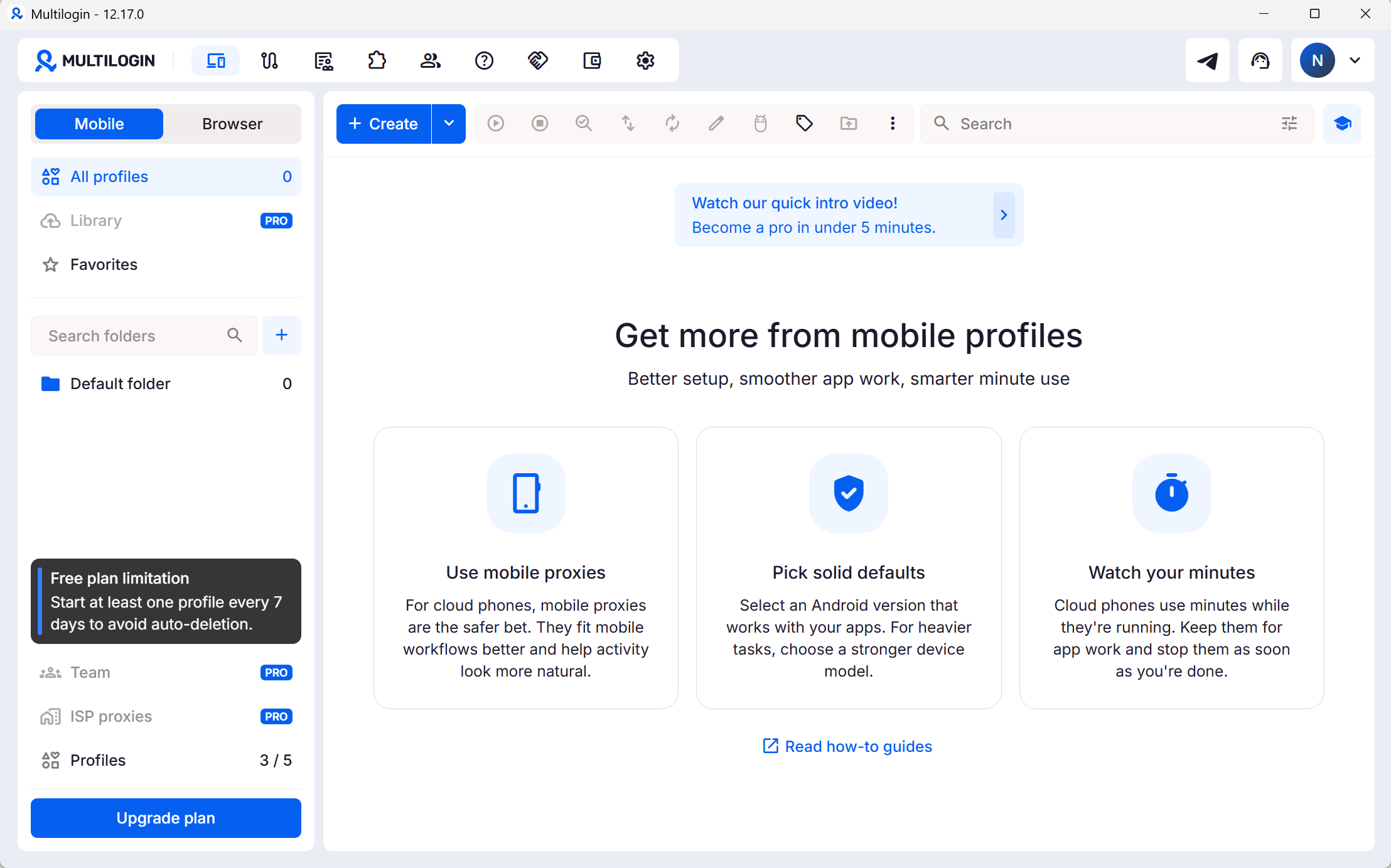
The plan allows up to five profiles in total, including a maximum of one cloud phone. That’s enough to try an Android task alongside browser sessions. If your workflow needs several Android devices, use the free session to see how one device handles the work before you pay for more.
UgPhone gives you a longer session for gaming. After signing up, claim 250 diamonds from the new user offer. Select a server and redeem the diamonds for a device you can use for four hours.
That gives you time to install a game, play it, and see how the connection holds up beyond the opening screen. After the trial ends, you can renew the device or buy another rental package.
The four offers above all limit free runtime. A free plan can stay open indefinitely while the minutes and the device follow different rules.
The plan. Multilogin’s free plan has no fixed end date. Your account can stay open after the 30 minutes run out. Starting the cloud phone again requires a paid plan.
The minutes. PhoneGrid’s 100 minutes expire after seven days. If you use 40 minutes on your first day, the remaining 60 still expire at the end of that window.
The device. Multilogin deletes free plan profiles after seven consecutive days of account inactivity. To keep those profiles active, start at least one profile every seven days.
If you’re only trying an app once, the runtime is what matters most. If you’re setting up a phone you’ll use again next week, check whether the provider will still hold the device and how much it will cost to start it again.
An extra hour of runtime costs $0.28 on MoreLogin or $0.36 on PhoneGrid. For one more session, the hourly cost is enough to estimate what you’ll spend on the phone itself. If you use the device regularly, count the days you expect to run it and how long it will stay on each day.
That schedule matters because MoreLogin’s cap is monthly and PhoneGrid’s applies per phone per day. Use your expected schedule to compare usage billing and monthly rental.
PhoneGrid uses free minutes before paid runtime. Once those minutes run out, it deducts from any purchased pack before charging your account balance. The pack of 3,000 minutes was listed at $18, and a $1.90 processing fee brought the checkout total to $19.90. If you only need a few more sessions, estimate what those sessions would cost before buying a pack.
PhoneGrid also sells a Base plan. One option in the client was $5 for 30 days, including five profiles and 50 minutes. The extra profile slots matter if you need more saved environments. If you already have enough slots, compare the price of buying minutes with paying for the runtime you expect to use.
With Multilogin, the first payment after the free allowance is a subscription. If you expect to need the phone only once more, check the price of that subscription before deciding to keep your work on the device.
Choose based on the first task you want to finish. If you have a proxy ready and want to try an Android app, start with MoreLogin. PhoneGrid is worth considering if you have a proxy ready and can use the minutes within a week. Multilogin suits a quick app check without entering card details. UgPhone gives you more time to play a game and see how it runs.
Once you’ve picked a platform, test the cloud phone before you pay by running a task you’ll need to repeat. If you expect to return to the same device, stop it and start it again to see whether you can pick up where you left off.
Can I install apps from Google Play on a cloud phone?
Yes, on MoreLogin. Sign in to your Google account inside the cloud phone and install the app from Google Play. The Android version, device settings, and Google account region can affect which apps are available.
Can a cloud phone receive SMS verification codes?
It needs an active number that can receive texts. A number displayed in the device settings can be part of the profile. If the app you need requires an SMS code, check whether the provider supports incoming texts before setting up the device.
Can I download files from a cloud phone to my computer?
Yes. In MoreLogin, open Upload & Download, choose Download File to Local Computer, then select where you want to save the file. The same panel lets you upload files from your computer.
Can I open the cloud phone from my own phone?
In MoreLogin, scan the QR code shown in the cloud phone controls with your physical phone. This opens the cloud phone on your mobile device.
Can I reset a cloud phone and start over?
MoreLogin’s Reset option restores the device to factory settings. It clears the apps and data stored on the phone, so export any files you need first.
Can two people use the same cloud phone?
MoreLogin lets a workspace admin grant team members access to an assigned device. Each person can use their own account to access the phone once they have permission.
 EN