- Product

- Pricing
- Affiliate Program
- Developers
- Resource
 EN
EN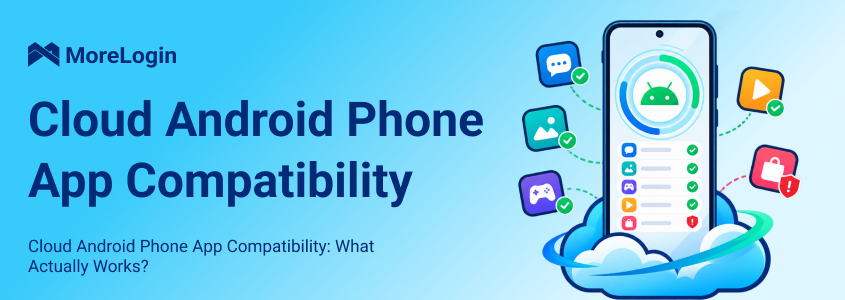
A cloud Android phone can run many of the same apps as a physical phone. Social media apps, ecommerce tools, messaging apps, productivity software, and mobile games are all common use cases.
The harder question is whether every feature will work.
An app may install and open without any problem. It can still fail during login, payment, identity verification, camera access, or background operation. Some apps also inspect the Android environment before allowing sensitive actions.
That makes the install button a poor measure of compatibility. The real measure is whether the full workflow works and remains stable after the device restarts.
No.
Most common Android apps can run on a well-configured cloud phone. Apps with strict security checks or physical hardware requirements are less predictable.
Compatibility usually depends on:
The Android version
The processor architecture
Google Mobile Services
Play Integrity and device certification
SIM, NFC, camera, GPS, and other hardware features
The network and account region
Available device resources
Banking apps, payment services, competitive games, enterprise security tools, and apps tied to a physical SIM need closer testing.
The claim that a cloud phone supports Android apps is too broad to be useful on its own.
Compatibility has several levels.
An app can pass the first three levels and still be useless for the intended workflow.
A marketplace app may open but block checkout. A messaging app may work until it requests an SMS code. A game may start and then stop at an integrity check.
This is the practical difference between knowing what a cloud phone is and knowing whether a specific app belongs on one.
Every app supports a limited range of Android versions.
Some apps require a recent release. Others have not been updated for the newest version. An app that runs well on Android 12 may behave differently on Android 15.
Google Play also filters apps before showing them. Its app compatibility rules allow developers to limit availability by Android version, screen size, device type, carrier, and location.
Check the app's Google Play page before creating a device. Look for:
The minimum Android version
The latest update date
Recent compatibility complaints
Country or device restrictions
Requirements published by the developer
The newest Android version is not automatically the best choice. The right version is the one the app supports and your workflow has already proven stable on.
MoreLogin's current setup documentation lists Android 12, Android 14, and Android 15 cloud phone models. Available models can change, so confirm the options shown in the client before preparing a larger rollout.
Most modern Android phones use ARM processors. Many Android apps are built for that architecture.
This gives an ARM-based cloud phone a stronger starting point than a desktop emulator that depends on x86 translation. Apps with native mobile libraries are more likely to run as expected.
That advantage is often overstated.
An app may still require:
A particular 64-bit library
A supported GPU feature
A specific graphics driver
A manufacturer service
A hardware-backed security component
A sensor that the cloud environment does not provide
ARM makes the environment more suitable for mobile apps. It does not reproduce every physical phone feature.
This matters when comparing a cloud phone with an Android emulator. Processor architecture is one difference. The app can still inspect the system, hardware signals, and security state.
MoreLogin describes its Cloud Phone as a device running on cloud-based ARM chips. Its product page also states that MoreLogin Cloud Phones run on ARM servers with a genuine Android system.
Android and Google Mobile Services are separate layers.
The Android Open Source Project provides the core operating system. Google Mobile Services provides Google Play, Google Sign In, push notifications, Maps integrations, and other APIs used by many apps.
A cloud phone may run Android without full Google services. It may also include Google Play while lacking another service needed by the app.
This can lead to several outcomes:
The app is not visible in Google Play.
An APK installs but Google Sign In fails.
The app opens but push notifications do not arrive.
Maps or location features behave incorrectly.
A payment feature cannot complete its security check.
The presence of Google Play is useful. It is not proof that the whole app will work.
MoreLogin currently provides two direct installation methods inside a cloud phone. Users can install an app from the application market or open Google Play and install it there. A Google account is required when downloading through Google Play.
That confirms the available installation routes. It does not remove the need to check the app after installation.
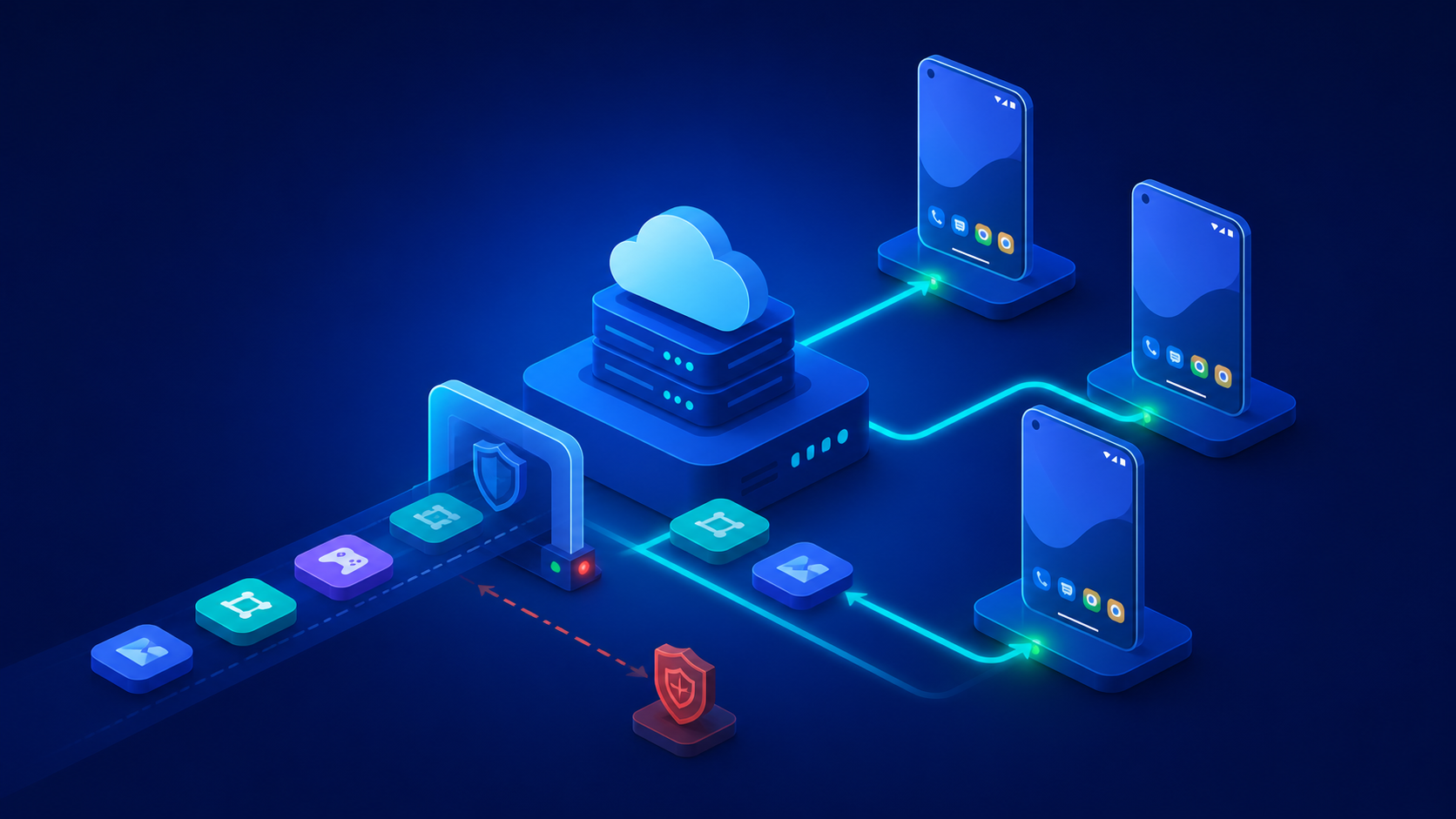
Some apps inspect the device before allowing login, payments, protected content, or competitive play.
The Play Integrity API can help an app evaluate its package and device environment. Developers may check whether the app came from Google Play, whether it was modified, and whether the device meets a required integrity level.
Apps may also react to:
Root access
Modified system files
Failed device certification
Unusual system images
Virtualization signals
Automation tools
Conflicting device information
Network and account inconsistencies
A social media scheduler and a banking app do not apply the same checks. Two banking apps may not apply the same checks either.
This is why universal compatibility claims are unreliable. A device that works for one protected app may fail another. The outcome can also change after an app update.
ARM infrastructure alone cannot guarantee an integrity result.
MoreLogin allows ROOT to be enabled for selected apps on Model X devices through its Cloud Phone Apps interface. ROOT can change how security-sensitive apps evaluate the device. Leave it disabled unless the workflow has a clear technical reason to use it.
A cloud Android environment can reproduce many phone functions. Some app features still depend on hardware.
Common examples include:
A physical SIM or eSIM
SMS and voice calls
NFC
Bluetooth
Fingerprint recognition
Face recognition
Front and rear cameras
A microphone
GPS
Motion sensors
Licensed DRM components
Providers handle these features differently.
A service may supply virtual GPS data. It may forward a computer camera into the cloud phone. It may accept a video file as camera input. Another service may not support that workflow at all.
SIM information causes particular confusion. A cloud phone can display carrier parameters without having an active number. That does not give it the ability to receive SMS or make calls.
The useful question is not whether a provider lists a feature. It is how that feature behaves inside the target app.
MoreLogin's current Cloud Phone instructions support camera and microphone streaming. They also support streaming an uploaded MP4 video file into a live streaming platform. These functions should still be checked inside the target app before a production broadcast.
An app can be compatible with the Android device and still be unavailable to the account.
App stores and developers may consider:
The Google account country
The network IP address
The system language
The time zone
Carrier information
The account registration country
Local distribution rules
This is why an app can appear for one Google account and disappear for another. The app may also install normally but hide certain payment, streaming, or marketplace features.
The network, account market, time zone, and language should form a sensible setup. That consistency does not override the app's rules or guarantee account approval.
MoreLogin can automatically match the time zone, language, and location to the cloud phone IP. Users can also select these settings manually. According to the current setup instructions, a usable SOCKS5 proxy is required to start a MoreLogin Cloud Phone.
Technical compatibility does not guarantee a useful experience.
A cloud phone runs remotely. The screen is streamed to the user, and input is sent back to the Android environment. Performance depends on both the cloud phone resources and the route between the user and the server.
Important factors include:
RAM
CPU and GPU resources
Available storage
Network bandwidth
Streaming latency
Server location
Background apps
The number of active devices
Content publishing and inbox management can tolerate more delay than a competitive game or live camera workflow.
A game may install and launch but feel too slow to play. A video app may work with small files and fail during a large upload. Those are compatibility problems in practice, even when the app technically runs.
MoreLogin shows the remote connection state through a signal indicator and allows users to switch to a lower-latency connection line on supported cloud phone versions.
The app category can reveal likely problems before any device is created.
Social media apps are common on cloud phones, but the exact workflow still matters. Posting an image is not the same as recording a live video. Reading messages is not the same as completing an identity check.
Games also vary. An idle game may work well with moderate latency. A fast multiplayer game may not. Game security checks add another variable.
Banking and payment apps are the least suitable category for assumptions. Their security models often depend on certified devices, biometrics, NFC, and hardware-backed features.
There are three common ways to install an app.
A built-in app marketplace is convenient when several devices need the same approved application.
The version still needs to be checked. A provider's marketplace may not always carry the newest Google Play release.
MoreLogin's Cloud Phone Apps page lets users add applications from the App Store or through an installation package. An app can be enabled for all cloud phones or for selected groups. Once enabled, it is automatically installed on cloud phones within that scope.
This removes repeated installation work after the app has been approved for the workflow.
Google Play is normally the best source for the official package and future updates.
It also applies the developer's compatibility filters. If an app is missing, the Android version, device profile, Google account country, or certification status may be responsible.
Installing through Google Play confirms that the package was available to that device. It does not confirm that every feature will work.
An installation package can be useful when an app is not available in the provider marketplace.
It also introduces more uncertainty. The file may be outdated, modified, signed by another publisher, or built for the wrong architecture. Some apps also care whether the package came from Google Play.
Use a package from the official developer or another source your organization already trusts. Confirm the package version, signature, and processor architecture.
MoreLogin supports both App Store and Installation Package methods when users add applications through Cloud Phone Apps. Users can also upload files from a computer to a cloud phone and download files back to the local computer.
The stage at which the app fails usually points to the cause.
Not every login error is caused by the proxy. A proxy cannot provide a missing security module. It cannot add NFC or repair an unsupported native library.
Start with the failed layer. Availability problems need a different response from installation problems. Installation problems need a different response from integrity failures.
Testing one device tells you more than a long feature list.
Before expanding, check the app in the same conditions the team plans to use:
Confirm the minimum and recommended Android versions.
Check whether the app depends on Google Play Services.
List any required hardware, including SMS, camera, GPS, NFC, or biometrics.
Confirm country, carrier, and device restrictions.
Create one cloud phone with a suitable Android version.
Install the official app.
Complete login and verification.
Run the main task from start to finish.
Check notifications, files, camera access, and location where relevant.
Stop and restart the cloud phone.
Confirm that the login state and app data remain.
Record the Android version, app version, date, and result.
A short record prevents the team from repeating the same investigation later.
Run the check again after a major Android or app update. Compatibility can change without any change to the cloud phone provider.
Do not use Reset or One-Click New Device as part of a normal restart test. MoreLogin states that Reset restores factory settings. One-Click New Device also erases all app and account data, and that data cannot be recovered.
MoreLogin Cloud Phone runs on cloud-based ARM chips with a genuine Android system. It supports remote Android access without requiring users to buy or maintain physical phone hardware.
Start with one profile and select an Android version that the target app supports. Add a usable SOCKS5 proxy, then set the time zone, language, and location. Install the official app through the application market or Google Play. Complete the intended task and restart the cloud phone.
That single cycle reveals more than a list of supported apps.
Once the workflow is stable, MoreLogin provides several ways to manage it across more devices:
Cloud Phone Apps can install approved applications across all cloud phones or selected groups.
Synchronizer can link mouse and keyboard operations across cloud phones.
Batch Upload can send photos, videos, and documents to multiple cloud phones.
Team permissions can control which members can access assigned devices.
RPA can run workflow-based automation tasks.
Developers can create and control devices through the Cloud Phone API. The current API supports app installation, app lifecycle management, file uploads and downloads, proxy configuration, scheduled tasks, and ADB debugging.
Automation should come after the manual workflow is stable. Automating an unreliable setup only makes the failure harder to trace.
App compatibility is also one part of choosing a cloud phone. Runtime, device resources, data retention, proxy requirements, and team access matter once the workflow grows. Those factors also affect the real Android cloud phone cost, which is rarely limited to the price of one device.
No.
Common social media, ecommerce, messaging, productivity, and gaming apps often run normally. Apps that require strict device certification, physical SIM functions, NFC, biometrics, licensed DRM, or high integrity results require individual verification.
Yes. MoreLogin's current Cloud Phone instructions list Google Play as one of the supported app installation methods. Users need to register or sign in to a Google account before downloading an app.
The app may still be unavailable when its Android version, device, account region, or certification requirements are not met.
Yes. MoreLogin Cloud Phone Apps supports adding an application through an Installation Package. The app can then be enabled for all cloud phones or selected groups.
The package should come from the official developer or another trusted source. Its Android version, processor architecture, and signature must match the device.
Some may work. Others will block the device or disable sensitive functions.
Banking and payment apps often rely on device certification, Play Integrity, NFC, biometrics, and hardware-backed security. They should never be treated as generally compatible.
A cloud phone should not be assumed to have an active number simply because it displays SIM or carrier information.
MoreLogin's current Cloud Phone pages do not state that each device includes an active SIM, SMS number, or voice calling service. Use only a verification method accepted by the target app.
The developer may have excluded the Android version, device type, screen profile, carrier, or country. Device certification can also affect availability.
Installing a package manually may solve a store availability problem. It does not fix an underlying hardware or certification requirement.
Closing the local computer is not the same as powering off the cloud phone. The cloud phone must remain active, and the Android app must be allowed to continue in the background.
MoreLogin also provides an optional Money-saving Mode. When enabled, it detects 15 minutes of inactivity and automatically powers off the cloud phone to reduce usage costs.
Most cloud Android phones can run common Android apps. Problems appear when the app depends on strict integrity checks, physical hardware, Google services, regional rules, or demanding performance.
Install the official app on one supported Android version. Complete the real task. Restart the device. Check what remains.
If that cycle works, the setup may be ready to scale. If it fails, the point of failure will usually tell you what the app actually requires.
New MoreLogin users currently receive two permanent free profiles and 100 minutes of cloud phone usage. That is enough to run an initial compatibility check before adding more devices.

 EN
EN