- Product

- Pricing
- Affiliate Program
- Developers
- Resource
 EN
EN
An operator taking over a client account should be able to find the right device, open the approved file and continue the next task. If each step requires a call to the previous operator, the handoff is still unfinished.
Keep the client’s Android workspace in MoreLogin Cloud Phone tied to the project. Give members the device access they need, and record who handles files, approvals and account recovery. When someone changes roles, update those responsibilities along with their access.
Start with the person who controls the registration email, recovery number and verification methods. That person needs to remain reachable when the app requests a login code.
Then name the operator, backup and reviewer. These jobs can belong to different people.
Store passwords and recovery codes in the team’s credential system. Put the recovery contact in the handoff record so an operator can find help without searching through old messages.
Manage platform publishing rights through the platform’s own roles. Assign access to the Android workspace in MoreLogin. Record who maintains each set of permissions.
Replace names such as Device 08 with the client, app, market and purpose. Client A Instagram US Publishing tells an operator where to start.
Group devices by client or project. Use tags for states that affect the next action, such as Awaiting Approval or Paused. A note should identify the pending file or blocker.
MoreLogin provides groups, tags and notes for cloud phones. When you move a device between groups, check the members who can access it. A tidy device list is useful only if the access matches the assignments.
Open Team to review existing members or invite someone new. The role list includes Super administrator, Administrator, Manager and Employee.
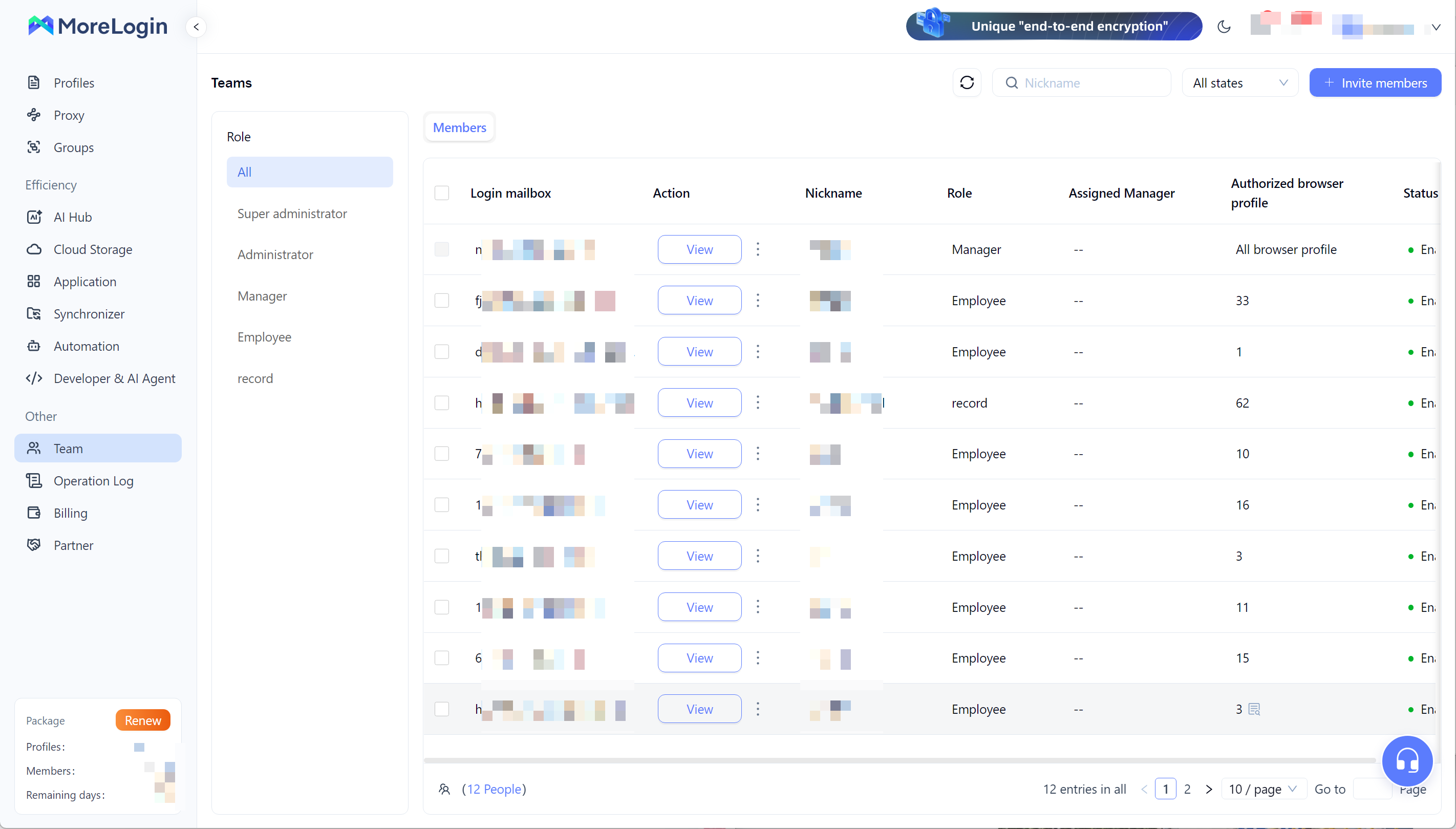
Choose the role around the member’s work. Review its feature permissions before assigning it. Members in the same role share those permissions.
The member list shows each person’s role, assigned manager and authorized browser profiles. Use it to check existing assignments before changing access.
Review the role and permissions needed for the job.
Select Invite members and enter the member’s details.
Assign the appropriate role and access scope.
Have the member accept the invitation and enter the correct team.
Test the assigned cloud phone from the member’s account.
For Client A, Sam should be able to open the device needed for the handoff. Check that access directly rather than relying on the browser profile count in the member list.
For reviewers, decide where the review happens. Someone approving files in the project system may not need device access. Someone checking the result inside the app does.
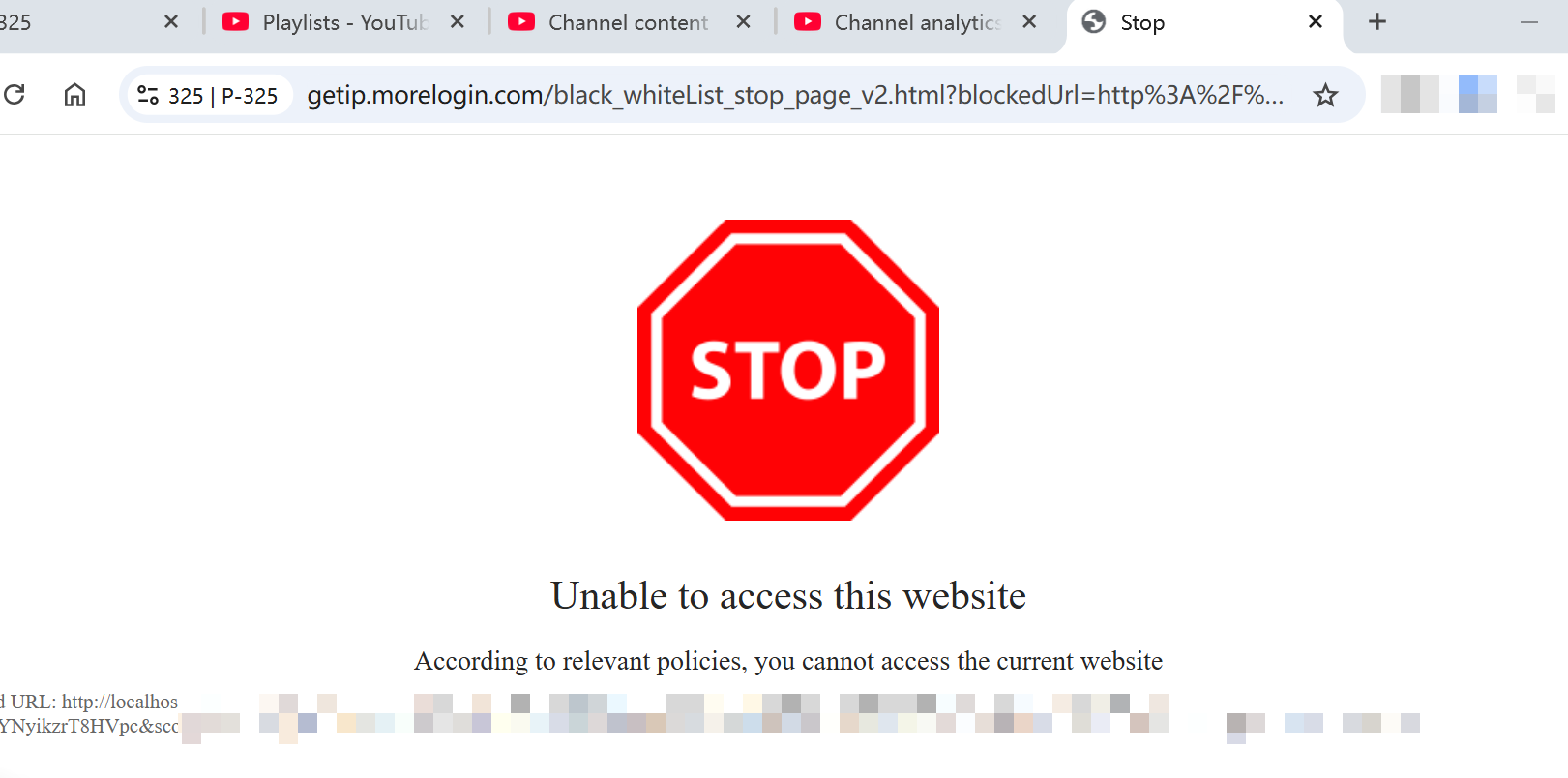
Some client tasks also require a browser profile. For that part of the work, URL access restrictions can limit which websites a member can open. Configure those rules around the pages needed for the assigned task.
Write the handoff record before changing access. Include the device, app account, approved files and unfinished tasks.
Give files an identifier that both operators understand. C104 Approved is easier to follow than latest video. Add a revision when the client changes the file.
Put the approved image or video in Cloud Storage so the next operator can preview the exact file. Keep the approval decision with the task.
Include decisions that affect the work. If the client rejected a caption, leave the approved replacement. The next operator should not have to reconstruct the decision from a long chat history.
Check existing cloud phone automation for the device before scheduling another run. An upload may already be queued even though the outgoing operator has finished their shift.
Record the target device, input file, run time, status and person handling exceptions. Decide which tasks should continue, change or stop.
If a task uses Commander, record the cloud phone selected with @ and the requested stopping point. The device must be online, and an interruption may need someone to step in.
A task that prepares a file for review needs a different stopping point from one that publishes it. Make the instruction clear before another operator takes responsibility.
For a failed task, record the step that failed and what has already happened. This helps the next person avoid repeating an action that succeeded earlier in the run.
Contact the person listed for recovery and confirm that they still handle the account. Check who can reach the registration email, phone number and verification app.
The app may already be signed in. If it requests verification during the handoff, the operator needs to know how to get the code. Record the contact method before the outgoing person becomes unavailable.
Suppose Sam takes over Client A’s Instagram publishing, while Alex remains the backup for Client B.
Give Sam access to Client A’s device and the handoff record. Have Sam open the account and locate C104 Approved before removing Alex’s access to that project.
Keep Alex’s Client B access. If Alex remains Client A’s backup, record that assignment too.
The device can stay in the same workspace. Changing the operator usually means updating access and responsibilities.
Separate a project ending from a person leaving the team. For a contractor finishing Client A’s work, review that project’s access. For an employee leaving the company, review all their assignments.
MoreLogin provides controls to disable or delete team members. Before using them, record who will take over unfinished work.
Also check access outside the MoreLogin workspace.
Platform administrator and partner permissions
Trusted devices and existing sessions
Recovery methods controlled by the departing person
Project automation and API credentials
Client files stored elsewhere
Where credentials were shared directly, have the account owner review them. Check running and scheduled tasks separately, then record who will continue them or confirm they have stopped.
Use cloud phone transfer when the device needs to move beyond the current team arrangement. This can arise when a client takes the work back or another team assumes responsibility.
MoreLogin makes Transfer available to Super administrators and Administrators. Transfers cannot be undone. The transfer options can also include your own proxies and proxy notes.
Confirm the recipient, selected devices and proxy choices before proceeding. Check the transfer screen for its current recipient requirements and included resources.
Agree on billing responsibility and resolve pending tasks. Give the receiving team a list of files, app accounts and contacts to check.
Handle platform administrator and business asset changes separately. The client needs to review those permissions as part of taking the work back.
Have Sam open Client A’s device from Sam’s own team account. Check the app identity, locate C104 Approved and review the pending draft.
Use a small task that stops before publication. This tests whether Sam has what is needed to continue without creating an unnecessary client post.
If verification appears, use the recorded contact. After a device transfer, also check the receiving team’s network access and required files.
Test the access that should have ended. Check whether the former operator can still see or reopen the relevant device.
If the device was already open, check that connection too. Record the result separately from the device list check.
Confirm the platform permissions and automation changes made for this handoff. Assign any unresolved item to someone who can finish it.
For a partial handoff, keep the test limited to the agreed project. Access to other clients may still be required.
Have the Super administrator review the cloud phone access records. Check the operator and time around the handoff, then review device startup and shutdown events and relevant profile changes.
Compare those records with the access tests. If a configuration changed, identify who made the change before the next operator continues.
Confirm publishing and messaging results inside the app or task record. A device startup event tells you the device was accessed. The post or reply needs its own result check.
Close the handoff when the new operator can continue, the agreed access changes have been checked and every remaining task has an owner.
Can team members share access to a MoreLogin cloud phone?
Yes. Administrators can assign members access to specific cloud phones. Check the member’s device scope and role permissions before client work begins.
Can I hand over a client workflow without sending the password again?
An active app session may let the next authorized operator continue without receiving the password again. Keep the recovery contact available for verification requests.
Can a contractor access only the cloud phones needed for a project?
Assign the required devices and check the result from the contractor’s account. Review that access when the project changes or ends.
Should I transfer the cloud phone when an employee leaves?
For a replacement in the same team, adjust access to the existing device. Review Transfer when the device itself needs to move to a receiving account or team.
What can operation logs confirm after a handoff?
They can help check supported device access and management events. Verify posts, replies and other business results in the relevant app or task record.

 EN
EN