EN
EN
Instagram operations rarely break because someone cannot log in. They break because the right phone is in the wrong place. A draft sits on a manager's personal device. A client needs a post changed after the operator has gone home. Nobody is sure who still has access.
A cloud phone for Instagram can remove that friction. It gives the team a remote Android workspace for the Instagram app. The value is not simply another place to log in. It is a device state that can stay with the account instead of one employee.
For one person with a few accounts, Instagram's own tools are usually enough. Meta Business Suite also covers much of the routine publishing and inbox work. A cloud phone starts to make sense when the workflow still depends on the Android app, separate client workspaces, or handoffs across locations.
The setup should answer three questions before anyone posts. Which account belongs on this device, who owns recovery, and who can operate it.
Start with one device. A large rollout can hide simple problems such as weak video upload, unclear ownership, or the wrong permission setup.
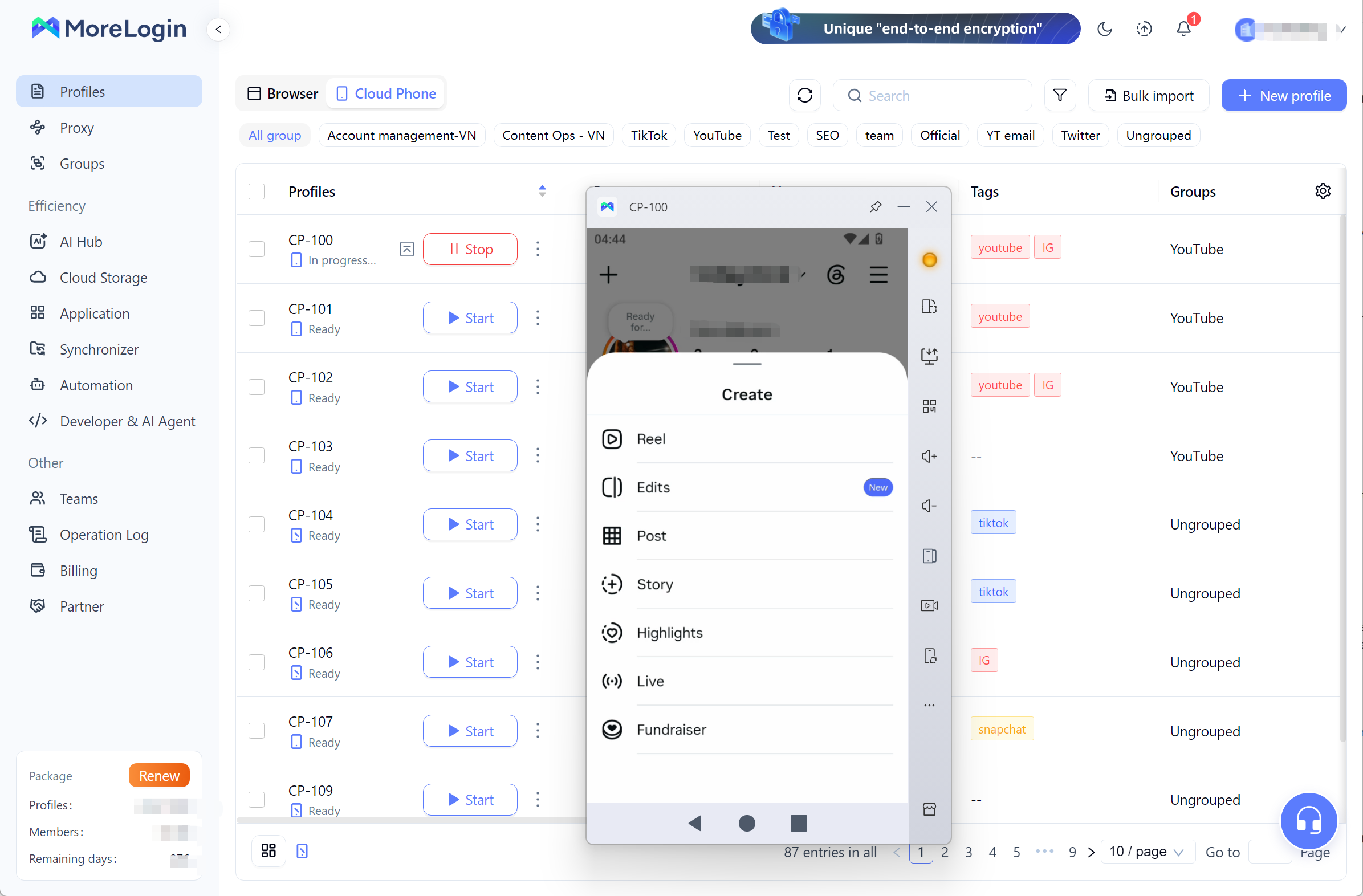
Create a MoreLogin Cloud Phone and name it by brand, market, or client. Client A Instagram is useful. Device 03 is not. The name should tell an operator what belongs there before the phone opens.
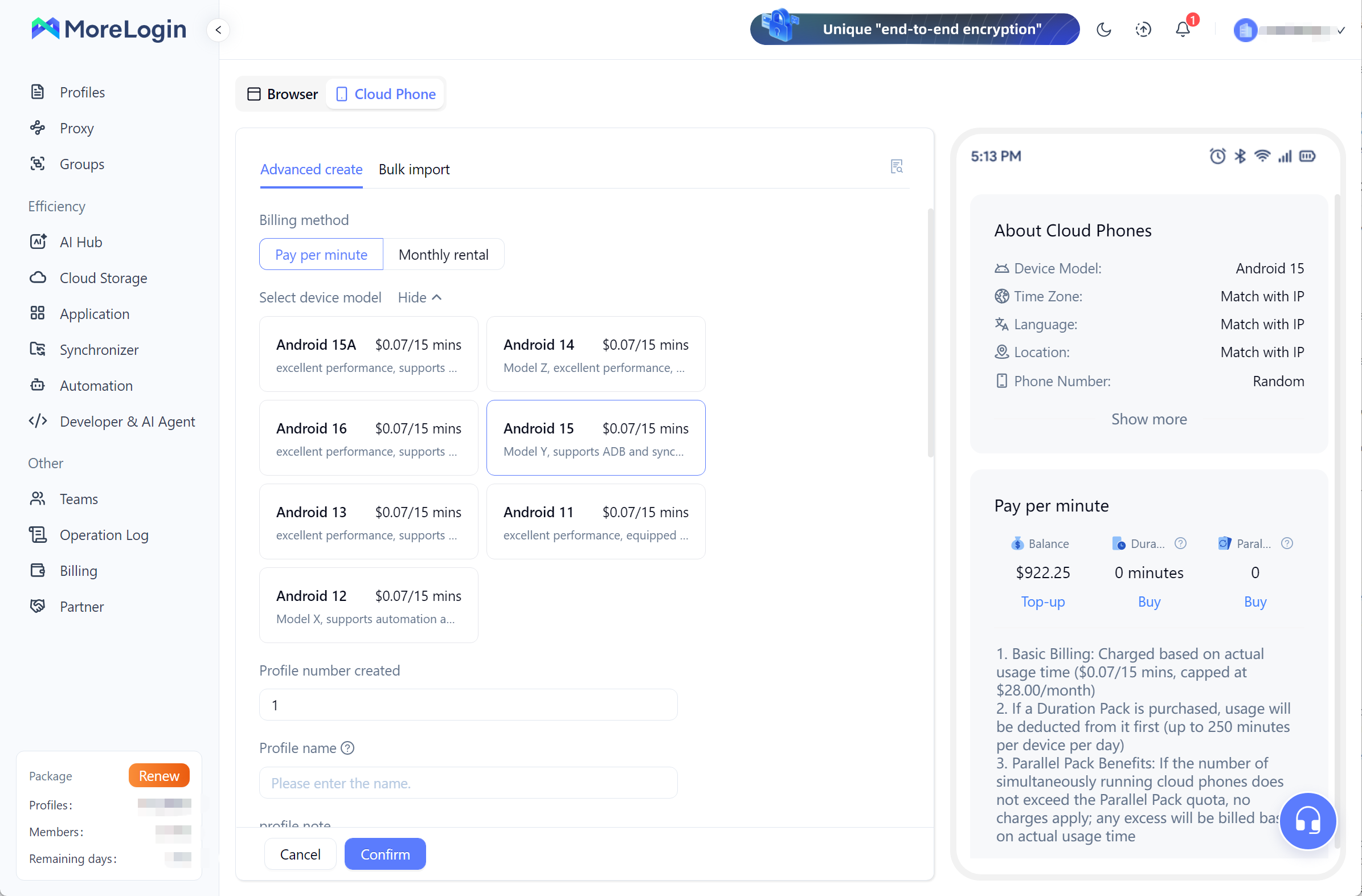
Choose from actual runtime, not the lowest advertised price. Short checks may suit minute billing. Daily publishing and inbox work may be easier to budget with a fixed rental.
Confirm the Android version, storage, and data retention rules. If an inactive plan can remove the app state or uploaded media, that affects the operating process, not just the bill.
Install the official Instagram app from a trusted app store and check the publisher before signing in. An account may contain private messages, customer details, and years of brand work.
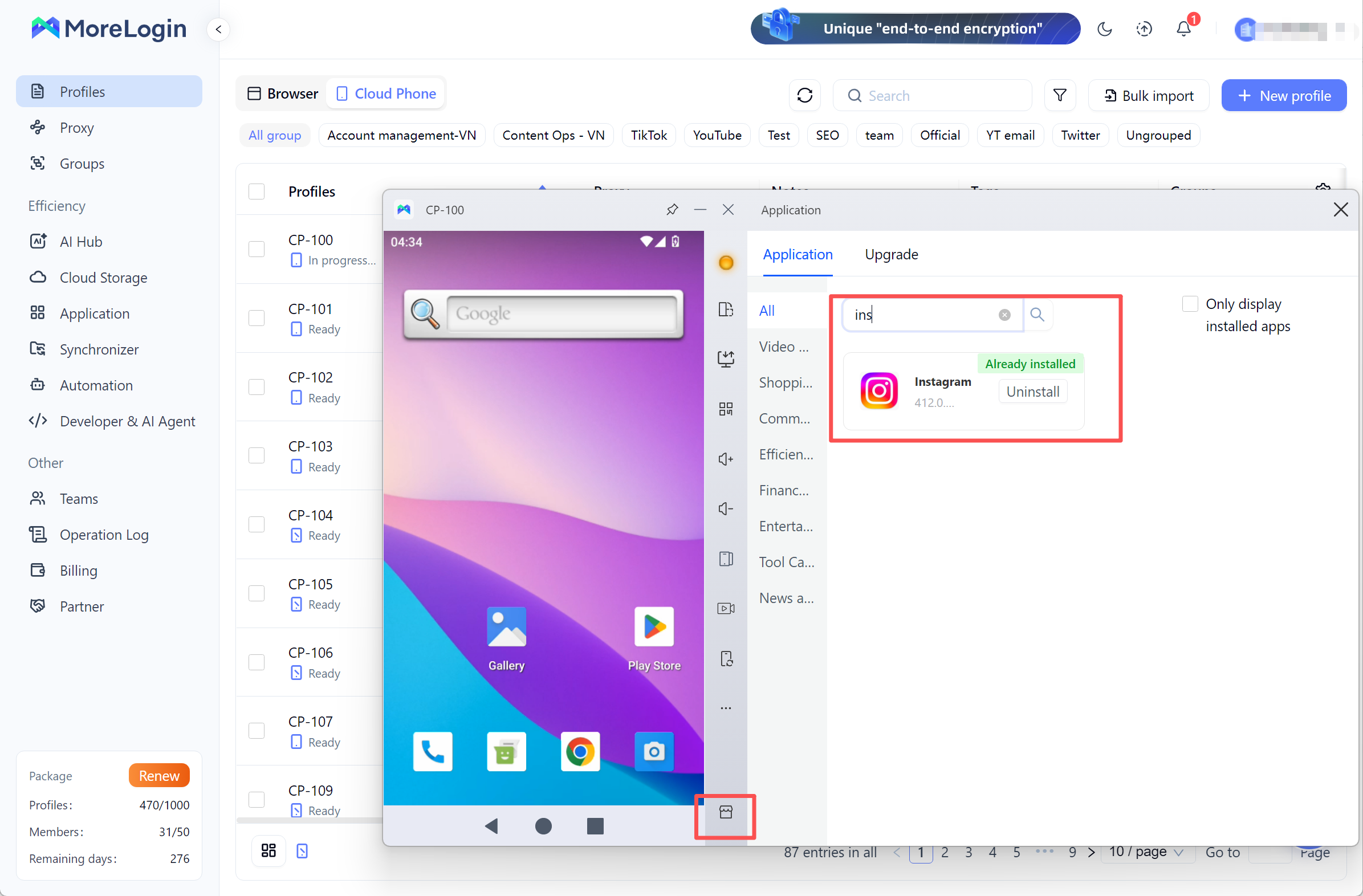
Open the feed, profile, notifications, and content screen. A successful installation means little if the parts your team uses do not work on that Android version.
Only add an account that you own or have permission to manage. Keep the owner available during the first login because Instagram may request a code or approval from another device.
For client work, record who controls the email address, phone number, and recovery method. The agency can run daily tasks without taking ownership of the account.
Use two factor authentication and keep recovery codes in an approved password manager. An authentication app is often easier to govern than sending every code to one employee's phone.
Check recent login activity after setup. An unexpected device or location is a reason to stop and investigate, not a prompt to click through.
Upload one test image and one short video. Check the crop, playback, sound, and final quality inside Instagram. That test is more useful than assuming every file that uploads is ready to publish.
Use file names that show the client, campaign, content type, and date. MoreLogin can handle approved text and files through its Cloud Phone Synchronizer. Treat it as a workflow tool, not a shortcut for spam or fake engagement.
Assign access by job. The account owner keeps recovery control. An administrator manages the device. An operator handles approved posts. A reviewer checks the result.
Cloud phone access does not replace Instagram Shared Access or Meta Business Suite permissions. Use Meta's permissions for work they already cover. Use the cloud phone when the task still needs the Android app.
Finish with one low risk test post. Check the caption, crop, audio, tags, and final quality. Then revoke one test user's access. A setup is not ready until both publishing and offboarding work.
A cloud phone is a remote Android environment. The screen appears on your computer, while the Android workload runs elsewhere.
For Instagram, persistence matters more than the definition. The app, login state, and uploaded media stay with the workspace between sessions. When another operator takes over, the work does not have to move through a personal phone.
MoreLogin runs its cloud phones on cloud based ARM infrastructure. Teams can name, group, start, stop, and assign devices from one workspace.
Providers build cloud phones in different ways. Some connect users to remote physical devices. Others provide hosted Android environments. Check the device type, Android version, storage, network options, and retention policy before treating two offers as comparable.
Account count is a poor reason to buy a cloud phone. Operational friction is a better one.
An agency may handle a restaurant, a fitness coach, and a software company. Their drafts, media, notes, and recovery details should not sit in one shared pile.
A separate workspace keeps each client's app state and files together. Names, groups, and tags can show the client, market, owner, and status before an operator opens the device.
Instagram lets one user add and switch between up to five accounts. That is practical for a small setup. Beyond that, managing multiple Instagram accounts becomes an ownership and access problem, not just a switching problem.
Many teams prepare assets on a computer but finish the post in Instagram. The operator can check the crop, caption, tags, and audio in the same app the audience will use.
A cloud phone keeps that app based step without tying it to one physical device. It is useful for approved Reels, posts, and Stories that still need a mobile review.
Do not add another tool when Meta Business Suite already covers the job. The cloud phone earns its place when the Android app remains part of the actual publishing process.
Remote work gets awkward when account access lives on one employee's phone. A manager finishes her shift, but a teammate in another time zone still needs to publish an approved Story.
With a remote workspace, the next operator can continue from the existing app state. The handoff still needs an owner, an approval rule, and a clear way to remove access. The device solves the distance problem. It does not solve weak governance.
A few physical phones are easy to understand. The setup stops being simple when charging, updates, repairs, storage, and access become someone's weekly responsibility.
Cloud phones trade hardware work for runtime, storage, and network costs. That trade can be worthwhile for a distributed team. It is less convincing when one person works beside two reliable phones.
Use the simplest option that covers the task. Move to a cloud phone only when the device itself has become part of the problem.
For a solo operator, Instagram's account switcher is the first option to test. For publishing, messages, and comments, Meta Business Suite and Shared Access usually provide the cleaner permission model.
A cloud phone becomes the stronger choice when the team needs persistent Android workspaces and remote handoffs. The choice between a cloud phone and an Android emulator then comes down to remote access, local resource use, and whether the device state needs to survive between operators.
Do not buy a cloud phone for promised reach or ban immunity. Device management is the benefit. Instagram still evaluates the account, content, activity, and policy compliance.
The Instagram Terms of Use restrict unauthorized automated account creation, access, and data collection. A synchronizer does not turn spam or fake engagement into an acceptable workflow.
Content rights still apply. Teams need permission for the video, image, and music they publish. Sponsored work may also need the proper disclosure tools.
Cloud phones have operational limits. Weak connections add latency. Live video, camera, microphone, notifications, and sensor based features may work better on a physical phone. The monthly cost can also grow through runtime, storage, network services, and team seats.
MoreLogin Cloud Phone is worth testing when:
Your team needs to hand mobile tasks between approved operators
Client assets should stay outside personal phones
You need several named and organized Android workspaces
Maintaining physical phones is taking too much time
Your local computer struggles with several Android emulator instances
Stay with simpler tools when:
One person manages only a few accounts
Meta Business Suite covers your publishing and communication work
Most content is filmed and published live from one location
Your goal is to bypass Instagram rules or automate fake engagement
Test one authorized account before expanding. Measure upload quality, connection stability, handoff time, access removal, and monthly cost. Those five checks reveal more than a feature list.
What is a cloud phone for Instagram?
It is a remote Android workspace for the Instagram app. The app state and files stay with the workspace, so an approved operator can access them from a computer without taking possession of a physical phone.
Can I install the official Instagram app on a cloud phone?
Yes, if the device supports the required Android version and a trusted app store. Check the publisher, then test the feed, notifications, media upload, and publishing screen before adding more accounts.
Can I manage multiple Instagram accounts with a cloud phone?
Yes, for accounts you own or have permission to manage. The practical limit depends on the plan, device capacity, and team process. Adding devices without clear ownership usually creates a larger access problem.
Do I need a cloud phone if I already use Meta Business Suite?
Maybe not. Meta Business Suite handles many publishing, message, comment, advertising, and permission tasks. Add a cloud phone only when the workflow still needs the Android app or a persistent remote device.
Is a cloud phone better than an Android emulator for Instagram?
It depends on the task. An emulator can cover short tests and light use. A cloud phone is the better fit when remote access, lower local resource use, and persistent device state matter to the team.
Does a cloud phone prevent Instagram bans?
No. Account history, content, behavior, security, and policy compliance still matter. Use the device for authorized work and follow Instagram's current terms and community rules.

 EN
EN