EN
EN
Creating a YouTube account should not take long. Still, the first screen can be confusing. A Google Account, a YouTube account, and a YouTube channel do different jobs.
You sign in to YouTube with a Google Account. If you use Gmail, Google Drive, or Google Photos, you probably have one already. The same email address and password will work on YouTube.
Once signed in, you can like videos, subscribe, and use Watch Later. You need a channel to upload videos, comment, or make playlists.
This guide shows how to create a YouTube account on a computer, Android phone, iPhone, or iPad. It also explains how to set up a channel, verify it, and protect your login.
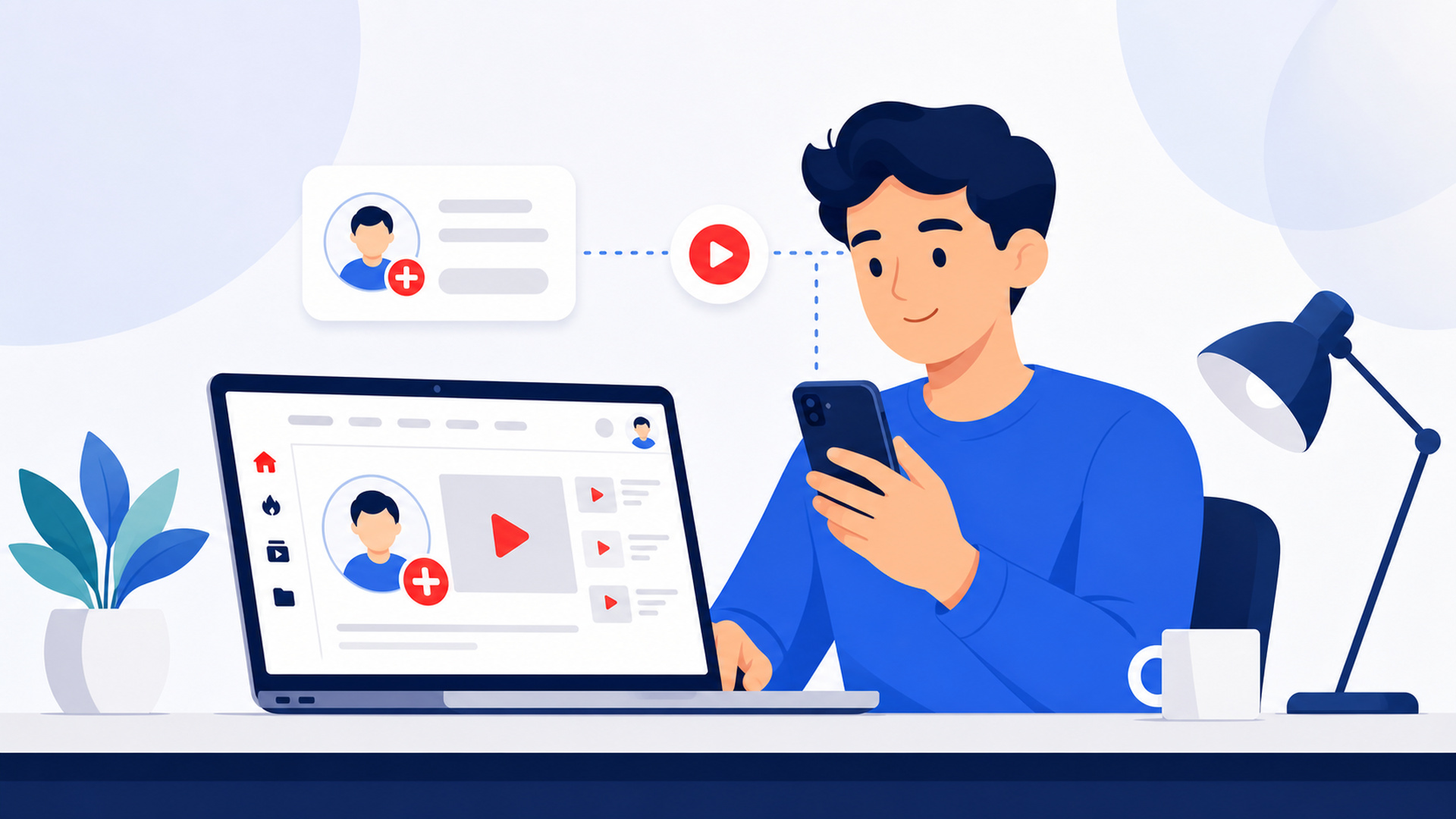
You only need a few things before you start:
A computer, phone, or tablet
A stable internet connection
A current browser or the official YouTube app
An existing Google Account or the details needed to create one
Access to a recovery email address or phone number
YouTube may ask whether the new account is for personal use, a child, or work and business. Pick the option that matches your real purpose.
A personal account suits most viewers and individual creators. The business option may suit a company project. A child may need supervision through Google Family Link.
Set up recovery before you publish. It feels minor now, but it matters after months of work. Add an email address you check often and a phone number that belongs to you. Choose a unique password as well.
The basic process is the same on every device. You create or select a Google Account. Then you use it to sign in to YouTube.
The buttons appear in different places on desktop and mobile. Use the steps below for your device.
These steps work on a Windows PC, Mac, Chromebook, and most other computers:
Open a browser and go to YouTube.
Click Sign in in the top right corner.
Click Create account if you do not have a Google Account.
Choose For my personal use, For my child, or For work or my business.
Enter the personal details requested on the screen.
Choose a Gmail address or use an eligible existing email address.
Create a strong password.
Complete any identity check shown by Google.
Return to YouTube after registration.
Your profile icon should now appear in the top right corner. It confirms that YouTube recognizes your Google Account.
If you already have a Google Account, click Sign in and use your current credentials. You do not need another login for YouTube.
The current YouTube account creation steps also show options for personal, child, and business use.
Many Android phones already have a Google Account connected to the device. You can use that account or add another one.
Open the YouTube app.
Tap the profile picture in the bottom right corner.
Tap Sign in.
Tap Add account.
Tap Create account if you need a new Google Account.
Choose the account type.
Follow the registration and verification prompts.
Return to the YouTube app.
If you are already signed in, open your profile and go to Settings. Use the account section to add or switch accounts.
Check the selected email before continuing. It is easy to choose a personal address when you meant to use a work account.
You can sign up through the YouTube app or a mobile browser.
Download the official YouTube app from the App Store.
Open the app and tap the account icon.
Tap Sign in.
Select an existing Google Account or add another account.
Follow the Google registration screen if you need a new account.
Complete any identity check that appears.
Return to YouTube and confirm the email address shown in the profile menu.
You can also use Safari. Your Apple ID does not replace a Google Account because YouTube uses a Google login.
Signing in does not automatically give you a public channel. A Google Account lets you watch, like, subscribe, and save videos. A YouTube channel lets you upload content, comment, and create playlists.
Follow these steps to create a channel:
Sign in to YouTube on a computer or the mobile website.
Click your profile picture.
Open Settings.
Find the account section.
Select Add or manage channel or channels.
Click Create a channel.
Add a profile picture.
Enter a channel name and handle.
Click Create channel.
Pick a name that shows what the channel is about. Keep the handle easy to type. The first version does not need to feel perfect.
Add a specific description. Weekly budget cooking videos tells visitors more than a broad promise about great content.
Businesses can use a business or other name and add managers. The current YouTube channel setup instructions explain both channel options.
The account is ready, but a few more steps make it safer and more useful.
After signing in, you can like videos, subscribe, use Watch Later, and view your history.
A channel adds publishing features. You can upload regular videos, post Shorts, comment, and organize public playlists.
You may want local copies of your Shorts for editing or backup. A YouTube Shorts downloader can help. Check formats and quality first. Only save content you own or have permission to download.
You do not need to publish on the first day. Add a profile picture or write the description. A new dashboard can feel exciting and uncomfortable. One small task makes it easier to continue.
Channel verification is different from signing in. YouTube asks for a phone number and sends a code by text message or voice call.
Phone verification may unlock longer videos, custom thumbnails, live streaming, and Content ID appeals. Advanced features may need further verification.
To verify your channel:
Open the YouTube verification page.
Select your country or region.
Choose a text message or voice call.
Enter your phone number.
Wait for the verification code.
Enter the code and submit it.
A phone number can verify a limited number of channels each year. If no code arrives, try the voice call option. The YouTube verification guide lists current features and limits.
A channel may hold years of work. Protect its Google Account before problems appear.
Use a unique password. Add a recovery phone number and an email address you check regularly.
Turn on Two-Step Verification. Google may ask for another check during a new or unusual sign-in. Keep a backup method in a safe place.
Review signed-in devices and remove old ones. Do not send verification codes to anyone.
For a team channel, keep the owner password out of group chats and shared sheets. Channel permissions let people work through their own Google Accounts. Give each person a suitable role.
Keep account recovery information current. It can help with password resets and suspicious activity alerts.
These habits reduce mistakes on one channel. They matter even more when a person or team manages several accounts.
One Google Account can manage multiple YouTube channels. You can switch between them from the profile menu.
This works when one person owns every channel. Separate clients may need separate Google Accounts. A manager can then upload to the wrong channel or lose track of recovery details.
Record the channel owner, recovery contact, purpose, and team members. Do not put unprotected passwords in the file.
Use channel permissions when several people work together. This is safer than sharing the owner login and easier to revoke later.
Separate client accounts are difficult to manage on one physical phone. A cloud phone gives each approved account its own Android environment. Team members can access assigned devices remotely without keeping many physical phones.
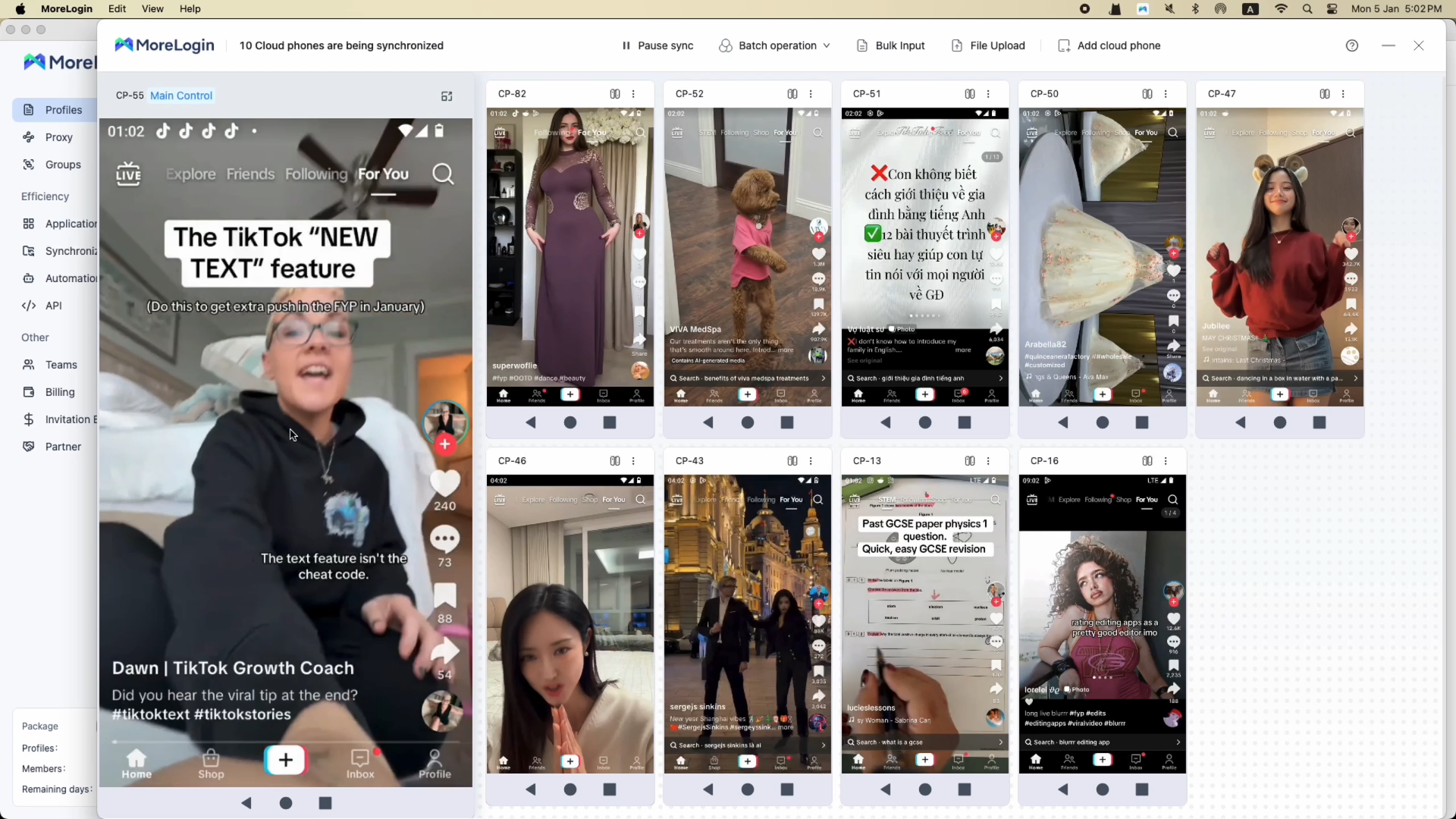
This setup supports organized work but does not replace platform rules. Use accurate information and follow YouTube policies.
Registration can fail, but the cause is often easy to fix.
The Create account button is missing
Check whether you are already signed in. Open the profile menu and review the email address. You may already have a Google Account connected to YouTube.
The verification code does not arrive
Wait a few minutes. Then try the voice call option. Check the country code and phone number. Some carriers may not support Google messages or calls.
The phone number has reached its limit
YouTube limits how many channels can use one number for verification within a year. Use another eligible number that you control. Avoid temporary public numbers.
The email address is already in use
The address may already belong to a Google Account. Try signing in or use Google Account recovery instead of creating another account.
The app returns to the sign-in screen
Update the app and restart the device. Check your connection or try a browser. Shared devices may restrict cookies or account access.
YouTube does not load on the network
Test another browser or network. School, office, and public networks may restrict video platforms. Understanding why YouTube is blocked can point to the right fix. Check local rules before changing settings.
A supervised account cannot create a channel
Some supervised experiences do not support channel creation. A parent may need to review Family Link. Options depend on age, country, and account type.
You need a Google Account to create YouTube account access. You can use an existing Google login or make a new one from YouTube. The same account works on desktop, Android, iPhone, and iPad.
Create a channel when you want to upload, comment, or build playlists. Then verify the channel and add recovery options. Turn on Two-Step Verification before the channel becomes valuable.
Creators and teams may outgrow manual account switching. MoreLogin brings browser profiles and cloud phones into one workspace for organized access and team collaboration.
The setup may look like several steps at first. Most of them are quick. Once the channel name appears on the screen, the blank page begins to feel like a real project.
Is a YouTube Account the Same as a Google Account or YouTube Channel?
No. A Google Account is used to sign in to YouTube. The signed-in experience includes subscriptions, watch history, and saved videos. A YouTube channel is your public identity. You need a channel to upload videos, comment, and create playlists.
Is It Free to Create a YouTube Account?
Creating a Google Account and YouTube channel does not require a subscription. YouTube offers paid services such as YouTube Premium, but they are separate from basic account creation.
Can You Create a YouTube Account Without Gmail?
Yes. You can use a non-Gmail email address to create a Google Account. Choose the option to use your existing email during Google registration. You still need a Google Account to sign in to YouTube.
How Old Do You Have to Be to Create a YouTube Account?
In many countries, the minimum age to manage a personal Google Account is 13. Some countries set a higher age. Younger children may use an account managed by a parent through Family Link. Check the current requirement for your country.
Can You Create Multiple YouTube Channels with One Google Account?
Yes. One Google Account can manage multiple YouTube channels. You can switch between them from the profile menu. Check the active channel before uploading, commenting, or changing settings.
How Can You Create a YouTube Account for a Business?
Choose the work or business option during Google Account setup. Then create a channel with a business name. Add team members through YouTube channel permissions instead of sharing the main password.

 EN
EN