EN
EN
Your customer support employee needs to check an order. Your finance colleague needs the settlement report. Your operations manager needs to update a product listing.
All three need access to the store. Their tasks do not require the same permissions.
The difficulty starts when giving someone access also exposes payment settings, customer exports or buttons they should never use. Temporary access can create another problem. An employee covers a colleague for a week, then keeps the extra permissions for months.
Role-based access control, or RBAC, organizes permissions around jobs. You define what a role needs, assign people to that role and limit their access to the relevant accounts and tasks.
For a shared business account, that means deciding what each person can open, see and do. Those decisions then need to become working settings.
Start with a recent task. What did the employee need to finish it?
For customer support, the answer might include the order number, delivery status and message history. It may not include settlement reports or account recovery details.
Finance needs a different view. A person reconciling payments needs transaction references and settlement amounts. Product editing has little to do with that work.
A simple permission table makes these differences visible.
Use this as a starting point for your own rules. Add employee names beside the roles so you can compare the plan with the people doing the work.
Access to a page does not settle every permission question.
An employee may need to read a report without downloading it. They may need to inspect a listing without deleting it. A customer support worker may need an order page while certain financial details remain hidden.
Break broad permissions into specific actions:
Open the account environment.
View the required page and information.
Click the controls needed for the task.
Edit or delete content.
Copy information or download files.
Upload files or print records.
Manage other users and account settings.
This gives you something concrete to configure. A label such as store access leaves too much undecided.
Several settings affect what an employee can do. Each handles a different part of the job.
Use the platform’s own member accounts and permissions where they fit the work. Employees can have separate platform logins while working on the same store or client account. Set those business permissions before adding browser controls.
Then review what remains too broad. A platform role may cover the necessary business functions while still exposing pages or content outside the employee’s assignment. That is where more specific browser rules become useful.
The distinction matters during configuration. Preventing someone from editing a browser profile does not, by itself, prevent them from editing a product inside the store.
Likewise, hiding a button in the browser and changing the platform’s authorization rules are different controls. Choose the setting that governs the action you want to restrict.
Consider a store with three employees. Nina handles support, David works in finance and Owen manages product operations.
Their permission table is ready. The next step is to apply it to their daily working environment.
Give each person their own MoreLogin team member access. Review the available functions before choosing a role.
MoreLogin’s team roles and profile permissions let you distinguish software functions from the account environments a member can access. Members assigned to the same role share its feature permissions.
Nina needs to open the store profile used for support. That does not mean she needs to create profiles, transfer environments or manage colleagues.
David may work across several stores. Assign the relevant profiles or groups, then check that the selection excludes unrelated client accounts.
Check both settings together. The role controls available software functions. Profile assignments control which account environments the member can open.
An employee who needs to use a signed-in account does not necessarily need to know its saved password.
Configure password protection for the relevant roles. This can prevent members from viewing saved passwords through the browser password manager. Review developer tool restrictions alongside those settings.
Keep account recovery responsibilities clear as well. Someone must remain responsible for the registration email, recovery number and verification requests.
If the store asks Nina to verify a login, she should know whom to contact. Sending recovery details into the team chat gives her more access than the support task requires.
Next, take one row from the permission table and turn it into webpage rules.
For Nina, the requirement might be:
Open the order and customer message pages.
Keep the information needed to resolve support cases visible.
Restrict access to settlement and account administration pages.
Block copying or downloading information outside the support workflow.
Disable clicks on controls she is not authorized to use.
MoreLogin’s webpage action controls support restrictions on clicking, copying, uploading, downloading and printing. Use them alongside URL rules and content hiding to match the role’s assignment.
Avoid applying every restriction to every employee. David may need to download settlement reports. Blocking downloads for finance would interrupt the task you are trying to support.
The same judgment applies to hidden content. Nina may need an order total to investigate a billing question. Hide unrelated financial information without removing details required for the case.
A task template keeps the relevant webpage rules together.
For example, a support template can combine restricted URLs, hidden content and limits on copying or downloading. A finance template can allow the report workflow while restricting unrelated product pages and actions.
Use a name that explains the assignment. Add a short description covering the intended work and the reason for the restrictions.
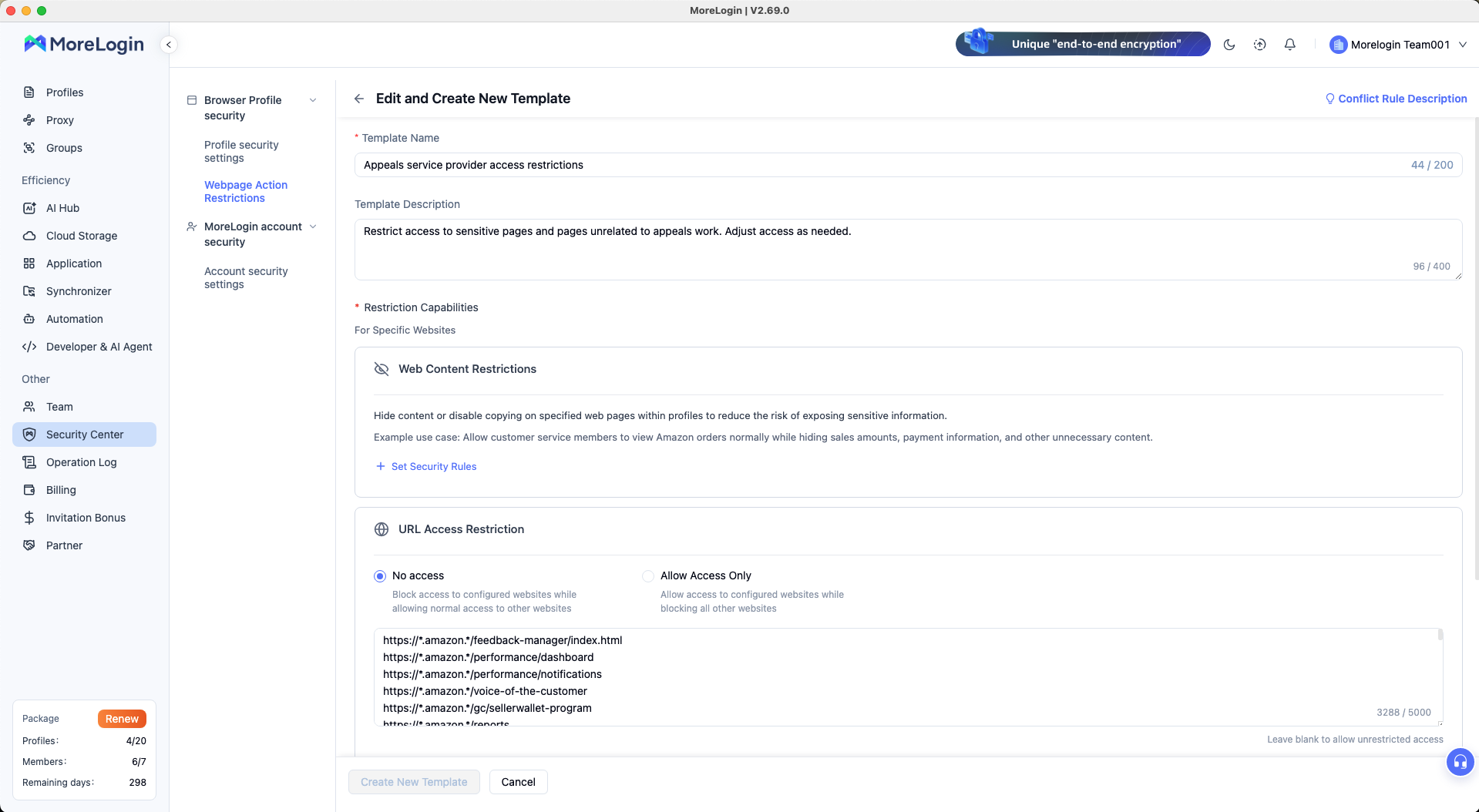
MoreLogin’s web access restrictions include two URL approaches:
No access blocks the listed addresses while leaving other pages available.
Allow Access Only permits the listed addresses and blocks other pages.
An allowlist suits a narrow assignment with a known set of pages. Before applying it, follow the whole task. Include any required login pages, redirects and related domains.
For broader work, blocking specific areas may be easier to maintain. The choice should follow the employee’s navigation needs.
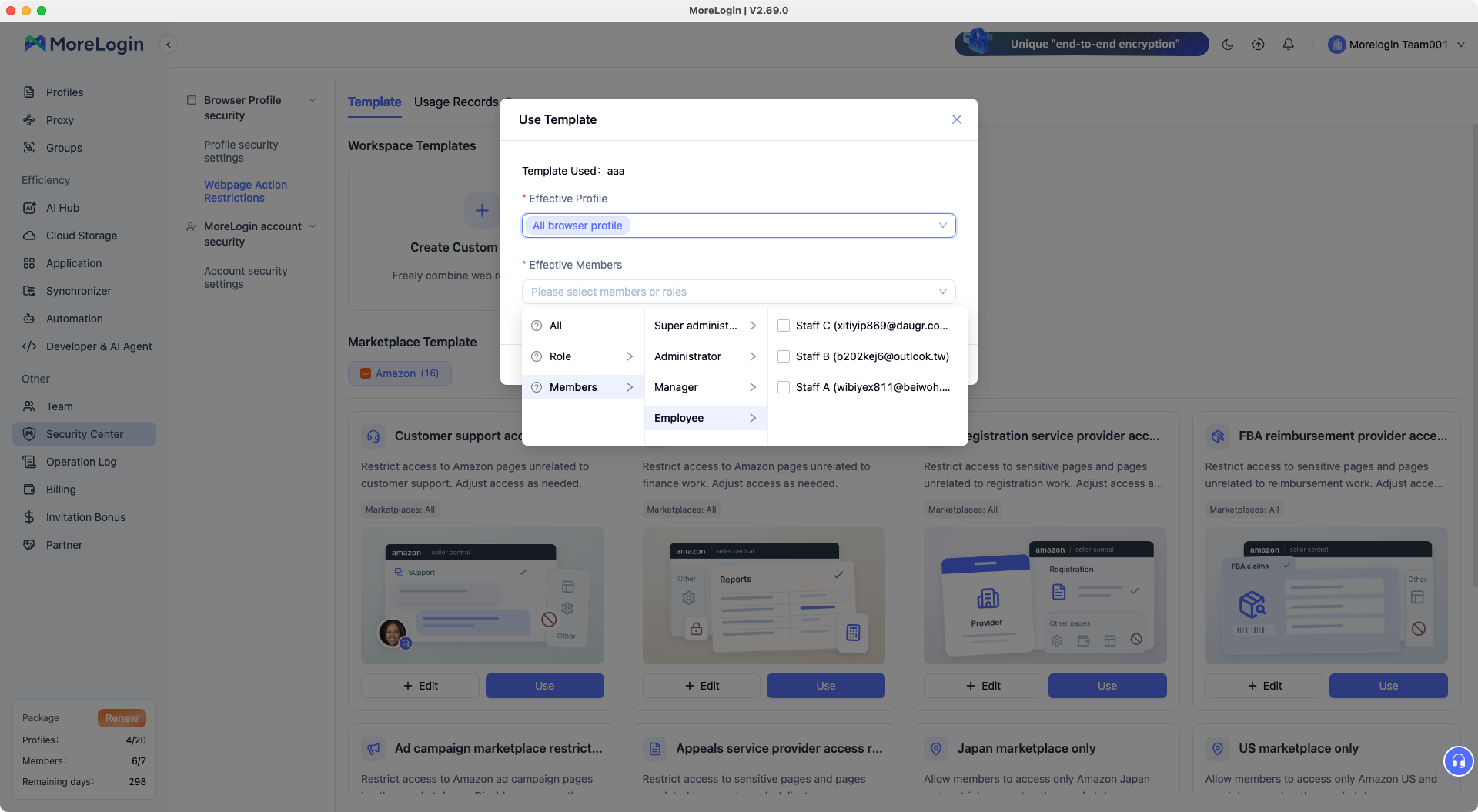
In the Use Template dialog, select the relevant browser profiles and the members or roles the rules should affect.
For Nina’s support work, start with the intended store profile. Do not select every browser profile simply because that option is available.
Check the member scope just as carefully. Applying a template to a role affects the people assigned to it. Review that membership before saving.
Begin with a small assignment you can test. Once Nina can complete her normal work and the restrictions behave as intended, expand the setup to other support members.
Test through the member’s own access. An administrator may have different permissions.
After saving or changing URL and element policies, restart the affected profiles before checking the result.
Use a real task rather than opening a few pages at random.
Run the finance workflow separately. David should be able to reach the correct report and download it if that action belongs to his role.
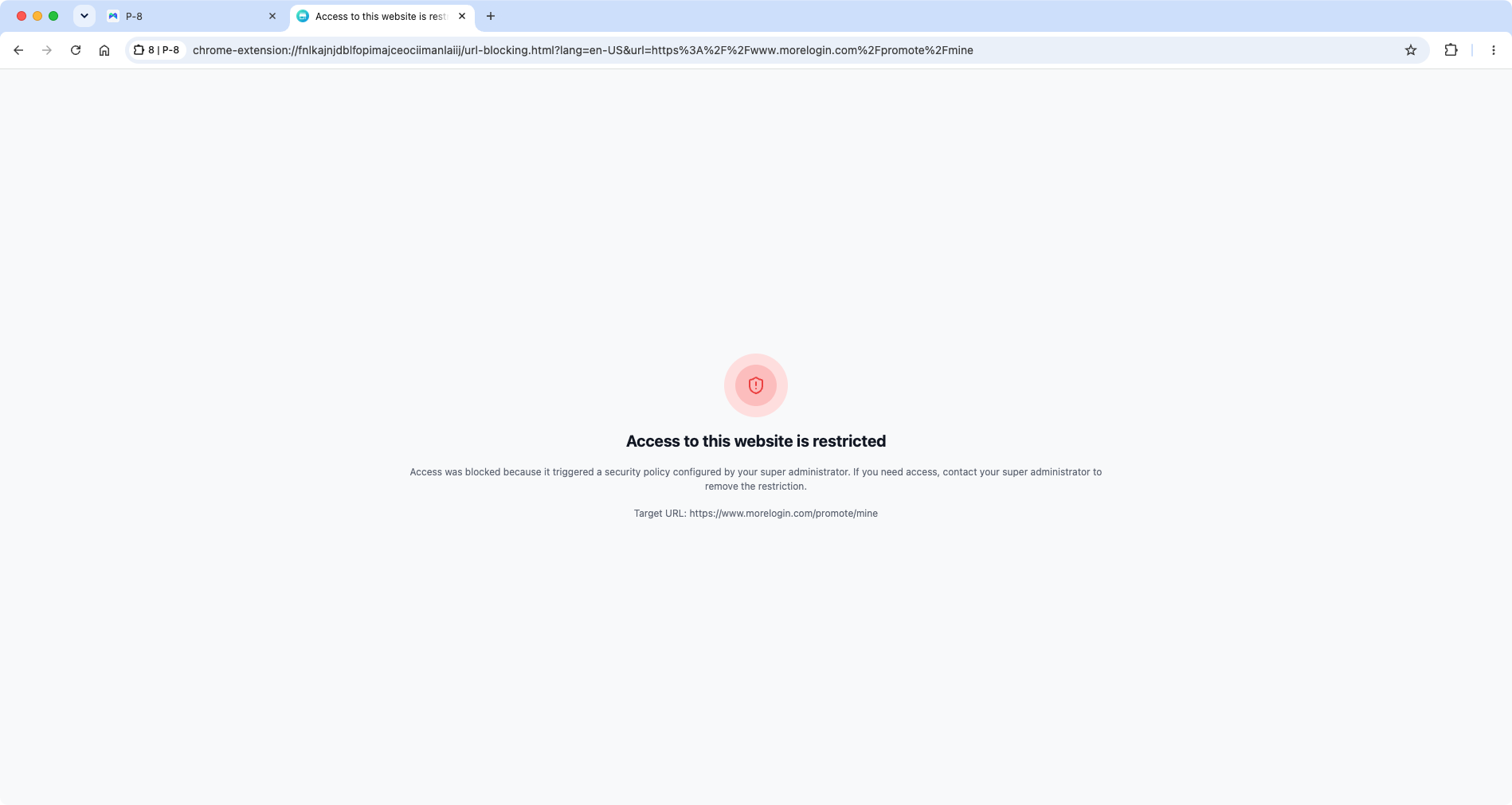
For each test, record the member, profile, rule and result. This gives the next administrator a useful starting point when a task stops working.
If an allowed task fails, identify the missing page or blocked control before widening access. An incomplete URL list does not justify opening the whole site.
Repeat the affected checks when the store changes its layout. A report may move, a button may change or a new redirect may become part of the workflow.
Permissions often become too broad through ordinary work.
Owen takes leave, so David receives temporary operational access. Owen returns, but nobody removes the extra permission. David now has access that his finance work does not require.
Record the assignment when granting it:
Name the employee and the person approving the change.
List the additional accounts and actions.
Set the expected end date.
Assign someone to remove the extra access.
Check the employee’s normal work after removal.
An end date in a record is useful only if someone acts on it.
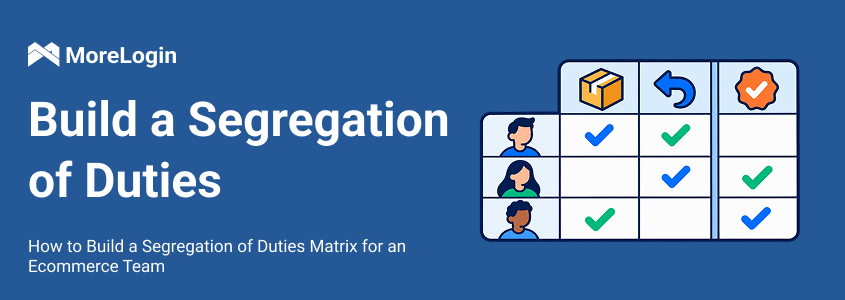
A second check concerns duties that should remain separate.
Suppose David receives refund execution rights while covering operations. He already reconciles refunds against settlement reports. He can now process transactions and review the same transactions himself.
RBAC helps identify and assign those permissions. A segregation of duties review asks whether that combination should belong to one person.
For the cover period, assign reconciliation to someone independent or keep refund execution with another employee. Combine the person’s platform roles, direct permissions and temporary assignments when reviewing access.
This is especially useful in small teams, where one employee may hold several jobs.
When an assignment ends, check the platform role, MoreLogin profile access and applicable templates.
For someone leaving the business, also review other active sessions, connected applications and account recovery access. Removing one workspace assignment does not close every other route into the business account.
If you need to investigate an unexpected environment change, use the profile access and management logs to identify the relevant operator and time.
For a disputed refund, compare the business transaction with its approval and settlement records. Those records answer a different question from who opened or changed a browser environment.
Can several employees use one business account with different access levels?
Yes, when the working setup can identify members and apply the relevant rules. Use platform member permissions, account environment assignments and browser controls together. Giving everyone the same login details does not create different permissions on its own.
Do I need role-based access control if my business has only one account?
One account can still contain several jobs. Support, finance and operations may need different pages, information and actions. The need for access control depends on how people share the work, not just the number of accounts.
Can employees work without seeing the saved account password?
MoreLogin lets administrators restrict saved password viewing for selected roles. Employees can work in assigned signed-in profiles while the team manages credentials. Keep a named recovery contact available for verification requests and account recovery.
Can one employee hold more than one role?
Yes. An employee may have different roles across systems or receive extra permissions for temporary work. Review that access together. If an operational assignment conflicts with an existing finance responsibility, adjust the permissions or arrange an independent check.
Can I limit copying and downloads without blocking the whole page?
Yes. Configure the relevant webpage action restrictions for the intended members and profiles. An employee can retain the page access needed for work while copying or downloading is restricted. Test those actions alongside the normal task before expanding the policy.
Start with one business account and two roles. List the work each person needs to complete, assign the corresponding MoreLogin browser profiles and configure the relevant rules. Test both the allowed work and the restrictions before extending access to the rest of the team.

 EN
EN