- Product

- Pricing
- Affiliate Program
- Developers
- Resource
 EN
EN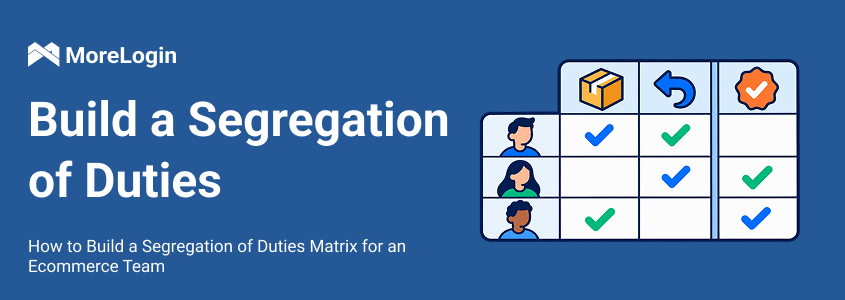
Your finance colleague gets refund access while the operations manager is away. A week later, they reconcile the same refunds against settlement records. Their temporary access stays active after the manager returns.
Nobody planned to give one person control over both jobs. A routine cover arrangement created the overlap.
A segregation of duties matrix records who can request, approve, process and review sensitive work. For refunds, separating conflicting duties keeps approval independent of the request and reconciliation independent of execution.
Build the first version around one store and one workflow. You can then compare the intended division of work with the access people actually hold.
Take a recent refund and follow it from the customer request to the settlement record. List the people and activities involved before deciding who should handle each step.
A job description such as store management is too broad for this exercise. Break the work into actions:
Submit a refund request with an order ID and reason.
Approve or reject the request.
Process the approved refund.
Compare the transaction with settlement records.
Investigate any difference.
For a four-person team, the initial allocation might look like this. Add employee names beside the roles in your own version. The price change rows cover another decision that benefits from independent approval.
None means the example assigns no duty for that action. Define which price changes require approval under your store policy.
Record where approval happens. If the owner approves refunds in a task system, the operations employee needs that record before processing the payment. Include the order ID, amount and decision so the employee can match it to the correct transaction.
Next, write down the combinations that could let someone make an improper change and leave it unchecked.
Use these pairs when reviewing access requests. Giving someone refund execution rights also means checking whether they already reconcile those refunds.
Return to the finance employee covering operations. Their finance role includes reconciliation. The temporary assignment adds refund execution. Together, those permissions create the second conflict in the table.
Assign someone else to reconcile that period, or keep refund processing with another operator.
Check each person’s access across:
Platform roles and direct permissions.
Other store or regional accounts.
Temporary cover assignments.
Browser profiles and shared sessions.
Connected apps or API access used for the workflow.
For each conflict, record the person, store, affected duties, proposed change and reviewer. Give temporary permissions an expiry date in the access record, with someone assigned to remove them.
For an Amazon store, compare each role in the matrix with its Seller Central user permissions. Remove rights that the job does not require, then check how the remaining actions are approved and reviewed.
Some decisions need a business record as well as a permission setting. If a refund requires approval, record who approved it and which transaction the decision covers. Finance needs both the approval and transaction details to investigate a mismatch.
Other decisions concern page access. Finance may need settlement reports without access to product editing pages. Customer support may need an order page without every sensitive field on it. These are useful places to apply browser restrictions.
The platform’s authorization rules determine whether the underlying action is permitted. Browser rules control the pages and content available in the assigned working environment.
If the team works across several stores, keep each store’s session in its own browser profile. That gives the access rules a clear target when you assign them to members.
Take one role from the matrix. List the pages it needs, the content it does not need and the employees doing that work.
An appeals specialist needs access for a specific assignment. Decide which pages that work involves, then group the relevant URL and content restrictions into a template.
The appeals service provider template below puts both types of rule in the same editor.
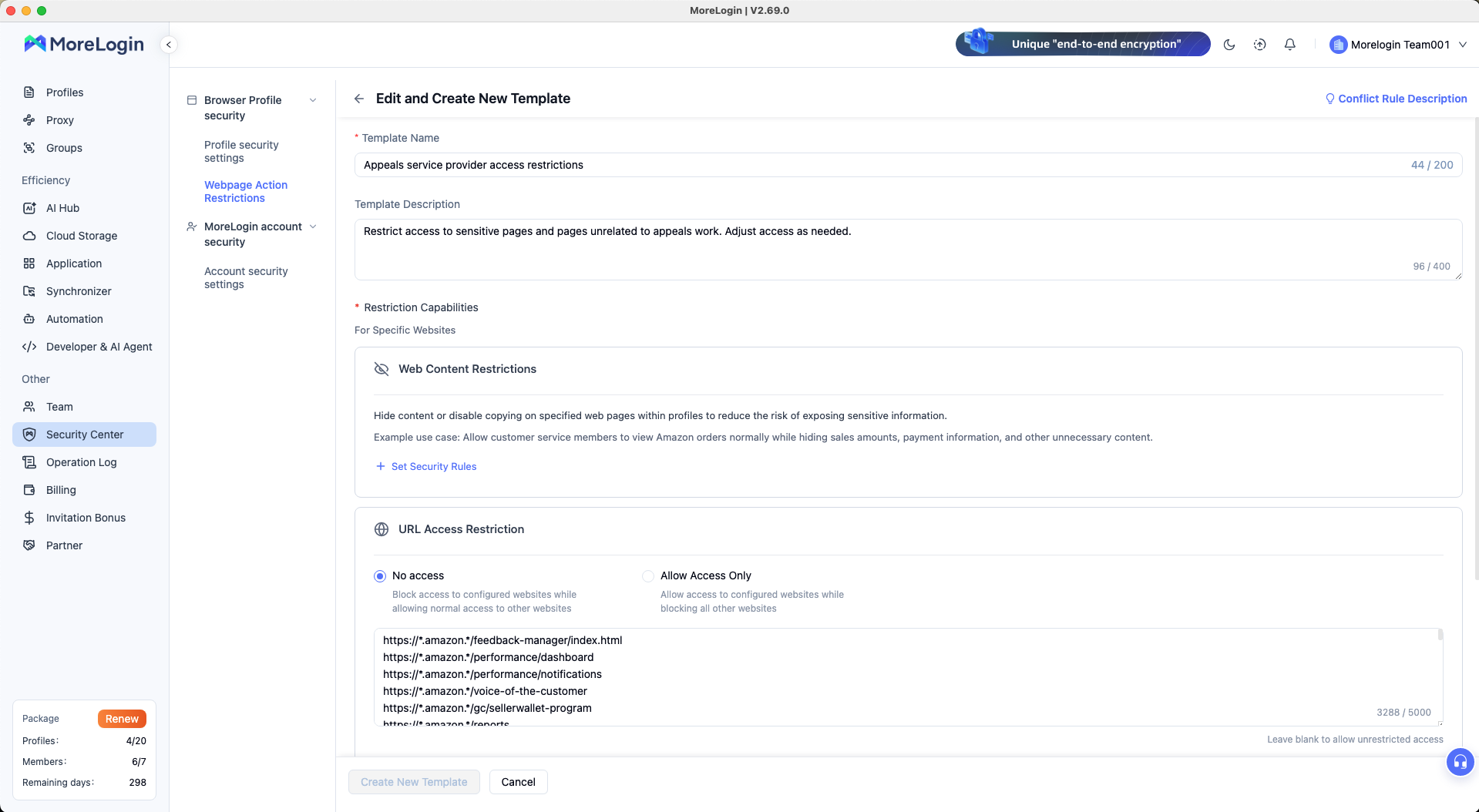
An appeals-service access template brings web content and URL restrictions into one configuration.
Use a recognizable task name. In the description, record why the restrictions exist and who can approve a change. Another administrator may need to revise the template after the assignment changes.
For a specialist who needs only a few known pages, an allowlist may be practical. A broader role may need access to most of the site, with certain areas blocked. MoreLogin’s URL access restrictions offer both modes:
No access blocks the listed URLs and leaves other pages available.
Allow Access Only permits the listed URLs and blocks other pages.
Set the affected members and profiles alongside the URLs.
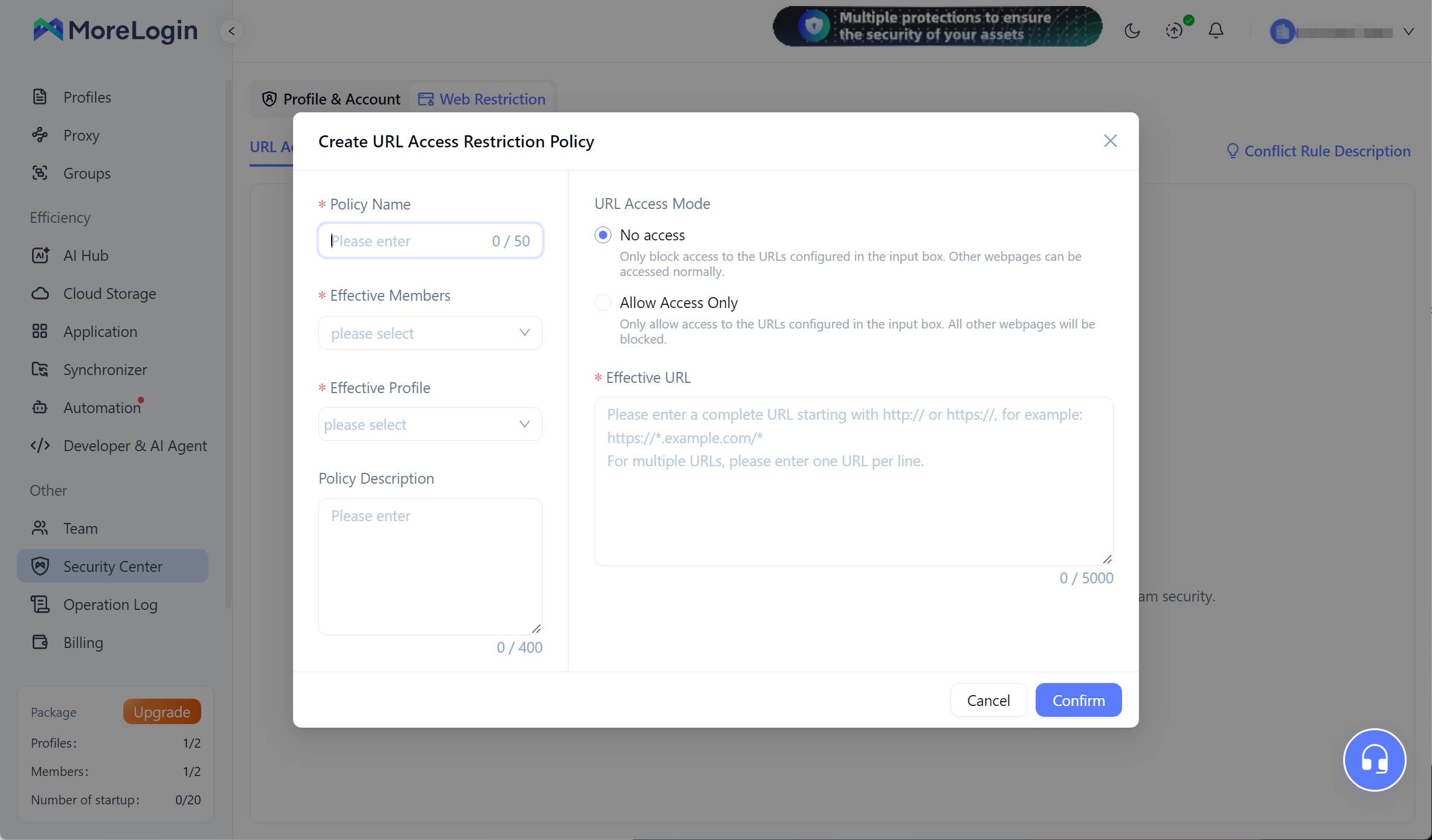
A URL policy connects the access mode and target URLs with the members and profiles it affects.
Before applying an allowlist, follow the task from start to finish. Include the login pages, redirects and related domains it needs. Check the addresses for the relevant marketplace, especially when employees handle stores in different regions.
Blocking a whole page can interrupt useful work. When only part of the page is outside the role’s scope, select the relevant elements and preview the content restriction.
Here, the rule editor is selecting login and sign-up elements on Amazon’s public Seller Central ES welcome page.

The rule panel lists selected elements and previews the Hide content setting on the page.
For an order or report page, check each selected element against the employee’s task. Finance still needs the identifiers used to match a refund to a settlement entry. Hide those and the restriction creates a reconciliation problem.
Preview the rule, then inspect the page through the member’s session.
Check the employee’s role and profile permissions before applying the template. The authorized store environment and the template’s scope should match.
In the Use Template dialog, select the relevant store under Effective Profile and the intended people or roles under Effective Members.
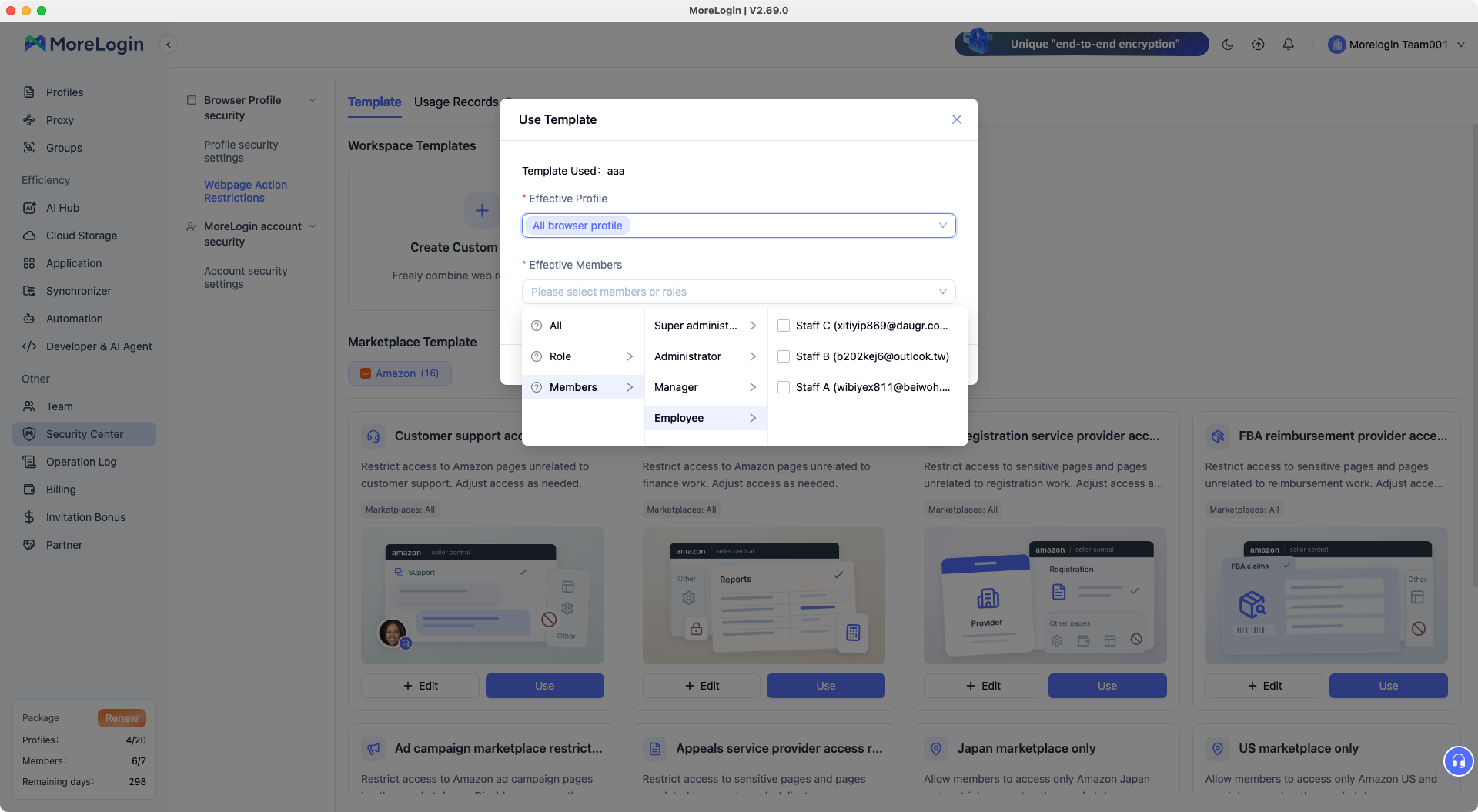
An existing template can be applied to selected browser profiles and members or roles.
The screenshot shows all browser profiles selected. Begin with one relevant profile and a small set of members so you can check the effect before applying it more widely.
When selecting a role, check everyone who belongs to it. An employee who kept an old role after changing jobs may receive a template intended for different work.
Test through the member’s own access. An administrator’s session may have different permissions.
Use a recent task as the test case:
Complete a normal task, including any required navigation and redirects.
Open a page that should be restricted.
Confirm that the policy affects the intended member and profile.
Check other relevant entry points, including connected apps.
Follow one approved transaction through to independent reconciliation.
When a URL restriction applies, the member may see an access-blocked page like the MoreLogin example below. The target URL helps the administrator identify which page the member was trying to reach.
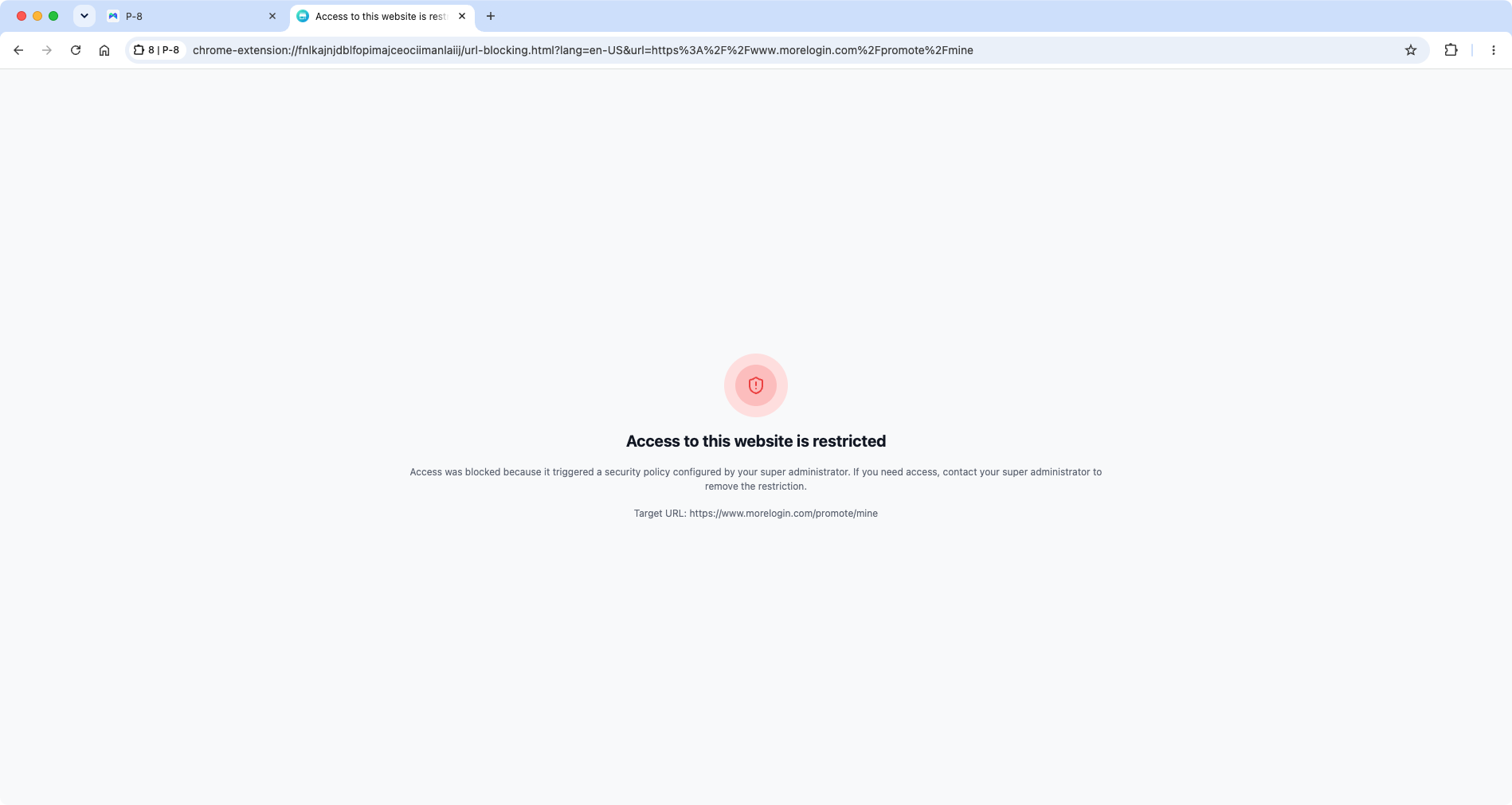
A restricted MoreLogin webpage displays an access-blocked message and the target URL.
After saving or changing URL and element policies, restart the affected profiles before testing. Record the member, profile, rule and result. If a normal task fails, check the permission, URL scope and selected elements before widening access.
When a cover assignment ends, remove the extra permission and confirm that the employee can still perform their regular job. Apply the same check when a contractor leaves or an employee changes roles.
If an environment was opened or its configuration changed unexpectedly, check the profile access and management logs for the operator and time. For a refund discrepancy, compare the platform transaction with its approval and settlement record.
Review webpage rules after the selling platform changes its layout. A URL may redirect somewhere new, or an element used by a content rule may have moved.
A two-person store will have overlaps. Make them explicit so both people know which work needs a second check.
For refunds, one person may handle the transaction while the other compares it with approval and settlement records. If both people process refunds, assign each person’s transactions to the other for review.
Record what the reviewer checks, when they check it and where they keep the result. For example, a review entry can contain the order ID, approved amount, refunded amount and any difference found.
Give each unresolved difference an owner. A record that says reviewed tells the next person very little if the amounts still do not match.
How is a SoD matrix different from a RACI chart?
A RACI chart assigns responsibility, accountability and communication roles. A SoD matrix identifies duties that need separation. For a refund, it helps you check whether the person handling the transaction also controls its approval or independent review.
Can one employee hold several ecommerce roles?
Yes. Check the combined permissions from every role, including temporary assignments. Separate roles can create a conflict when one person holds both. Adjust the access or assign an independent check for the affected work.
Can I build a segregation of duties matrix in a spreadsheet?
Yes. Start with a role and action table, then add conflict rules and a list of actual users. Include review owners and dates. Compare the sheet with current system permissions whenever access changes.
How often should an ecommerce team review its matrix?
Review the affected entries when responsibilities or access change. Also set a recurring review that fits the volume and risk of the work. Refund handling may need closer attention during a busy returns period or when temporary staff join.
Before the next cover assignment, check the employee’s existing duties against the extra access they will receive. Resolve any conflict, record when the access should end and test the affected store profile.

 EN
EN