- Product

- Pricing
- Affiliate Program
- Developers
- Resource
 EN
EN
Cloud phone lag can affect the screen you control, the Android device, or the content an app is trying to load. A proxy change may help a buffering video, but it may leave delayed taps untouched.
Start by checking whether basic Android controls are slow too. If menus respond normally while TikTok videos keep buffering, check the proxy and app connection. If every tap arrives late, begin with the remote connection and display settings before changing the phone configuration.
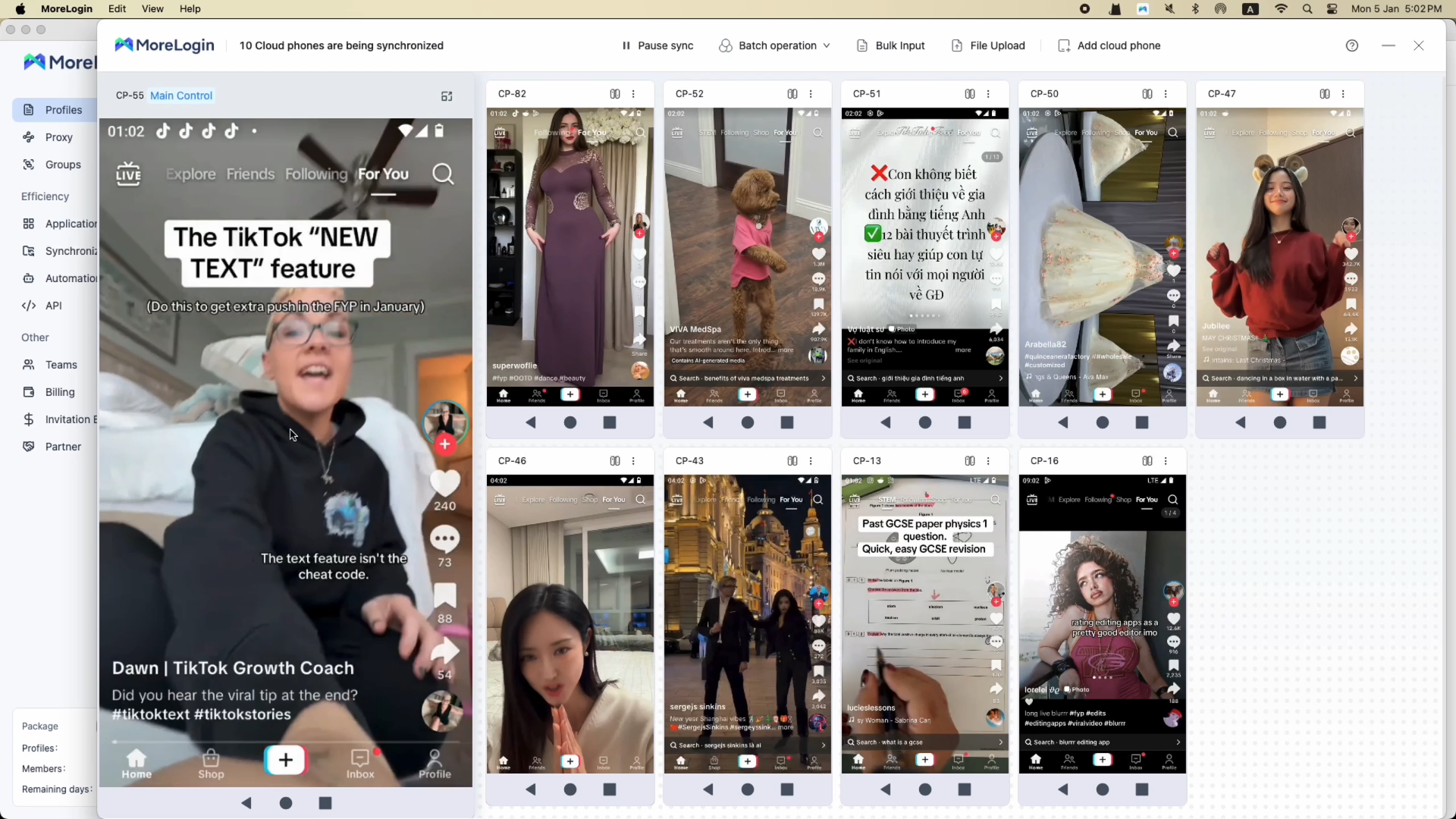
On MoreLogin Cloud Phone, open Android Settings, scroll through a menu, and open another settings page. Then return to the app and compare the response. Note whether the delay affects your taps, the screen movement, or only the content being loaded.
Your computer sends input to the cloud phone and receives its screen stream, while apps inside the phone use the configured proxy to reach their services. These connections need separate checks, since a responsive control window can still display an app waiting for content.
When typing, scrolling, and menu navigation all feel delayed, start with the connection indicator near the top right of the cloud phone window. A yellow or red indicator reports a poor remote connection, while gray indicates failure and green reports a good connection.
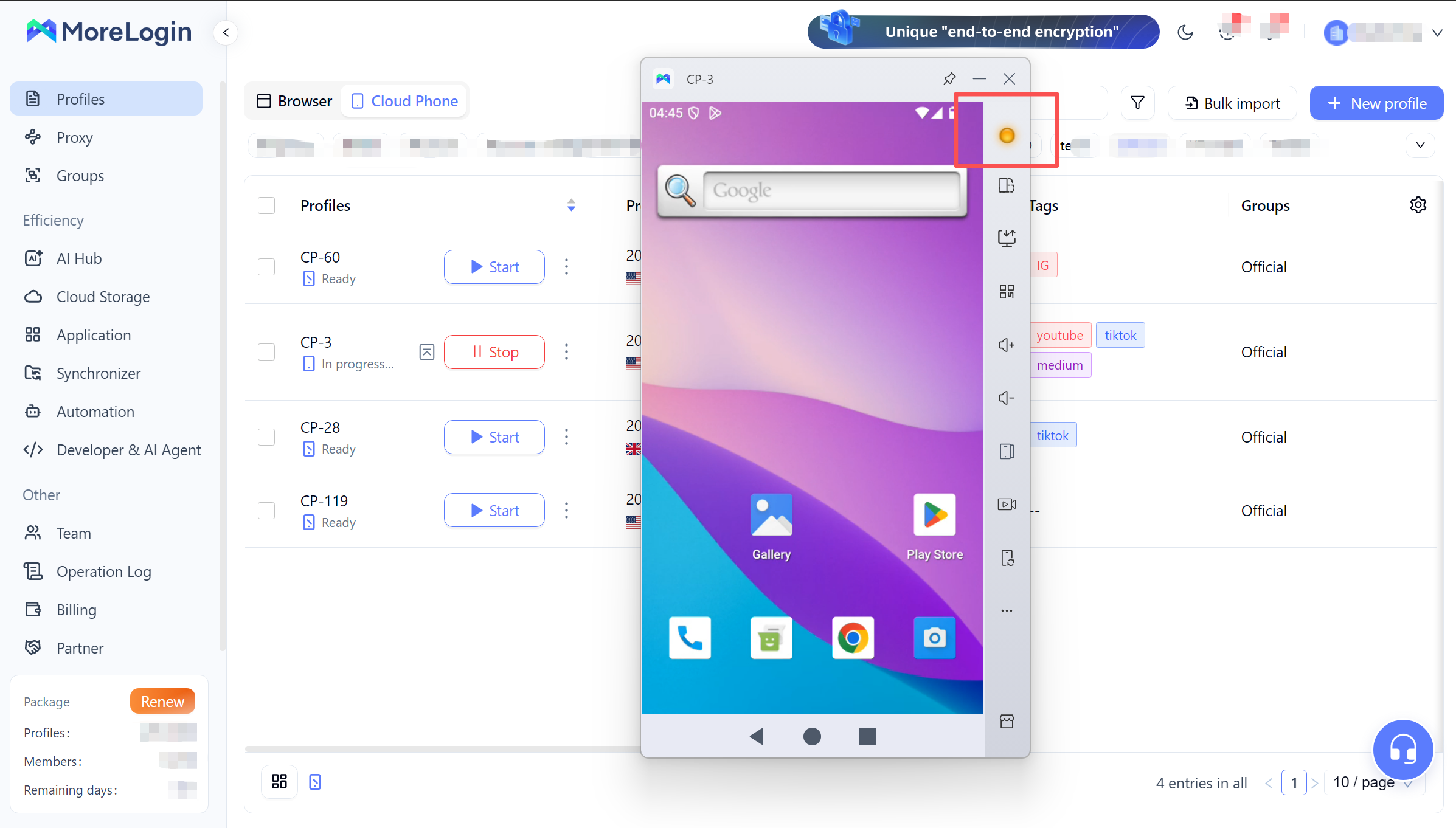
If your device provides Lines Switch, click the indicator and compare another available line with lower reported latency. Scroll through the same Settings menu afterward and check whether the delay has decreased. MoreLogin currently documents this control for Android 12 and Android 15 on client V2.45 and later.
If another line improves the response, routing is likely part of the problem. Keep the app proxy unchanged during this test so you can tell whether the remote connection change helped.
A large download or cloud backup can compete with the screen stream, and crowded Wi-Fi can introduce interruptions even when download speeds look good. Pause traffic you do not need, then compare Ethernet or another available network while keeping the phone and task unchanged. Check whether taps respond sooner and the screen stops freezing between actions.
If the connection appears stable, try a lower setting in the Clarity control. Higher display quality requires more data to reach your computer, which still has to decode and display the stream. If scrolling becomes smoother at lower clarity, screen transmission or local decoding may be contributing to the delay.
When one phone works well but several visible windows become slow, reduce the number displayed at once. Also check whether your computer is busy with video editing or other demanding applications. If fewer windows restore normal scrolling and typing, work with fewer visible streams before considering a different Android configuration.
If Instagram remains on its loading screen while Android menus respond normally, check the network used by the app. Lowering display clarity is unlikely to resolve a feed that cannot retrieve its content.
Open the profile and review its proxy settings, including the host, port, and credentials. Run the available network detection check, then confirm that the subscription is active and has not reached a traffic or usage limit. Passing the check establishes that the tested connection works, but you still need to try the actual feed, video, or upload that was failing.
Open another app or a simple webpage inside the same phone to check whether the slowdown affects several services. If it does, compare the proxy connection as described below. If only one app struggles, inspect its error message and check for an app update or service problem before replacing the network configuration.
On a separate test phone, repeat the same task with the original proxy, then with a known working proxy. Keep the device, app version, and test content unchanged. If the original proxy reproduces the slowdown and the replacement does not, investigate the original proxy connection. Using a test phone also avoids repeatedly changing the network settings of an account that is already in regular use.
When the connection checks do not explain the delay and Android Settings also freezes, look at what is running inside the phone. An app update, a large upload, and video processing can overlap with the task you are trying to complete. Pause work that can wait, close unused apps, and check whether basic menu navigation recovers.
Check the remaining storage if the phone holds a large collection of uploaded videos or downloads. Review the files before removing anything, since another operator or scheduled task may still need them. If the phone remains unresponsive after you reduce its workload, save unfinished work and restart it. Test Android Settings before reopening all the apps, then watch for a particular app or action that brings the delay back.
If the delay returns only after one app opens, check its version and the action that triggers the slowdown. Note whether it began after an update or occurs when processing a particular file. Clearing that app cache may help in some cases, but clearing app storage or reinstalling it can remove login state and local data.
MoreLogin has separate Restart and Reset controls. Use Restart for a normal reboot. Reset restores factory settings and removes information stored on the phone, so it should not be part of the initial checks for ordinary lag.
When the control window disconnects, return to the cloud phone list and check the device status before restarting it. The connection to your screen may have failed while the phone is still running. If the device is stopped, frozen, or unable to start, check the status message and any account or resource notice before attempting to reconnect.
Record the error message and whether other phones disconnected at the same time. If several windows lost their connection together, check the local network and remote connection conditions first. If only one phone is affected, note which app or task was running when it disconnected. Try reconnecting through an available line, then compare another local network if the failure repeats.
After reconnecting, inspect the result of your last action before submitting it again. An upload could still be running, or a post could already have been published. Repeating it without checking could create a duplicate upload or post.
For scheduled uploads and other cloud phone automation tasks, compare the execution record with the app screen. A timeout may come from a popup, a missing screen element, or a waiting condition. Check the failed step before treating it as a remote connection failure.
If the problem keeps returning, send support the following details:
The phone identifier, Android version, and affected app version
Your MoreLogin version and computer operating system
The error message, time and time zone, and number of affected phones
The changes you tested and what happened after each
Include a short recording of the delayed input or frozen screen, with the connection indicator visible if possible. Remove credentials and sensitive account details before sharing it.
The current MoreLogin device selector lists Android 11, Android 12, Android 13, Android 14, Android 15, Android 15A, Android 16, and Android 17 (Beta).
If uploads still stall after the proxy checks, or camera access repeatedly fails while other functions work normally, check the app’s compatibility with the Android environment. Note any error message and confirm the requirements of the function that fails.
If you can reproduce the issue on Android 17 (Beta), repeat the failing action on a compatible stable version using a separate test phone. Keep the app version and network settings consistent, then record whether the action completes and whether the same error appears.
Why is my cloud phone slow even with fast internet?
Fast downloads can coexist with delays or interruptions on the route to the cloud phone. Your computer also needs to decode and display the screen stream. Compare the response on another line or local network, and check whether lower display clarity improves it.
Can changing the proxy fix cloud phone lag?
It can help when the delay affects app content loading and the proxy is responsible. If taps and Android menus are delayed too, check the remote control connection before replacing the proxy.
Why does lag get worse when I open several cloud phone windows?
Your computer receives and displays a separate stream for each visible window, while simultaneous uploads or updates can add network traffic. Compare fewer visible windows first, then reduce simultaneous tasks separately to see which change helps.
Will upgrading the cloud phone make it faster?
It may help when the Android workload exceeds the resources available to the device. If another connection or lower display clarity resolves the delay, keep that change and test the full task again. A higher device specification will not fix a failing proxy or an unstable local connection.
Does disconnecting from a cloud phone delete its data?
A lost control connection is a different event from a reset or device deletion. Check the phone status and reconnect to inspect its data. If the device itself is unavailable, investigate any account, retention, or deletion notice instead of assuming the disconnect caused the loss.

 EN
EN