EN
EN
If you manage one YouTube channel and publish a few Shorts each month, a cloud phone may add more work than it saves.
The case becomes stronger when several channels, clients, or team members share the same publishing process. At that point, the problem is no longer how to upload a Short. The problem is knowing which channel should receive which file, who approved it, and whether the upload is still private.
Those details sound small until something goes wrong. Publishing the wrong clip on a client channel is a painful mistake. Cleaning it up takes longer than checking the workflow in the first place.
A cloud phone for YouTube Shorts gives the mobile part of this process a fixed place. MoreLogin can then support that environment with file transfer, synchronized control, RPA, and API access.
The useful part of a cloud phone is not simply that it runs in the cloud. It is that the Android environment persists.
The YouTube app, YouTube Studio, media files, and channel session can remain in the same profile. A team member can return to that workspace without rebuilding the setup. Another authorized colleague can take over the project without passing around a physical phone.
This approach makes sense when the workflow depends on Android apps, mobile uploads, or separate mobile environments. YouTube Studio on desktop is still better for many channel tasks.
MoreLogin Cloud Phone puts these Android profiles in the same platform as its browser profiles, team controls, Synchronizer, RPA, and API. That combination matters more to a content team than the remote device alone.
It does not solve content quality. It will not make a weak Short perform better. It should be treated as workflow infrastructure, not a growth shortcut.
Build the first setup around one channel and one video. If that process works cleanly, it can be repeated. If it does not, creating more cloud phones will only spread the problem.
Use a channel that you own or are authorized to manage. If the channel is not ready, create a YouTube account before building the mobile workflow.
Prepare the video and its publishing details as one task package. Keep the following information together:
Target channel
Video file
Title
Audience setting
Visibility
Planned date
Task owner
File names matter more than people expect. A name such as brand-us-product-tip-01.mp4 is easy to understand. A folder filled with final.mp4, final-new.mp4, and final-new-2.mp4 is asking for trouble.
Use a simple tracking sheet to record the channel, file, owner, visibility, and current status. It does not need complicated formulas. It only needs to show which asset belongs to which channel.
Prepare the proxy details at the same time. Check the host, port, login information, and intended region before creating the cloud phone.
Create a Cloud Phone Profile in MoreLogin. Choose the billing option and Android model based on the actual workload.
Profile names should describe the project. Device numbers are rarely enough once the list grows.
Practical formats include:
Brand-Country-Channel
Client-Project-Owner
Channel-Language-Number
Use a group or tag when it helps the team filter profiles. Avoid adding labels that no one will maintain.
Configure the proxy and run the network check. Then review the timezone, language, and location. These settings should follow the real project requirements.
Random configuration makes the environment harder to explain and hand over. A profile should make sense to the next person who opens it.
Start the cloud phone and check the connection before installing apps or moving large files. If the connection is unstable, fix that first.
The video must be available inside the cloud phone before it can be selected in the YouTube app.
Open the target cloud phone and find the Upload and Download option on the control panel. Choose Upload File and select the video from your computer.
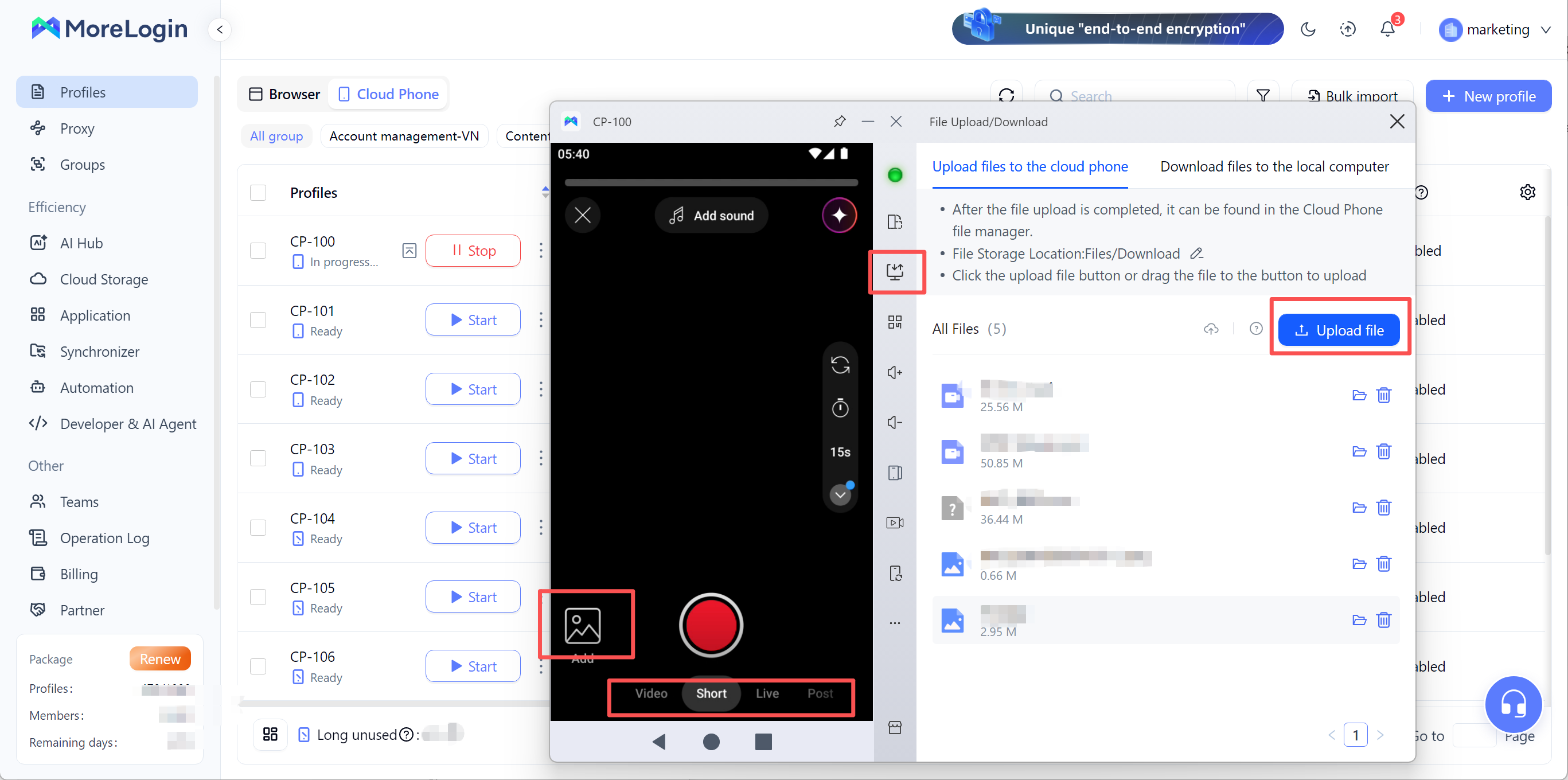
Wait for the upload to finish. Do not close the cloud phone or start the same upload again while the transfer is still running.
After the upload completes, open the file manager or media gallery inside the cloud phone. Confirm that the file appears and can be played.
Check three things before moving on:
The full video has been uploaded.
The file name matches the content plan.
The file is available to the YouTube app.
If the team manages several channels, upload only the files assigned to the current profile. A smaller, clearly assigned media library is safer than storing every project file on every device.
Screenshot placement: Add a screenshot here showing the Upload and Download option and the Upload File button in MoreLogin Cloud Phone.
Install YouTube through Google Play or the available app store. Add YouTube Studio if the team needs mobile access to analytics, comments, visibility, or channel checks.
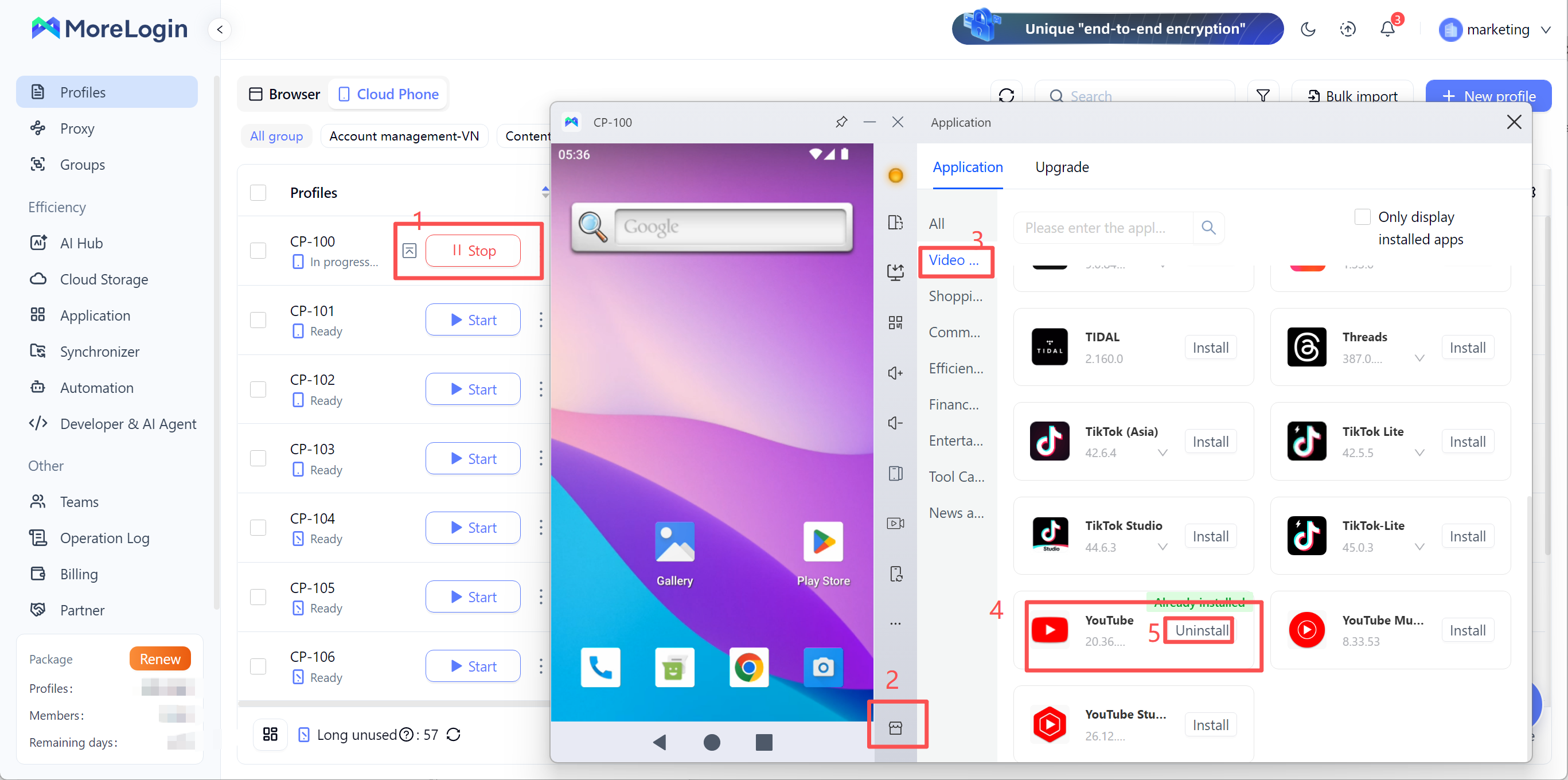
Sign in and confirm the channel name. Similar profile images can be misleading, especially when one brand has several regional channels.
Open the YouTube app and select the video uploaded in the previous step.
Keep the first upload Private or Unlisted. Check:
The active channel
The selected video
The title
The audience setting
The processed result
YouTube treats uploading and publishing as separate steps. Its Android upload guide explains the current mobile process.
Once the test works, record the steps that mattered. Keep the checklist short. A useful checklist is one that people will actually follow.
There is no reason to automate every step.
The first candidates should be low-risk tasks that repeat often. Device preparation, app launches, and file transfer are better starting points than final publishing.
This table summarizes where each MoreLogin tool fits:
Synchronizer is useful when selected devices need similar preparation.
An operator controls the main cloud phone. Supported mouse and keyboard actions are repeated across the other selected devices. The tool can also assist with app management, text input, and file uploads.
This can save time during device setup. It is less useful when every channel needs different media, titles, and timing. Once the paths start to differ, synchronization creates more checking.
Before a synchronized session, confirm the main device and every selected profile. Check the logged-in channel on each phone. Check the file assignment too.
Use two or three devices for the first test. There is little value in proving a mistake can run across twenty phones.
Synchronizer keeps a person in control. That is often the right balance for mobile app work. Login requests, app updates, and unexpected screens can be handled as they appear.
RPA is worth considering after the process has stopped changing.
MoreLogin Cloud Phone RPA can handle supported clicks, swipes, text input, and data actions. Teams can use Marketplace templates, create custom templates, and set task schedules.
A YouTube-related template may not cover every action in a Shorts publishing process. Check the current Automation Marketplace before designing the workflow around it.
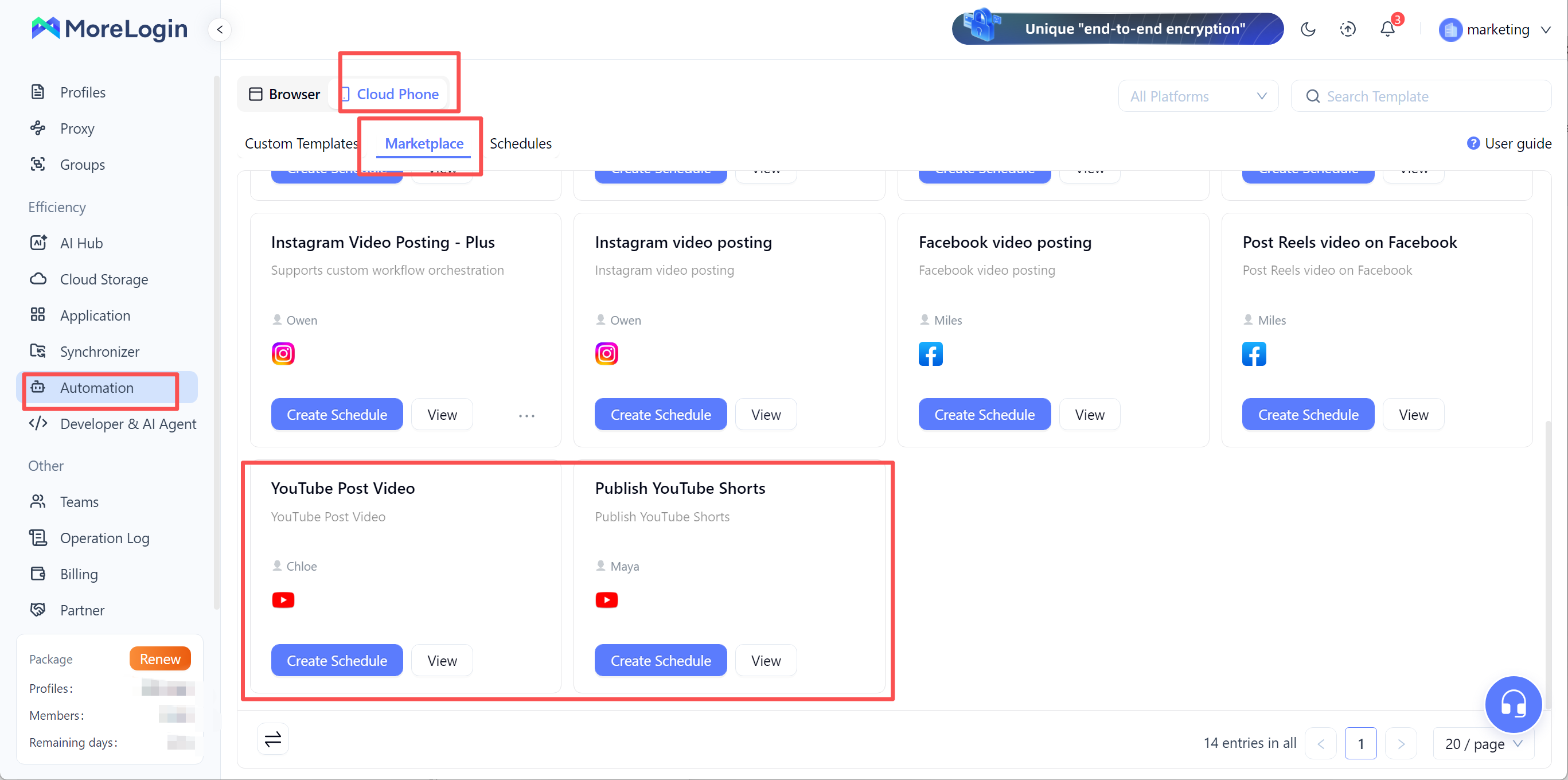
Note: Morelogin already has a template for uploading videos to YouTube!
Mobile interfaces also change. A button can move after an app update. A new login prompt can interrupt the sequence. Language and app version may affect where an action appears.
Test the RPA on one device with non-sensitive content. Watch the first run. If it fails, fix the exact step before trying a larger batch.
Keep a person responsible for channel selection, copyright checks, audience settings, and final visibility. Those decisions carry more risk than the repeated taps around them.
API access becomes useful when the team already has a content system.
A video might move through drafting, editing, review, and approval in an internal dashboard. After approval, the system can identify the assigned cloud phone, start it, prepare the file, or trigger an existing RPA schedule.
That removes manual handoffs, but it also creates technical responsibilities. The integration needs authentication, task states, logs, error handling, and retry rules.
A failed task should remain failed. It should not appear as published simply because the workflow moved to the next step.
MoreLogin API controls cloud phone resources and tasks. YouTube Data API works with YouTube resources. They are related parts of a larger system, but they do different jobs.
For a small content team, API integration may be unnecessary. RPA or supervised work is often easier to maintain. API investment makes more sense when the publishing volume and internal process justify it.
The main benefit here is accountability.
Each channel or project should have a clear cloud phone, content folder, and owner. Use the same naming pattern across all three.
For example, a profile named Brand-US-Shorts should use a matching content folder. The assigned owner should also be recorded in the task sheet.
When names match, people spend less time checking what belongs where. Project handovers also become easier.
Groups and tags should answer useful questions. Who owns this channel? Which client does it belong to? Is the workflow active, under review, or paused?
Permissions should follow responsibility. A video editor may only need to prepare files. A channel manager may own the final review and publishing step. Not every team member needs access to every cloud phone.
Before uploading, check four items:
Active channel
Video file
Title and audience setting
Visibility or schedule
This check remains useful in an automated workflow. Automation repeats instructions. It does not know whether the instruction was correct.
Cloud phone workflows still operate under YouTube rules.
Under the current requirements, eligible square or vertical videos up to three minutes can be classified as Shorts. YouTube explains the details in its three-minute Shorts guide.
Music and third-party footage need review. A Short longer than one minute may be blocked when it has an active Content ID claim.
Content originality also affects monetization. A repeatable format is not automatically a problem. The concern is content that adds little new value from one video to the next.
Cloud phone automation should stay away from fake views, automated scrolling, or artificial engagement. YouTube states that artificial views do not qualify as eligible Shorts engagement. The current rules appear in its Shorts monetization policies.
Use automation to prepare devices, move approved files, and keep work organized. Keep content decisions and final approval with a responsible person.
A cloud phone is most useful when the mobile workflow has become difficult to assign, repeat, or hand over.
Start with one clean process. Add Synchronizer, RPA, or API only when the task clearly calls for it. If browser and mobile workflows need to live in the same workspace, MoreLogin provides both within one platform.
Can a cloud phone upload YouTube Shorts?
Yes. Install the YouTube Android app, upload the video file to the cloud phone, and follow the normal mobile publishing process.
Can a team manage several YouTube channels with cloud phones?
Yes, provided the team owns or is authorized to manage those channels. Clear profile names, file assignments, permissions, and ownership matter more than the number of devices.
Can MoreLogin automate YouTube Shorts publishing?
MoreLogin supports YouTube-related RPA templates, schedules, Synchronizer, and API workflows. Available actions depend on the current template and app version. Test the required action before making it part of the publishing process.
When is Synchronizer better than RPA?
Use Synchronizer when a person needs to repeat similar actions and watch the devices in real time. Use RPA when the sequence is stable enough to run from a tested template.
Does a cloud phone replace YouTube Studio?
No. YouTube Studio remains useful for analytics, comments, visibility, restrictions, copyright checks, and monetization information.

 EN
EN