EN
EN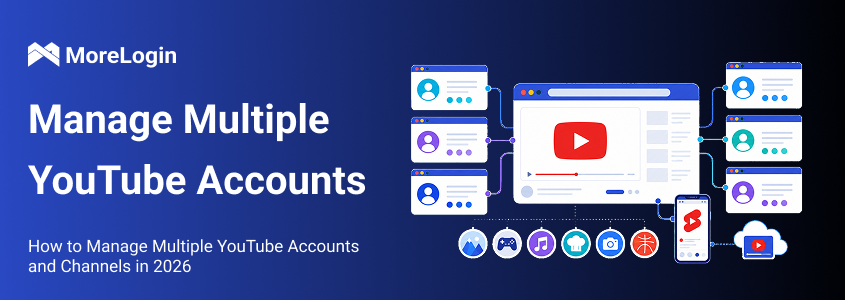
One YouTube channel is easy to handle. Add a second brand, two client projects, and a regional channel, and the setup changes fast.
The difficult part is rarely the number of accounts. It is knowing who owns each channel, which Google Account controls it, and which team member should have access.
There are four practical ways to manage multiple YouTube accounts. You can switch channels inside YouTube, assign Channel Permissions, use separate browser profiles, or set up cloud phones for mobile work. The right choice depends on ownership and workflow.
You can manage several YouTube channels from one Google Account. You can also manage channels that belong to different Google Accounts.
Those two setups look similar from the outside. They behave very differently when someone leaves the team or a client asks for a handover.
One Google Account can own and manage several YouTube channels. Each channel has its own name, handle, videos, subscribers, and YouTube Studio data.
The channels share one Google login. You move between them through the account menu.
This works well when the channels have the same owner. A company might run one channel for product tutorials, another for customer stories, and a third for Spanish content.
It becomes less attractive when the channels belong to different clients. If every client channel sits under an agency employee’s Google Account, ownership becomes difficult to explain. The problem may stay hidden for months. Then a client leaves, and everyone has an uncomfortable afternoon.
According to YouTube’s current channel switching guidance, one Google Account can manage up to 100 channels.
Most teams will run into workflow problems before reaching that limit.
The common issues are more ordinary:
A video goes to the wrong channel
Someone comments as the wrong brand
An employee has access to unrelated clients
Recovery details belong to one person
Nobody is sure who owns a channel
This is why the platform limit should not decide your structure. Ownership should.
Use one Google Account when the channels belong to the same person or company. Use separate Google Accounts when the channels have different owners.
There is no benefit in splitting related channels across dozens of Google Accounts without a reason. It creates more recovery details, more login checks, and more opportunities for confusion.
The reverse is also true. Placing unrelated client channels under one personal Google Account may feel convenient today. It can make ownership and handover much harder later.
To add a channel under your current Google Account:
Sign in to YouTube.
Open the profile menu.
Go to Settings.
Select the option to add or manage channels.
Choose Create a channel.
Add the name and handle.
Return to the account menu and confirm that the new channel appears.
If you are starting from scratch, creating a YouTube account comes before adding extra channels.
The method should match the account relationship.
These methods can work together. An agency might use separate browser profiles for client Google Accounts and Channel Permissions inside each client channel.
YouTube’s account switcher is enough for many creators.
Sign in, click the profile picture, and select Switch account. Choose the channel you need, then open YouTube Studio.
The important step is not the switch itself. It is confirming the active channel before doing anything public.
Similar channel names are a trap. So are identical logos. A regional channel and the main brand channel may look almost the same in a small browser tab.
Before uploading, check four things:
Channel name
Channel handle
Video file
Visibility setting
For an important upload, start with Private or Unlisted visibility. A two minute review is cheaper than explaining why a client’s product launch appeared on the wrong channel.
This method is a good fit when one owner controls a few related channels. It becomes less comfortable when the browser contains several independent Google Accounts.
A team should not need the owner’s Google password to edit a video description.
YouTube Channel Permissions let the owner invite other Google Accounts. Each person receives a role based on the work they need to do.
YouTube offers roles such as Owner, Manager, Editor, Editor Limited, Viewer, and Viewer Limited. The exact access differs by role. An editor can work on content. A limited editor cannot view revenue data. A viewer can inspect information without changing the channel.
The official Channel Permissions instructions explain how to invite users and select roles.
This is usually the cleanest option for one channel with several contributors. The owner keeps control. Team members use their own Google Accounts. Access can be removed without changing the main password.
Channel Permissions do not solve every management problem. They will not organize client browser sessions, proxy settings, or mobile app environments. They only control what a user can do inside the channel.
Separate browser profiles make sense when the channels belong to different Google Accounts.
Each profile keeps its own cookies, login session, local storage, bookmarks, and extensions. You can reopen a client profile without signing out of another account first.
Chrome profiles may be enough for two or three projects. The setup becomes harder to maintain as more people and accounts are added.
Names get messy. Proxy extensions sit in different windows. A former employee may still have local access. Someone eventually opens Client B inside Client A’s browser session.
At that point, a multi-account browser provides a more structured workspace. MoreLogin keeps browser profiles in one dashboard. Profiles can be named, grouped, tagged, and assigned to team members. Each profile can retain its own login state and proxy configuration.
The profile structure should follow the Google logins.
If five channels sit under one Google Account, one browser profile may be enough. You can switch channels inside YouTube. If five client channels use five independent Google Accounts, separate profiles are more useful.
Creating a profile for every channel without checking the login structure adds work without fixing the real problem.
Desktop browser profiles are useful for YouTube Studio. They are less helpful when the work happens inside the YouTube app.
A cloud phone provides a remote Android environment. It can keep the YouTube app, YouTube Studio, media files, and login session together.
This fits teams that publish Shorts from mobile, review app specific features, or manage several Android based projects. It also keeps client apps away from personal phones.
Cloud phones are not needed for every channel. A creator who uploads one desktop video each week may find them unnecessary.
The value becomes clearer when several mobile projects follow the same publishing process. The cloud phone for YouTube Shorts workflow shows how files, app sessions, and publishing tasks can be kept with the right channel.
MoreLogin Cloud Phone can also sit beside browser profiles in the same workspace. That is useful when a team handles desktop YouTube Studio tasks and mobile publishing at the same time.
MoreLogin is most relevant when basic account switching stops being comfortable.
Do not begin by creating dozens of profiles. Begin with an account map. Once ownership is clear, the profile structure is usually obvious.
Create a simple account record.
This record should answer a few practical questions.
Who owns the channel? Which Google Account controls it? Who can recover the account? Which team member works on it? Does the project use desktop or mobile?
Avoid storing plain passwords in a normal spreadsheet. The sheet should document ownership and responsibility, not become a password vault.
This review may reveal old problems. A former employee might still own the main channel. A company channel may depend on a personal recovery email. Fixing that is more important than choosing a browser setting.
Create profiles around independent Google logins.
One Google Account with several related channels may use one profile. Separate client Google Accounts usually deserve separate profiles.
Use names that a tired person can understand at a glance:
ClientA YouTube US
ClientA YouTube Spain
BrandB Tutorials
BrandB Shorts Mobile
Profile 01 and New Profile look harmless at the beginning. After twenty profiles, they are almost designed to cause mistakes.
The profile name, content folder, and task record should use the same project language. ClientA YouTube US should not point to a content folder called New Final Videos.
Set the profile according to the real project.
Check the proxy, region, time zone, and language. A US project may need a US based network setup. A Spanish channel may need Spanish browser language settings.
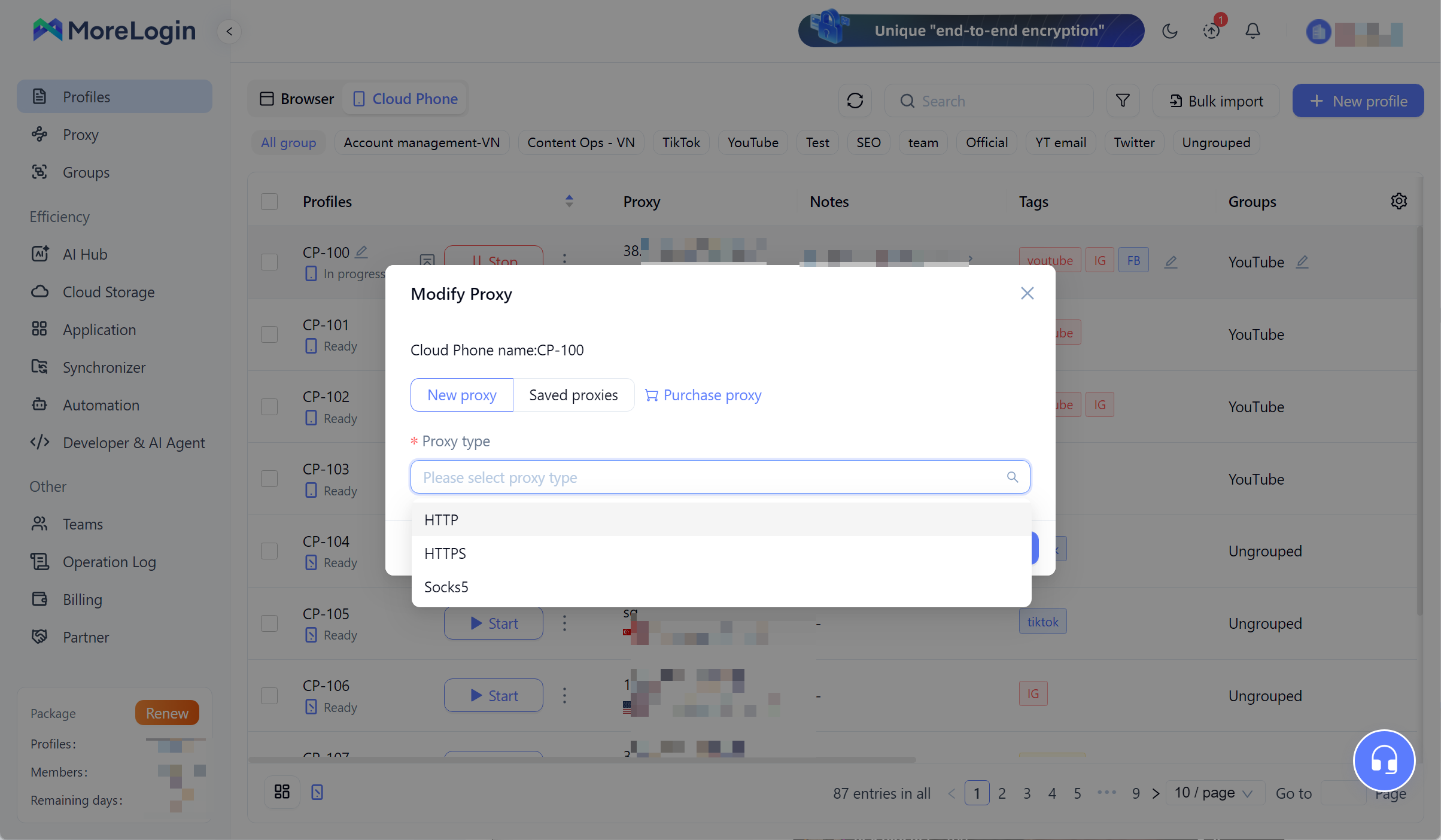
Keep the environment consistent where practical. Random changes make login history harder to understand. They can also lead to more Google security checks.
Different clients or regional projects may use different proxies. This is a workflow choice, not a public YouTube requirement. YouTube does not state that every legitimate account must have its own IP address.
Avoid unknown free proxies for important Google logins. The small saving is not worth wondering who handled the account traffic.
Open the profile and sign in to the assigned Google Account.
Complete any Google security checks. Then open the YouTube account menu and confirm the available channels.
Check:
Google Account email
Active channel
Channel handle
Profile image
YouTube Studio access
Recovery information
Two Step Verification method
Open YouTube Studio before starting real work. The dashboard makes the active channel easier to verify.
For a new setup, upload a harmless test video with Private visibility. Close the profile, reopen it, and check whether the correct login session remains available.
A useful profile system should help someone find the correct account without opening five windows.
Groups can represent stable ownership, such as Client A or Brand B. Tags can show language, region, status, or team member.
Keep the structure simple enough that people will maintain it. A perfect tagging system that nobody updates is just decoration.
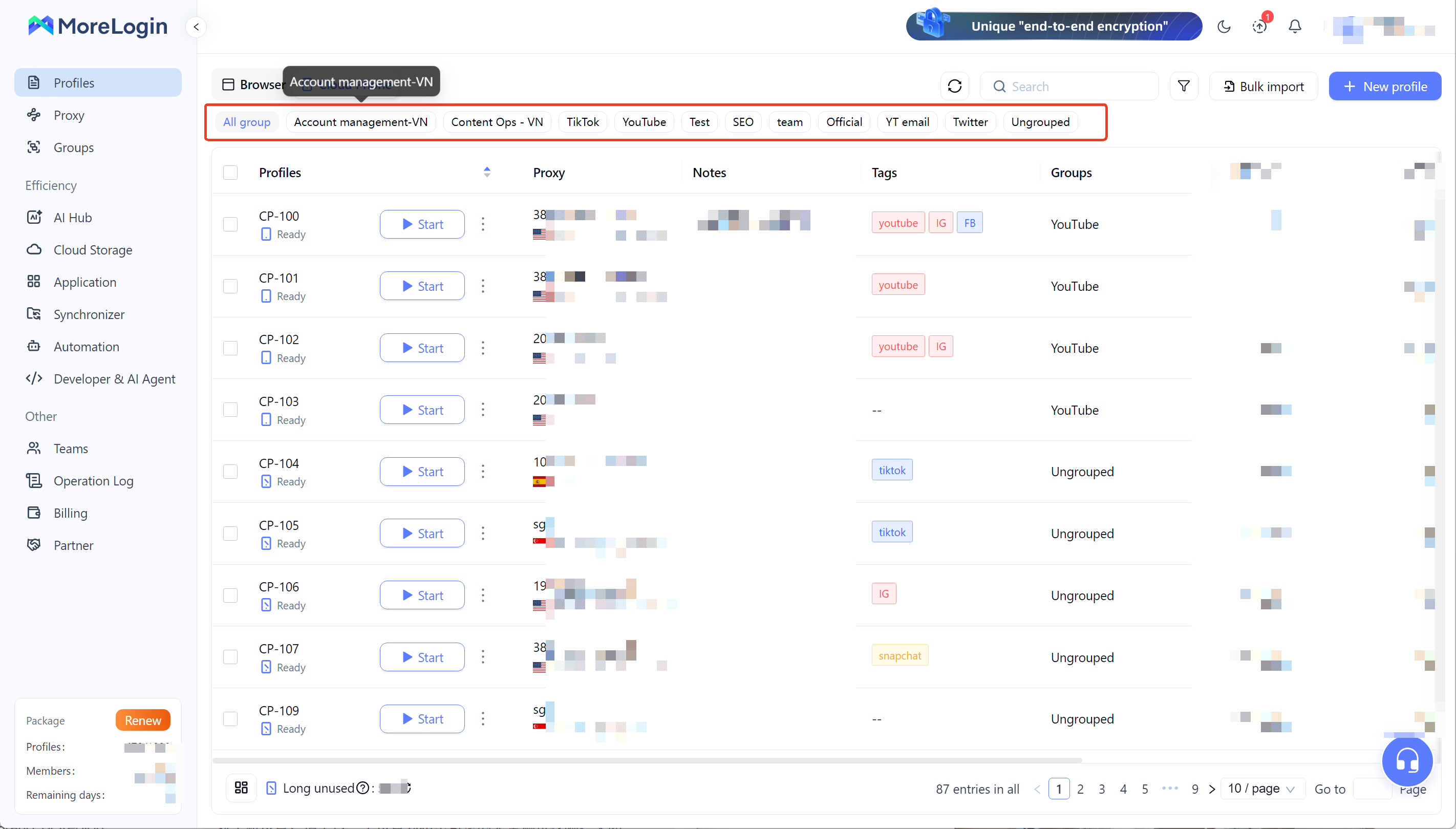
YouTube permissions and MoreLogin permissions control different things.
YouTube permissions decide what someone can do inside a channel. MoreLogin permissions decide which browser profile that person can access.
A channel manager may need both. A reporting specialist may only need Viewer access in YouTube Studio. A video editor may not need access to the Google login at all.
Give each person the access required for their role. Avoid opening every client profile to the whole team.
When someone leaves, remove access from both places. Revoking MoreLogin access does not remove YouTube Channel Permissions. Removing the YouTube role does not automatically remove access to a browser profile.
That two layer check is easy to forget. It belongs in the offboarding process.
A clean tool setup helps. Daily habits matter more.
Use the same working profile for the same Google login where possible.
This keeps cookies, login state, and project settings together. It also makes login problems easier to investigate.
If the account needs to move to a different setup, record the reason. Check the recovery email and Two Step Verification before making the change.
Use distinct profile pictures for channels with similar names. Add country or language markers where they make sense.
Before publishing, confirm the channel name and handle. Do not rely on the browser tab alone.
A private first upload is useful for high value content. It gives the team one last chance to catch the wrong file, title, or audience setting.
A mature YouTube channel can represent years of work. Treat the owner account as a company asset.
Maintain a current recovery email and phone number. Enable Two Step Verification. Review signed in devices and connected applications.
Use Channel Permissions for everyday work. Sharing the owner password may feel faster, but it makes access harder to track and revoke.
The company should also know who controls the primary owner account. That information should not live with one employee.
Access tends to remain long after the original reason disappears.
Review employees, contractors, agencies, and temporary collaborators. Remove roles that no longer match current work.
Pay special attention to revenue access, profile transfer rights, and owner permissions. Those rights have more impact than ordinary content editing.
Automation can support repetitive work such as opening profiles, preparing files, and running approved publishing steps.
It should not be used for artificial views, subscriptions, likes, or repeated comments. Those activities can violate YouTube policies.
YouTube also restricts the use of other channels to bypass a termination. The current channel termination policy applies across existing and newly created channels.
An organized browser environment does not change those rules.
Most failures come from one of three places. The wrong Google Account is open. The YouTube permission is missing. The browser profile access is wrong.
Start by identifying which layer failed.
Check the visibility first. A Private or Unlisted video can be corrected before viewers see it.
Then review why the mistake happened. Similar logos, unclear file names, and vague profile names are common causes.
For the next upload, confirm the channel handle and video file before publishing. Keep each client’s media in a separate folder. Use filenames that include the brand, region, and content topic.
Memory is not a reliable control. A short checklist is.
Do not blame the proxy immediately.
Check whether the password changed, cookies were cleared, or Google sent a security alert. Review signed in devices and recent account activity. A browser extension may also interfere with the session.
If several people share one Google login, find out whether someone changed the recovery settings. Moving daily work to Channel Permissions may reduce these conflicts.
Google may request verification after a new device login or a noticeable environment change.
It may also happen when several people use the same credentials, the password has changed, or the recovery details are incomplete.
Use a recovery method controlled by the account owner. Avoid public or temporary phone numbers. Keep the working environment consistent where practical.
A browser profile can reduce unnecessary session changes. It cannot remove Google’s right to request verification.
Check the Google Account email first. Personal and work addresses are easy to confuse.
If the email is correct, review the channel invitation and current permissions. The channel may belong to another Brand Account. An owner may also have removed access.
Ask the owner to review Channel Permissions. Requesting the owner password should not be the first response.
Check the access layers in order:
Can the person sign in to the correct Google Account?
Does that Google Account have a YouTube role?
Can the person open the assigned MoreLogin profile?
Fix the failed layer. Giving broader access rarely solves a missing invitation or incorrect email address.
One Google Account may manage many channels, but unrelated client ownership creates avoidable tension.
If an agency employee owns all client channels, handovers become difficult. If every team member can see every client, permissions become too broad. If the login fails, several projects may lose access at the same time.
Keep related company channels together when that structure makes sense. Let clients retain ownership of their channels. Give the agency working access through Channel Permissions.
Separate browser profiles can then organize the independent Google logins without changing ownership.
Use YouTube’s channel switcher for related channels under one Google Account. Use Channel Permissions when several people work on the same channel. Use separate browser profiles for independent client or brand logins. Add cloud phones when the workflow depends on the YouTube app or mobile publishing.
The real goal is not more profiles. It is fewer moments of doubt.
When someone opens a project, the owner, channel, files, and access level should be clear. That is what makes multi-account work manageable.
Can I manage multiple YouTube accounts on one device?
Yes. You can use YouTube’s account switcher, separate browser profiles, or cloud phone environments. Choose based on whether the channels share one Google Account and one owner.
Can multiple YouTube accounts use the same IP address?
YouTube does not publish a rule that requires every legitimate account to use a separate IP. Shared networks are common in homes and offices. Account ownership, secure access, stable workflows, and policy compliance matter more.
Is it against YouTube’s rules to have multiple accounts?
Multiple accounts or channels are not automatically a violation. They still need to follow YouTube policies. Using them for fake engagement, spam, or termination circumvention can create problems.
Should every YouTube channel have a separate Google Account?
Not necessarily. Related channels with one owner can share a Google Account. Independent brands and client channels often benefit from separate ownership and recovery details.
Can multiple people manage the same YouTube channel?
Yes. Channel Permissions let the owner invite managers, editors, and viewers. Each person uses their own Google Account.
How do I switch between YouTube accounts without logging out?
Use Switch account in the YouTube profile menu for channels connected to the current Google Account. Use separate browser profiles when the channels belong to different Google Accounts.
What is a practical way to manage client YouTube channels?
Let each client keep channel ownership. Give the working team appropriate Channel Permissions. Organize independent client logins in clearly named browser profiles. Keep the owner, recovery contact, operator, and project status documented.

 EN
EN