EN
EN
A new support employee needs to check orders in your store. You give them access, then notice they can also open payment settings and change the recovery email.
The employee needs the account to do their job. They do not need control over every part of it.
Credential management means looking after the information used to gain and keep account access. For a team, that includes deciding who holds the password, how employees sign in, and what happens when their work ends.
Start with the task you are handing over. Then choose how to provide access without passing around more account information than the job requires.
There are three useful approaches. The right choice depends on the platform and the work your employee needs to complete.
Check whether the service lets you invite employees with their own logins. A store may offer separate roles for support, product management, and finance. An advertising platform may let you assign campaign access without giving someone control of billing.
Use those options when they cover the work. Each person keeps their own identity, and the platform applies the assigned permissions.
Check the actual role before sending the invitation. A role called manager may include user administration or financial settings that the employee does not need.
A business password manager gives the team a managed place to store and share login details. This is useful when several people need an account and the platform offers limited member access.
Review who can use the saved login, reveal the password, edit it, or share it again. Those permissions may differ.
A password manager also keeps credentials out of routine handoff messages. When a password changes, update the managed record rather than sending a replacement to everyone in chat.
Some tasks require an employee to continue working in an account that is already signed in. An assigned browser profile can carry that saved working state between authorized users.
For an agency, this might mean giving an account manager access to one client's environment. They open the assigned profile and continue the work there, rather than receiving the client's password in a message.
Check what comes with that access. A profile may contain other signed in services, saved passwords, or sensitive pages. Keep unrelated accounts out of an environment you plan to share.
These approaches can work together across the team's accounts. Use named platform members where available and controlled profile handoffs for authorized work that needs a saved session. Keep recovery information in the business password manager.
A password is only one route into an account. A recovery email can reset it. A saved session can keep someone working without entering it again.
Before the handoff, check the following items.
Pay particular attention to saved login state. In browser session management, a cookie may carry an identifier that lets the platform recognize an authenticated user. Someone with a usable session may be able to access the account without knowing the password.
That makes exported login data sensitive. Moving it into a shared folder can create another account access route that nobody remembers to remove later.
Keep a small account register with the owner, approved users, recovery contact, and date of the last access review. Record where secrets are held rather than copying the secrets into the register.
Also check platform members and connected applications. A former contractor may still have access through an invitation or an authorized tool, even after you stop sharing the browser profile.
Use one business account for the first setup. Choose an employee with a clear task, such as checking order status, so you can test the result against real work.
Assign a person who is responsible for account access and recovery. For an agency, confirm which recovery channels remain with the client and who should handle a login problem.
Resolve this before the account becomes part of daily operations. If every verification request goes to a former employee's phone, routine work can stop as soon as the saved session expires.
Create or select a profile for that account. Give it a name that identifies the client, store, or project clearly.
Open it and check which services are signed in. Remove unrelated personal or administrative sessions before assigning the environment to another person.
Set up the employee's platform role where the service supports one. The business platform decides whether that login can change listings, manage payments, or invite other users.
If the handoff depends on saved login state, enable the required data sync settings. Close the profile after signing in, then reopen it as the assigned member to check that the session is available.
Use MoreLogin's team roles and profile permissions to separate access to software features from access to account environments.
For example, a support employee may need to launch the profiles for two stores. They may have no reason to create profiles, delete them, or manage other members.
Check both parts of the assignment. A suitable role with access to every client environment is still too broad.
Feature permissions apply to everyone assigned to the same role. Create separate roles when members need different software capabilities.
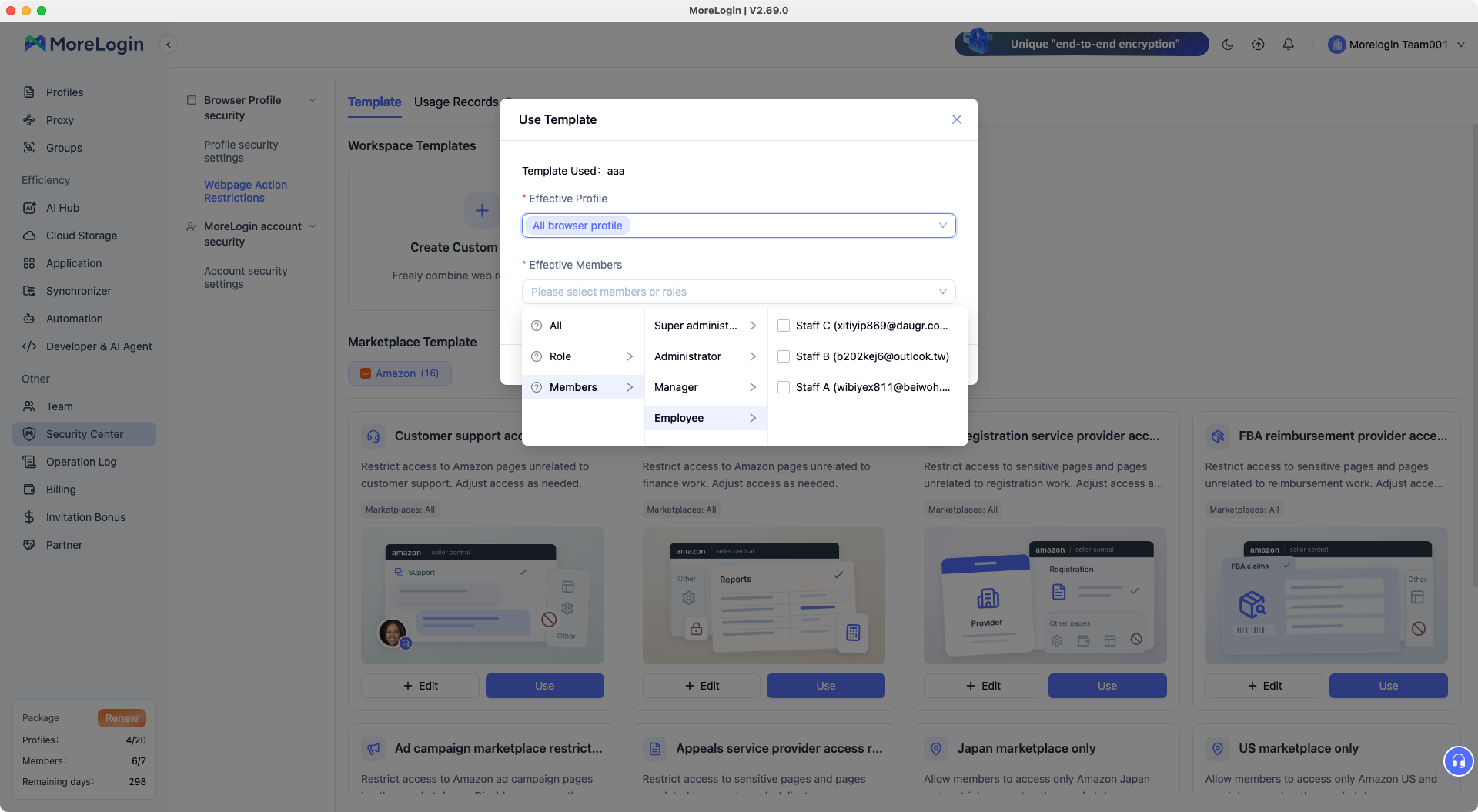
In Security Center, Basic Protection restricts viewing passwords in the profile's password manager and opening developer tools for controlled roles. These controls require client version 2.48.0 or later.
Advanced Protection targets password reading or export through extensions and scripts. The documentation lists Chrome kernels 138 to 144 for that option.
Apply the settings to the roles that will use the account. Protect the employee's own MoreLogin login with MFA as well. That login now provides access to assigned business environments.
Open the assigned environment with the employee's role and complete a normal task. Find an order, check its status, and open the pages needed to answer a customer.
Then check whether saved passwords remain hidden and unrelated client profiles are unavailable. After setting the page rules below, repeat the test for sensitive business pages.
Fix any gaps before adding more accounts. Testing one complete task is more useful than checking that a list of settings has been enabled.
An employee can keep the password confidential and still make a costly change inside the account. Once access works, review the work they can perform.
For a support role, start with the pages needed to resolve customer issues. Order details and delivery status may be necessary. Payment administration and member management usually serve different jobs.
Use the platform's own permissions for those business actions. Where the assigned view still exposes unrelated content, review browser controls for the remaining gap.
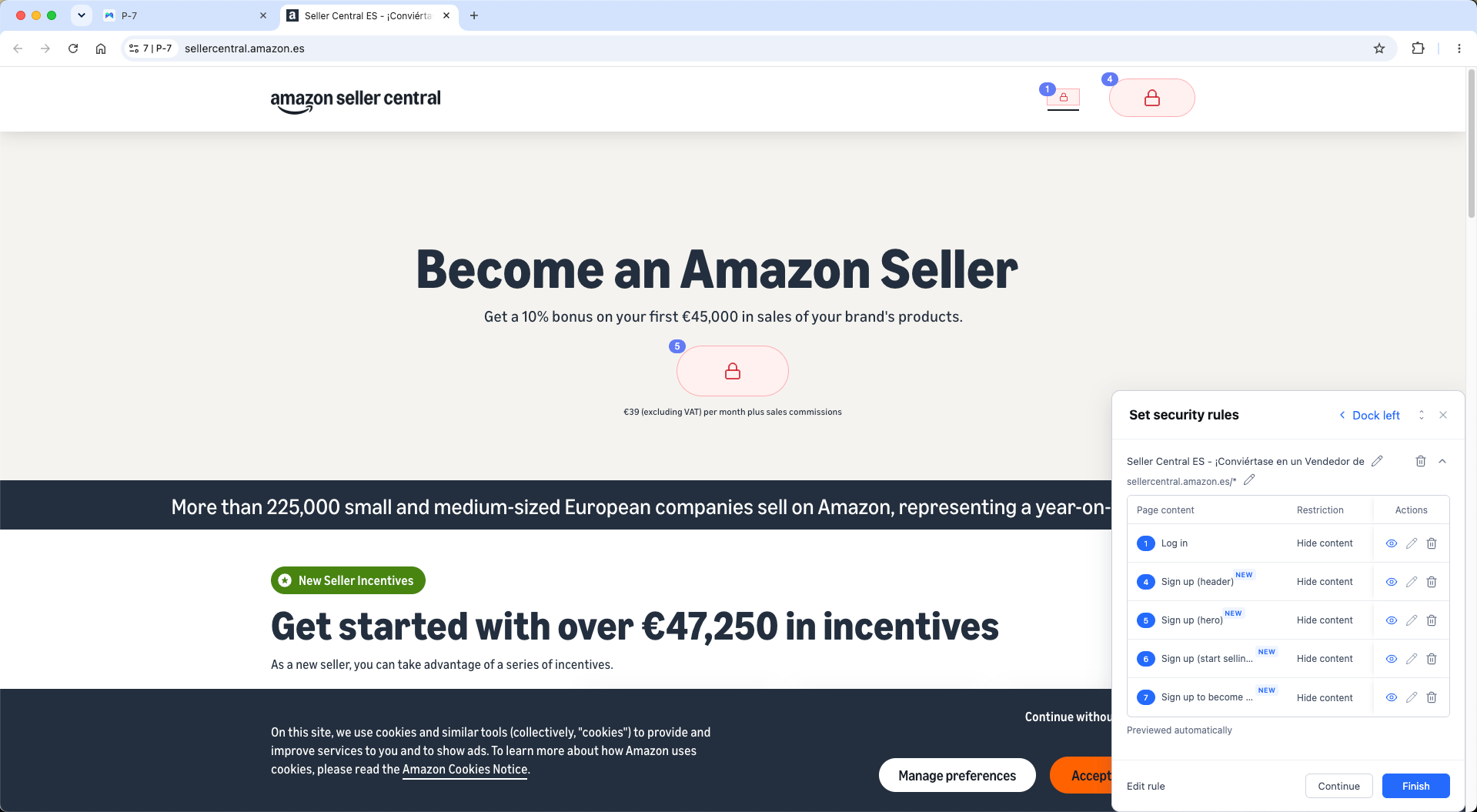
MoreLogin's web restrictions let you apply URL rules and hide selected page elements for specified members and profiles.
Use an allowlist when the employee should work only on approved pages. Include the pages required to complete the task. Use a blocklist when particular destinations need restricting. Restart the affected profile after saving or changing these rules.
For sensitive information on an otherwise necessary page, test element hiding with the member's role. Check the page again after a refresh and after following the usual navigation path.
Browser rules affect work inside that controlled environment. Keep platform permissions aligned with them, since another login route may still expose the same account settings.
If several jobs use the account, write down their different needs before adding more rules. A role-based access control plan for shared accounts helps you decide which access belongs to support, finance, or operations.
Use the account register to review every route the person used. Removing them from a team workspace is one part of the job.
Work through these checks when an employee leaves or a client assignment ends:
Remove the person's MoreLogin profile access and team membership as appropriate.
Remove or change their member role on the business platform.
Review active sessions and end those that are no longer needed.
Revoke connected applications or delegated access associated with their work.
Check whether they control a recovery address, phone number, authenticator, passkey, or recovery code.
If the person knew a shared password, change it and update the managed record. Check the platform's session controls after the change. Existing sessions may need to be ended separately.
Keep the next employee's access separate from this cleanup. Passing on a working profile without reviewing its contents can carry old permissions and unrelated logins into the next assignment.
For temporary cover, record the end date when access is granted. Put the removal check on the same task list as the handoff. That gives someone a clear responsibility to close it.
The distinction becomes useful when something needs to change.
If a password has been exposed, you need to replace it and update where it is stored. If an employee can change payment details, you need to adjust permissions. If a former employee still has a valid session, you need to end that access.
Password management covers the storage and use of passwords. Credential management covers a wider set of authentication information and its lifecycle. Access control determines which resources and actions a person is allowed to use.
In a shared business account, these jobs meet during every handoff. The account owner needs to know who can authenticate, what saved access remains available, and which tasks each person may perform.
Can several employees work on the same business account?
Many platforms support several named users on one store, brand, or advertising account. Check those options first. They let employees work on the same business asset without all using the owner's login.
Does hiding a password also protect the login session?
Hiding the password addresses password visibility. Review access to saved session data, exports, developer tools, and extensions separately. An employee who can reuse a valid session may still have account access.
Can a password manager and MoreLogin be used together?
Yes. A team can keep credentials and recovery information in a business password manager while using assigned MoreLogin profiles for browser work. Decide who can use each system and include both in access reviews.
What should you check if a former employee still has access?
Look for an active platform session, a separate member invitation, a connected application, or a recovery method they still control. Close the remaining route on the relevant service, then verify that access has ended.
Start with one account and two roles in MoreLogin browser profiles. Confirm that each person can finish their assigned work, that sensitive access stays with the right owner, and that access can be removed when the assignment ends.

 EN
EN