EN
EN
Running multiple Android instances is useful when different projects need their own applications, files, and saved sessions. The difficulty comes when those environments need to work at the same time. An application that runs normally on one device may take longer to load content or complete uploads as the workload grows.
MoreLogin Android Emulator Alternative provides remotely hosted Android environments that you manage from a desktop workspace. You can organize them by project, open several environments, and synchronize supported actions across selected windows.
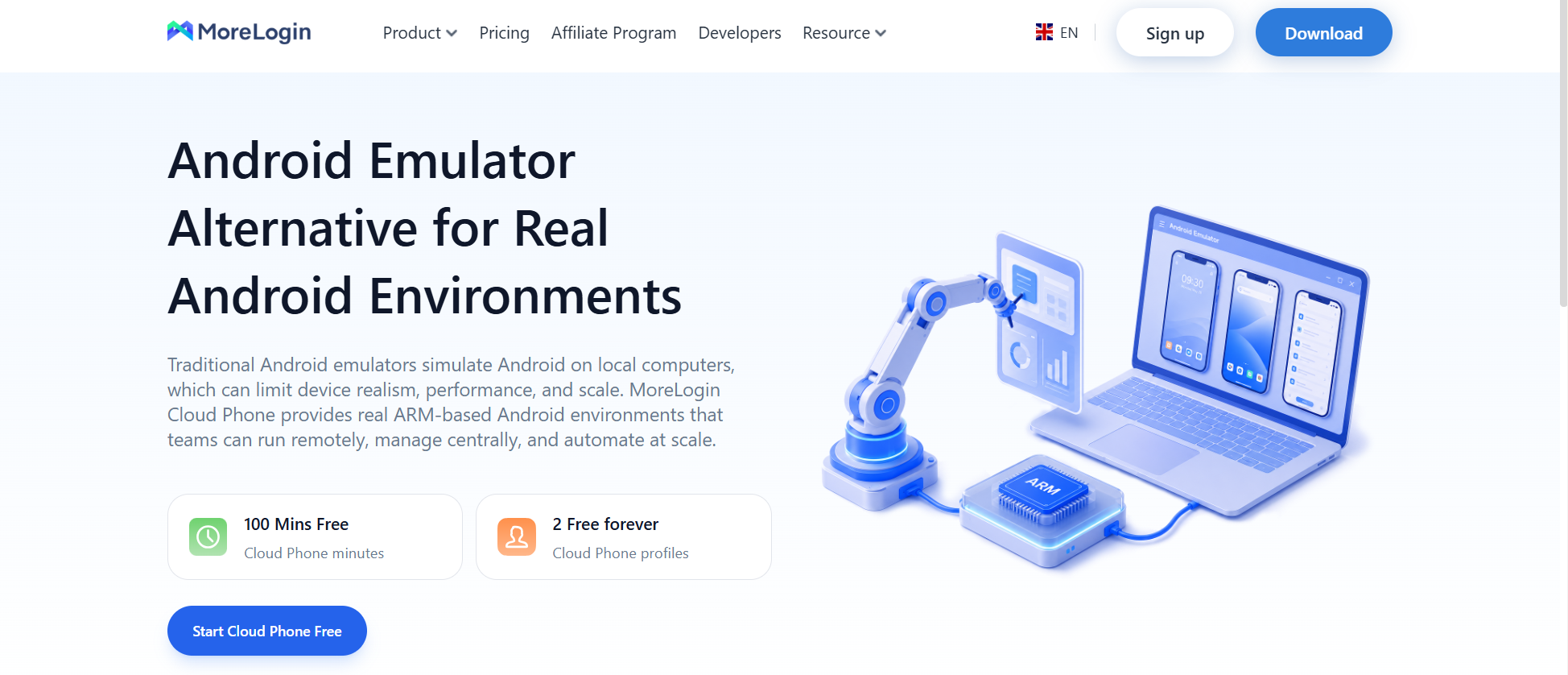
This guide uses MoreLogin throughout. Start by getting one environment working with your application, then use that configuration as the basis for the others. Fixing a network or compatibility problem once is much easier than correcting it across an entire group.
Choose an Android configuration based on what the application requires. Installation alone is not a useful compatibility test. An app may open but encounter problems when uploading media, accessing a device function, or returning to saved work.
Prepare a short task that represents normal use. For a content workflow, upload a sample image and check that it appears correctly. For an internal application, open a record, edit a field, and confirm that the change remains after reopening it. This task will become your reference when checking additional environments.
You will also need:
A MoreLogin account and the desktop client.
The application or a supported installation package.
Proxy details, if the workflow requires them.
A naming convention for the environments.
A billing option suited to the expected running time.
Unlike a local Android emulator, MoreLogin runs the Android system remotely. Your computer still handles the client and device screens, so network quality and the number of visible windows affect the experience.
LDPlayer is a useful example of the local model. This local emulator and remote Android environment comparison shows how resource use, instance management, synchronization, proxy setup, and team access differ between LDPlayer and MoreLogin.
The steps below follow MoreLogin’s documented creation and management process. Available configurations and interface labels may vary by client version.
Open MoreLogin and select New Profile. In the creation options, select Cloud Phone Profile, then open Advanced Creation. These are the interface labels used to access the remotely hosted Android environments.
Choose an available Android configuration and billing method. Create one environment for the first application check. If you already have a configuration that works, you can use the available batch creation option.
The quantity allowed in the creation form applies to that operation. It does not necessarily represent your account’s total capacity or simultaneous running limit.
Select the Android version that meets your application’s requirements. The newest version is not automatically the best choice. Compatibility with the functions you use matters more than the version number itself.
Give each environment a name that identifies its purpose, then place related environments in a group. This helps you select the correct devices when opening windows or starting synchronized operations.
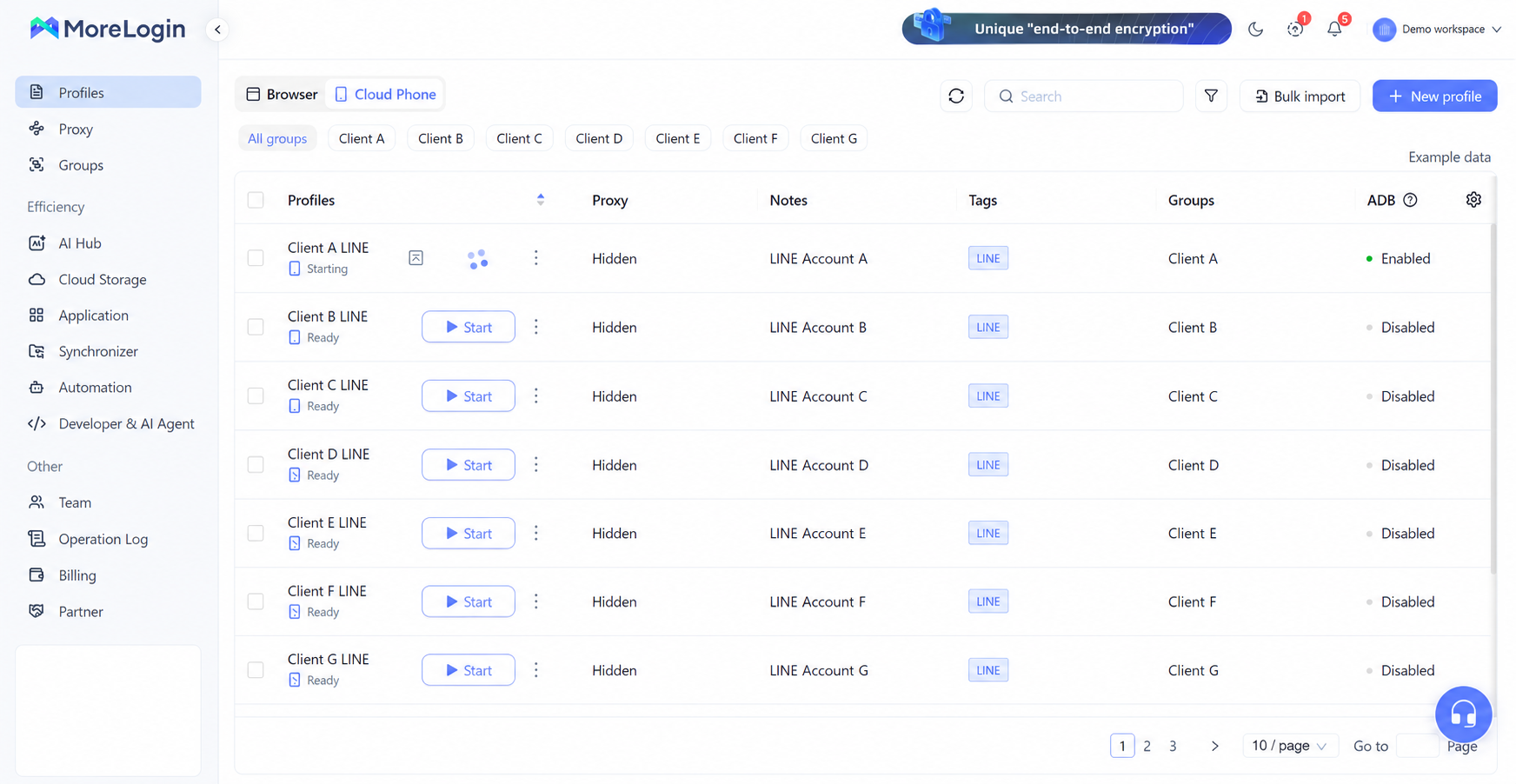
A small project could use:
Project-A-01 for the first working environment.
Project-A-02 for the second working environment.
Project-A-Test for checking application changes.
Inspect the names after batch creation. If several profiles received the same name, rename them before use. Duplicate names become troublesome when different files or tasks need to go to different environments.
Use notes for details such as ownership or application purpose. Keep credentials in their appropriate configuration fields.
If your workflow requires a proxy, enter its host, port, and authentication details, or select a saved configuration. Run the available connection check before continuing.
After starting the environment, check the connection inside the application as well. A reachable proxy does not establish that every application service will work through it.
If the app fails to load, try another application or a web page in the same environment. When nothing connects, investigate the network configuration. When only one app fails, check that app’s availability and compatibility before changing the network for the whole group.
Separate Android environments do not automatically use different public IP addresses. Network routing needs its own configuration and verification.
Complete any required activation step, start the environment, and install the application through an available source or supported installation package.
Work through the task you prepared. If the job involves media uploads, send a sample file. If it depends on saved data, reopen the application and check that the result remains available. Follow the task far enough to use the functions that matter in daily work.
Keep the application version and relevant settings consistent across environments where practical. This is especially useful for synchronized operations. A different version may introduce a permission prompt or move a button, changing how the same input behaves.
Once the first environment works, create and configure the others. Check the required task in each one before adding it to regular use.
Start a small group and perform the task while your usual desktop applications are open. Testing without your browser, communication tools, or other work software may overstate the capacity available during the working day.
Check whether controls remain responsive and uploads finish. Also watch for application errors that appear only when several environments are active.
Increase the quantity gradually. If performance changes after adding another group, you have a clearer point to investigate. Starting a large number at once makes it harder to distinguish a client issue from a network problem or a fault in one environment.
Open the Synchronizer, select the running environments, and choose a main control window.
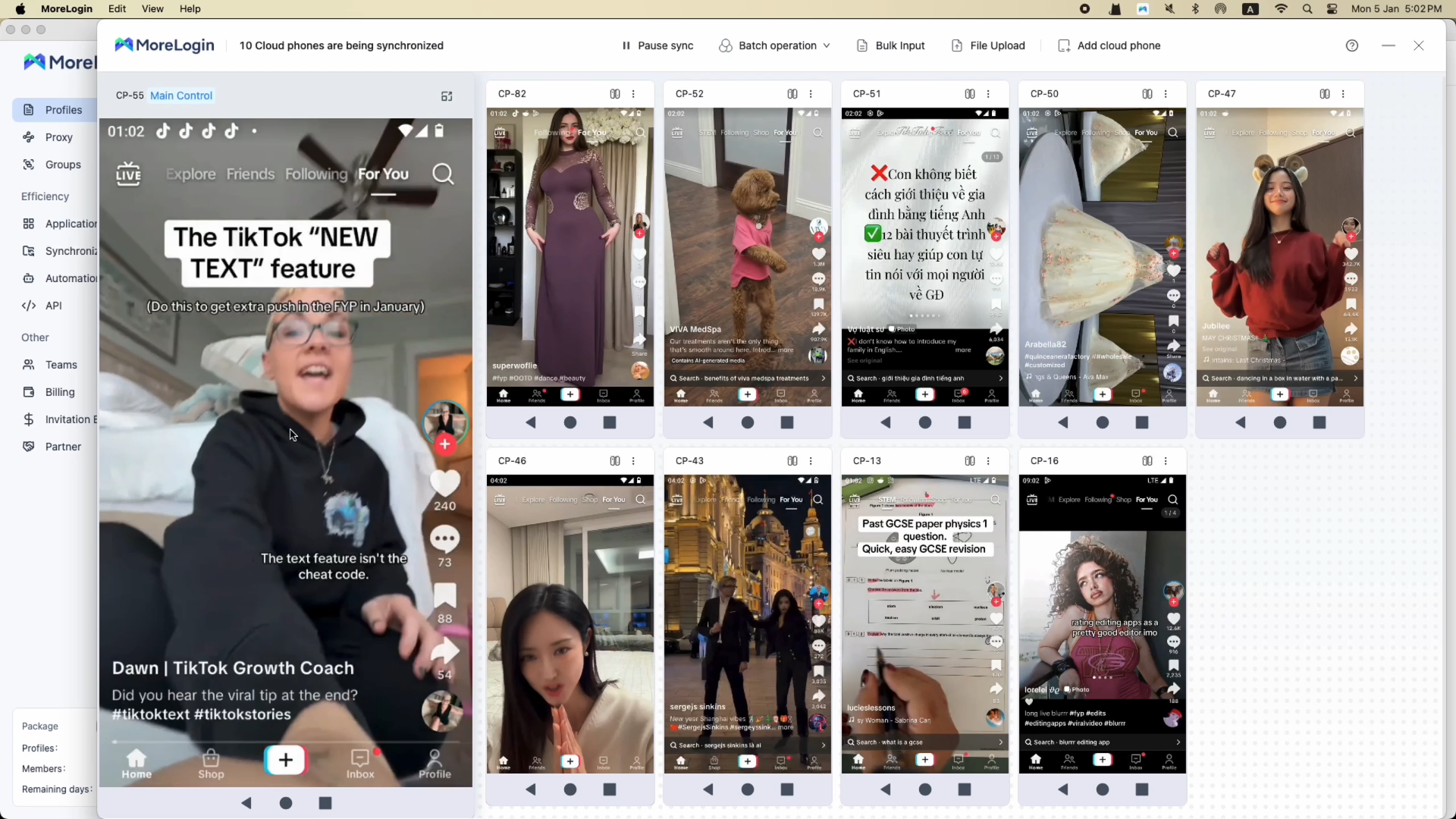
Bring every selected application to the same screen before sending input. A permission dialog in one window can send the workflow in a different direction. The same click may dismiss a dialog on one device while selecting a menu item on another.
Begin with a short operation and inspect the result. If one environment falls behind, pause and correct its state before continuing. Long sequences are harder to recover because later actions can obscure where the problem began.
Check configuration support before relying on batch text input, file uploads, or application management. Some functions are restricted to particular device models.
Synchronization is most useful when you are supervising several windows that need the same action. For tasks that require scheduling or a defined sequence, evaluate the available automation functions separately.
Check the result in every selected environment. The main control window completing a task does not confirm that the others did. Look for the uploaded file, saved change, or expected application screen.
When an environment is no longer needed, use the appropriate stop control and confirm its status in the profile list. Closing its display window should not be treated as proof that the remote device has stopped.
Review the billing rules for your selected option. An environment may continue running after you stop viewing it.
A useful capacity figure needs a workload attached to it. Ten environments sitting on an Android home screen tell you little about ten environments uploading media or processing application tasks.
Account limits and device configurations set part of the boundary. The applications, connection, and local display load determine how much of that capacity is practical for your work.
Keep these quantities separate:
Environments you have created.
Environments currently running.
Control windows open on your desktop.
Environments completing the required task reliably.
These numbers can differ. You may have more environments running than you are viewing, and displaying additional screens can increase local resource use.
Measure capacity with the actual task. Watch for delayed input, failed uploads, and incomplete operations as you increase the group size. If reliability drops, return to the previous working quantity and investigate.
Without that check, a maximum instance count tells you little beyond how many devices started.
The pattern of a slowdown usually points to the next useful check.
When every visible window becomes delayed together, inspect the local connection and client load. Reduce the number of displayed screens and check whether responsiveness improves. If display quality is adjustable, choose a setting appropriate for the job. Routine text work rarely needs the same image detail as visual review.
When only one environment slows down, test another application inside it. If the second app works normally, concentrate on the first app rather than changing the entire setup.
Distinguish slow content loading from delayed control input. If taps respond immediately but content takes a long time to appear, investigate the application’s connection, proxy, or service. Reducing display quality is unlikely to solve that problem.
For synchronized work, inspect the application state before diagnosing a performance issue. A popup or a different screen can explain inconsistent results even when the connection is healthy.
Change one relevant setting and repeat the task. Changing several things together may restore service, but it leaves you without a clear fix to apply when the problem returns.
Once several environments are in regular use, configuration changes need more care. Keep a working reference and record the application version used for it. Test updates in a separate environment before applying them to active work.
This gives you somewhere to inspect changed menus, new permissions, or different application behavior without interrupting the group. It is particularly important when a workflow depends on buttons appearing in consistent positions.
Review names and groups as projects change. A list filled with old project names and duplicate labels makes selection mistakes more likely during batch operations.
For repeated tasks, choose checkpoints where the output is easy to inspect. Checking after an upload or saved change is more useful than watching a long sequence and reviewing only the final screen.
Can I run multiple Android environments with MoreLogin?
Yes. You can create and manage several environments from the desktop workspace. Available configurations and capacity depend on the current service options. Test your applications before deciding how many environments to run together.
Does MoreLogin run the Android systems on my computer?
The Android systems run remotely. Your computer runs the client, displays device screens, and sends input. These activities still require local resources and network bandwidth, particularly when several screens are visible.
Does each environment automatically receive a different public IP address?
No. The public IP depends on the network configuration. If the workflow requires a particular proxy connection, configure it and check it inside the environment.
Can I send the same action to several environments?
Yes, through the Synchronizer. The applications should be on matching screens before you begin. Loading delays and dialogs can cause the same action to behave differently across windows, so inspect the results as you work.
Does closing a control window stop usage charges?
Do not assume that it does. Confirm the device’s running status and use the appropriate stop control. Charges depend on the billing option and the service’s current rules.

 EN
EN