EN
EN
The first step in creating a LINE account is checking which registration method applies to your country. In Japan or Thailand, LINE lets you register with a mobile number. In the United States or the United Kingdom, you use a Google or Apple account instead.
If your screen looks different from a tutorial, check the region before trying another phone number or requesting more verification codes. You may already be seeing the correct registration options.
The table below shows the registration methods for selected Asian, North American, and European countries.
These examples follow the current LINE registration requirements. Select the country where you actually live, then use the method available on your device.
For example, a user in Germany should not expect to see the same phone number registration screen as a user in Japan. Changing the selected country simply to reveal another option can create further problems.
Install LINE from Google Play or the Apple App Store. Before opening the registration screen, check that you have:
An internet connection that can access LINE.
A supported mobile number or an accessible Google or Apple account.
Continued access to those registration details after setup.
A clear decision about whether you need a new account or your existing account on another device.
If you want to keep an existing LINE account, use the account transfer process. Creating a new account will not bring your old contacts and conversations into it.
For phone registration, LINE requires a number provided by a mobile service provider. Its guidance excludes virtual phone numbers and numbers beginning with 050. An online service that can receive SMS is therefore not automatically suitable.
Use this method if phone registration is available where you live.
Open LINE and tap Sign up.
Select your country and enter your mobile number.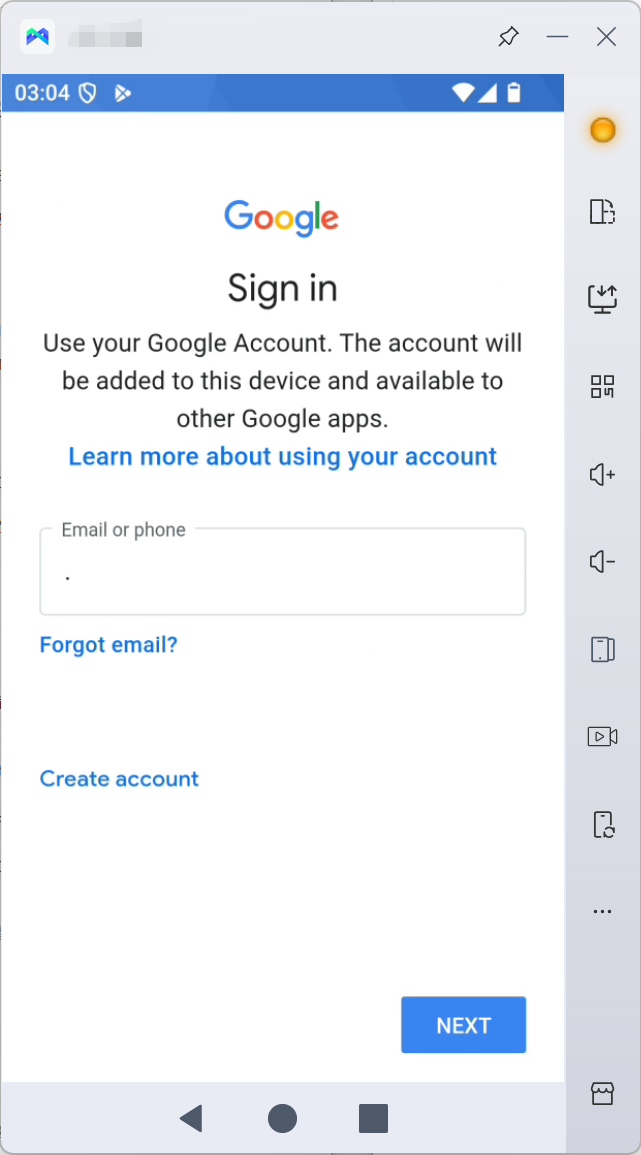
Review the terms and privacy information, then continue.
Enter the verification code sent to your number.
Follow the prompts to create a new account.
Enter your name and add a profile picture.
Create a password that meets the requirements shown on screen.
Choose whether to add friends from your device’s contacts.
In Japan, respond to the age verification prompt.
Complete the remaining information use confirmations to finish setup.
Some regions also show age requirements during registration. Follow the requirements displayed for your location.
If the SMS code does not arrive, check whether Call me instead is available. This option delivers the code through an automated phone call, but it is not offered everywhere.
A Welcome back screen means the number may already be associated with a LINE account.
If the displayed account is yours and you want to keep it, follow the account transfer process. Do not continue creating a replacement account by mistake.
If the displayed name belongs to someone else, LINE gives this sequence:
Tap No, that’s not me.
Tap Next.
Select No, create a new account.
Complete the remaining setup steps.
Be careful when reusing a number. LINE states that registering a number already attached to another LINE account will delete the original account. The official account creation guide explains both the registration steps and the existing account warning.
In countries such as the United States, the United Kingdom, Germany, and France, use the Google or Apple option offered in the app.
Open LINE and tap Sign up.
Review the terms and select your country.
Tap Continue with Google or Continue with Apple, depending on the available options.
Sign in to the account you want to use.
Enter your name and add a profile picture.
Create your LINE password.
Review the contact settings and complete the information use confirmations.
If your device contains several Google accounts, check the selected account before continuing. Choose one you expect to keep access to.
European Economic Area users may also see an age confirmation. LINE’s current instructions require users in those countries to be at least 16 and agree to the Privacy Policy before proceeding.
Google registration does not mean standalone email registration. Using a Google account to authenticate is different from entering a Gmail address into an email form. LINE’s current new account guide does not list ordinary email registration as a separate route.
Check the exact problem before changing your setup. A missing registration option and a missing SMS code have different causes.
Start with your region and registration method. Then check your number or third party account. Once those details are correct, check the app version and connection.
Change one thing at a time. Replacing the number, switching networks, and reinstalling LINE together makes it harder to identify the cause.
If you are trying to recover an existing account, avoid clearing its app data as a routine fix. First check what you need to preserve account access and chat history.
According to LINE’s desktop login instructions, you cannot create a new account directly in LINE for PC. The desktop app lets you log in to an account created on your main device.
A cloud phone works differently. You control a remote Android device from your computer, while LINE runs inside that Android environment. Any registration takes place in the mobile app.
For one existing account, the desktop app may cover your needs. You can read messages and reply without building a separate device setup.
A cloud phone becomes more relevant when you need separate Android environments or remote access to mobile apps. Before using one for LINE, check the current app version and authentication flow on a single device. Running Android does not guarantee that every registration method will work.
Once you reach the main screen, check the settings that affect everyday use.
Make the account recognizable. Choose a display name and profile picture that the people you contact will understand. For work conversations, consistency helps contacts identify who is replying.
Review contact access. Decide whether the account should use the device’s address book. Do this before connecting personal contacts to an account used for work.
Check notifications. Confirm that the person responsible for the account can notice and respond to incoming messages.
Keep recovery access clear. Record how the account was registered and who controls the associated number, Google account, or Apple account. Store passwords and recovery information securely.
Device storage and chat backup are separate concerns. An app can remain installed while its account still needs a supported backup or transfer process. Check LINE’s current guidance before replacing or resetting a device.
Several accounts are manageable until the devices and responsibilities become unclear. One account sits on an employee’s phone. Another is available only from an office computer. A colleague needs to take over, but nobody knows who controls the verification number.
MoreLogin Cloud Phone gives teams separate Android environments that can be named, grouped, and assigned to operators. This helps organize mobile work without buying and maintaining a physical phone for every environment.
Start with one device and confirm that it supports the LINE workflow you need before adding more.
Create a Cloud Phone profile in MoreLogin and give it a useful name.
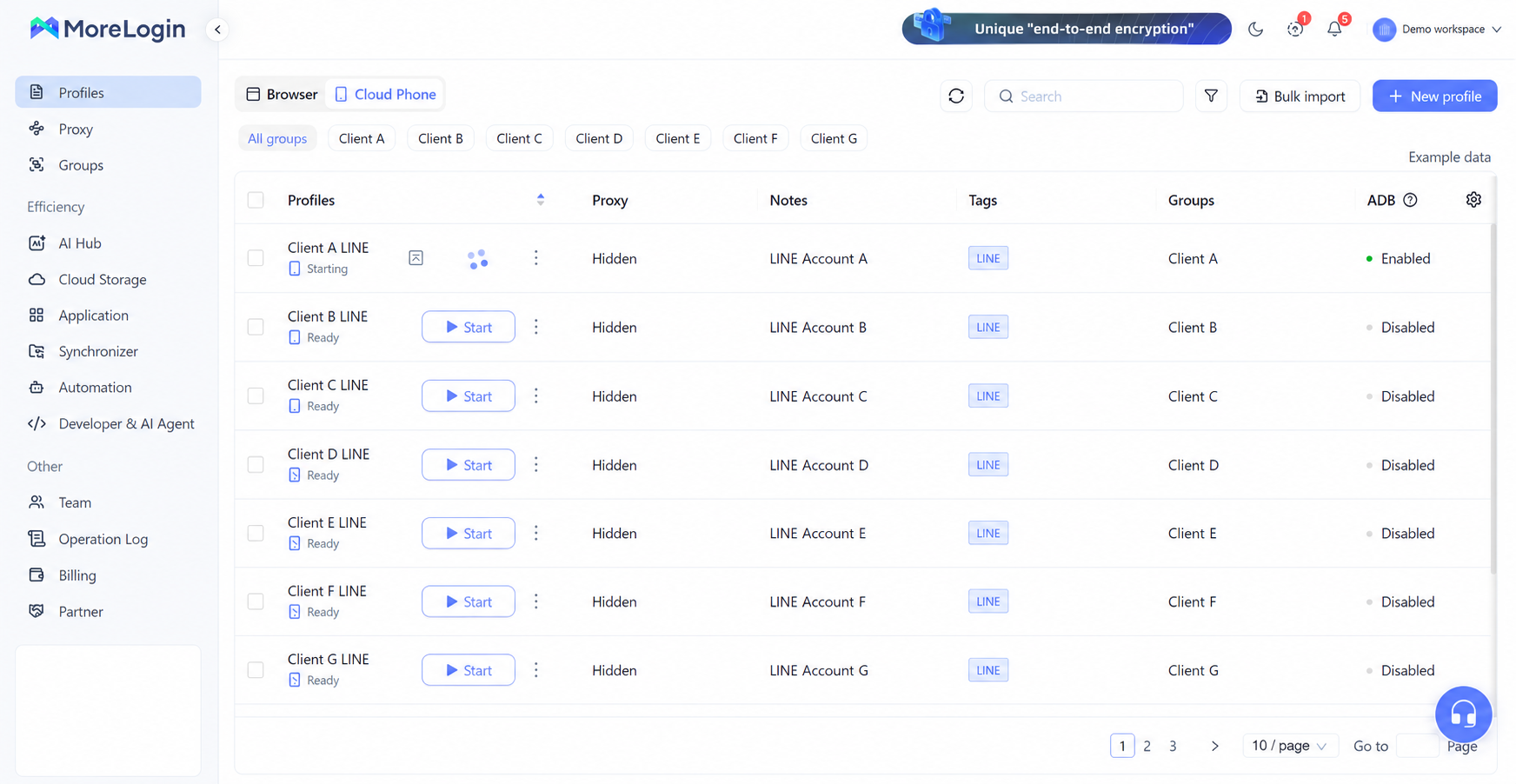
Client A LINE tells an operator more than Device 03. Add a group or a short note if you need to distinguish clients, projects, or responsibilities.
For separate accounts, assigning a dedicated environment to each one makes it easier to open the correct app session. It also reduces the need to move between accounts within the same environment.
Add the connection required by the cloud phone and run the network check before installing LINE.
MoreLogin’s current creation guide specifies a usable SOCKS5 proxy. Its proxy management tools let you organize saved connections and associate them with the relevant environments.
Keep the configuration easy to track. When an account has a connection problem, the operator should be able to identify which network settings belong to that device.
A proxy provides connectivity. It does not replace LINE’s number requirements or change which registration method applies to you.
Use MoreLogin’s app installation options to install LINE.
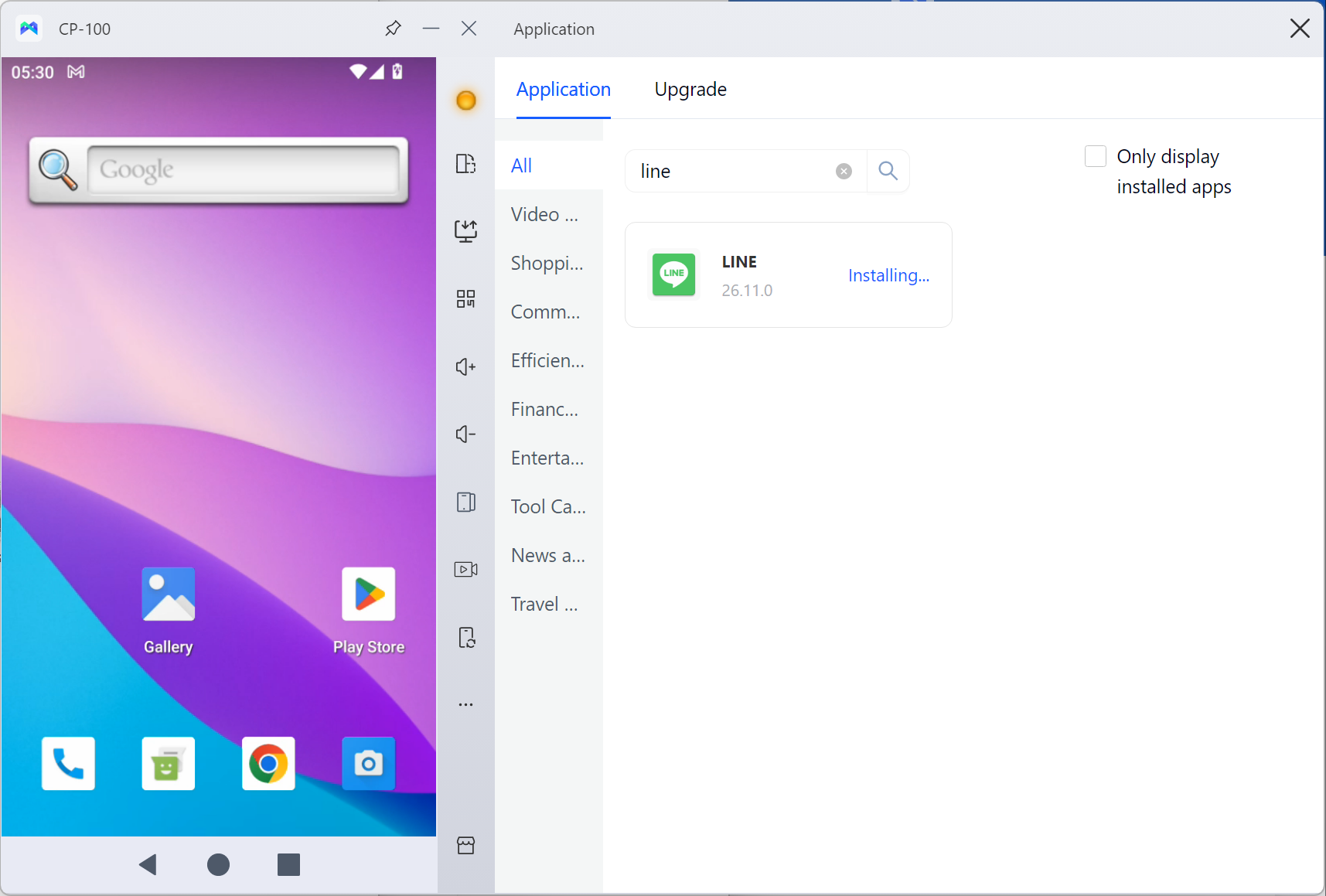
Open the app and check the available options. For a new account, follow the relevant registration steps earlier in this guide. For an existing account, check whether you need the account transfer or additional device process.
Before expanding the setup, confirm that:
LINE installs and opens.
The required authentication option is available.
You can complete the requested verification.
You can access the account after reopening the environment.
Bulk app installation can save preparation time. Account registration and verification still need to be completed through the applicable LINE process.
Keep a short record of the account, its device, and the people responsible for it.
The daily operator may not control the registration number or Google account. Recording both responsibilities makes handoffs easier.
Keep passwords and recovery codes out of ordinary profile notes. Those notes should help people identify the environment, not expose account credentials.
Use team authorization to give each operator access to the environments they need.
Before handing over an account, confirm which cloud phone to open and who can help if verification appears. When someone changes roles or leaves the team, review their permissions.
This approach keeps device access organized. LINE can still request authentication, so the team also needs continued access to the account’s registration and recovery details.
Yes, in countries where LINE offers Google or Apple registration. These include the United States, the United Kingdom, Germany, and France. Use the method supported where you live.
LINE’s current new account instructions do not list standalone email registration. Signing up through Google and adding an email address to an existing LINE account are different processes.
No. LINE allows one account per registered phone number. Registering that number to a new account will delete the original account, according to its official guidance.
No. Additional devices access the same account. Separate accounts have their own registration details and conversations. Decide whether you need another account or simply another way to access the existing one.
Do not assume that it does. A cloud phone provides an Android environment. If your LINE registration method requires phone verification, you still need access to a number that LINE accepts.
No. LINE Official Account has a separate business setup and management process. If you need a brand presence or business messaging tools, review that option before deciding to manage several regular accounts.
Complete one registration first and make sure you can keep access to it. If your work requires separate Android devices, use that account to check the MoreLogin Cloud Phone workflow, then organize additional environments around clear account ownership and team responsibilities.

 EN
EN