EN
EN
By making your Twitter account private, you can ensure that only people you approve can see your tweets and personal details. A private account, also known as a protected account, differs from a public one, where anyone can view your posts without restriction. In this article, we’ll guide you through how to make a private Twitter account on Twitter private, so you can manage who sees your content and keep your profile secure.
When you make your Twitter account private, your profile becomes more exclusive. This means that only the people you’ve approved as followers can see your tweets, likes, and replies.
Once your account is private, your tweets won’t appear in search engines or on public timelines. Only your followers can interact with your posts, and they won’t be able to retweet or share your content with others. If someone who isn't following you tries to view your profile, they will only see a "protected" notification, prompting them to send a follow request.
This setting not only protects your personal information from strangers but also limits how your content can be shared. While it provides more privacy, it can also affect the visibility and reach of your tweets.
Before you decide to make your Twitter account private, there are a few important things to keep in mind.
First, the existing followers will still be able to see your content after you switch to a private account. Anyone who wasn't following you before won’t be able to access your tweets unless they send a follow request, which you can approve or deny.
When you make your account private, past tweets won’t automatically be hidden. You’ll need to delete any tweets you want to keep private manually.
Besides, business accounts or special accounts may experience delays in the activation of privacy settings, and some features (such as making an account "private" or controlling who can reply to posts) could be restricted based on Twitter’s policies for brands and public figures.
The process of making Twitter accounts private on mobile is simple and can be done in just a few steps, whether you’re using iOS or Android.
Step 1. Launch the Twitter app on your phone and log in to your account.
Step 2. Tap your profile picture in the top left corner to open the menu.
Step 3. Scroll down and select “Settings and Privacy”.
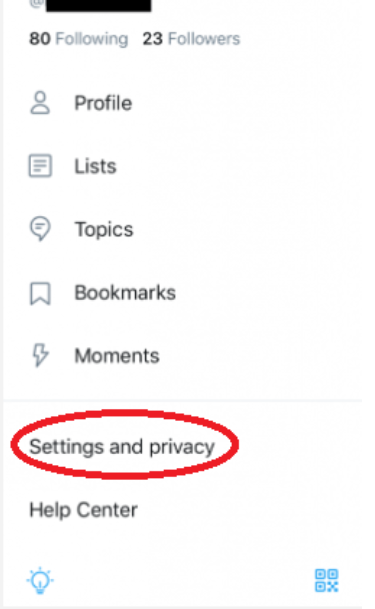
Step 4. Under this section, tap “Privacy and Safety”.
Step 5. Toggle the option for Protect your Tweets to the "on" position.
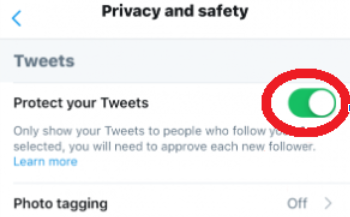
Step 6. A prompt will appear asking you to confirm. Click “Confirm” to make your account private. Once this is done, only people you approve can view your tweets and profile, keeping your content more secure.
How to make a Twitter account private on a desktop? It is a quick and simple process. Just follow these steps.
Step 1. Open your web browser and go to Twitter.com, then log in to your account.
Step 2. Click on the More option in the left sidebar, select “Settings and Support” > “Settings and Privacy” in turn.
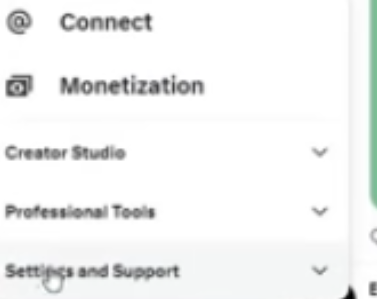
Step 3. In the settings menu, click on “Privacy and safety”. Under “Audience, media and tagging”, check the box next to “Protect your posts”.
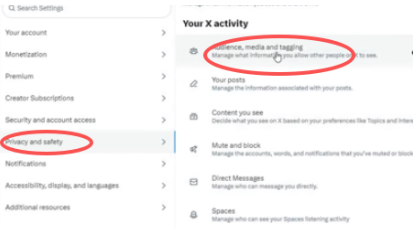
Step 4. Click Save changes to activate your private account. Once completed, only your approved followers will be able to see your tweets and profile.
If you’re managing multiple Twitter accounts, especially for personal and work purposes, MoreLogin cloud phone can be a game-changer. By using this tool, you can easily separate and manage your private Twitter account from any professional or business-related accounts. This helps maintain privacy while ensuring each account stays secure and distinct.
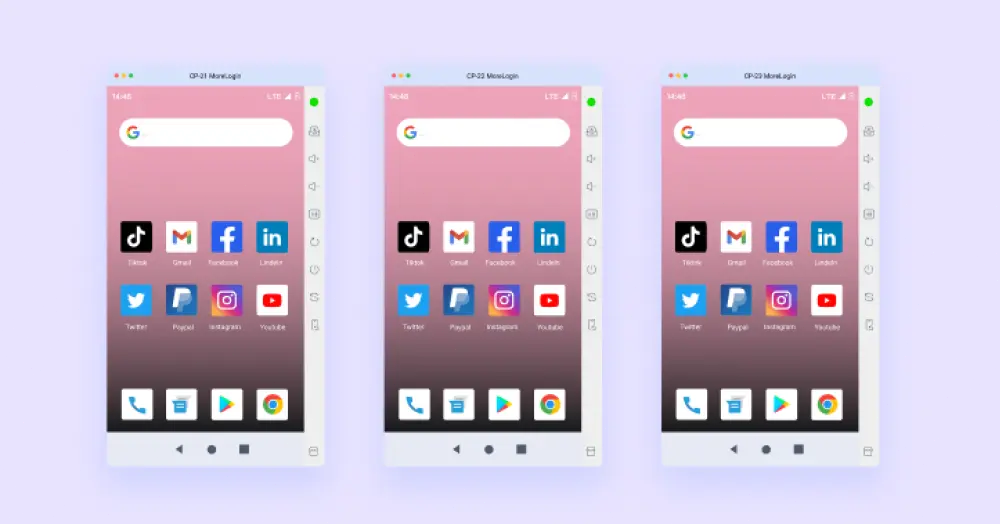
Additionally, MoreLogin allows you to test privacy settings and content policies across different accounts. Whether you're exploring how your tweets are shared or reviewing different privacy features, it’s an efficient way to monitor how accounts behave under specific conditions.
Another benefit is reducing the risk of accounts being linked by the system. Twitter’s algorithm can sometimes link accounts to the same person based on certain patterns. With MoreLogin, you can minimize the chances of this happening.
Also Read: Why Twitter Block Acounts and How to Prevent This?
How to make a Twitter account private? To sum up, making your Twitter account private is an effective way to control who sees your content and protect your personal information. By following the steps we outlined, you can easily switch your profile to a private one on both mobile and desktop.
Managing multiple accounts, whether personal or professional, can be tricky. That's where MoreLogin comes in. It helps streamline account management, boosts efficiency, and minimizes privacy risks by keeping accounts separate and secure.
1. Will my private account still be searchable?
No, once your account is private, it will not appear in search engines or public Twitter searches. Only approved followers can view your profile and tweets.
2. Can I change it back to public after making it private?
Yes, you can switch back to a public account at any time by disabling the “Protect your Posts” option in your privacy settings.
3. Will a private account affect recommendations?
While a private account limits who can see your tweets, it may still influence Twitter's recommendations based on your activity and interactions with others. However, fewer people will see your content.
4. Does a private account affect the private messaging function?
No, your ability to send and receive private messages is not impacted by switching to a private account. So you can still message anyone, even if they don’t follow you.
5. I can't find the "Protect your Tweets" option. Why and How to Solve it?
If you can’t find the “Protect your Tweets” option, make sure your app is updated to the latest version. If you're using an older version of the app, this feature may not be available.
 EN
EN