EN
EN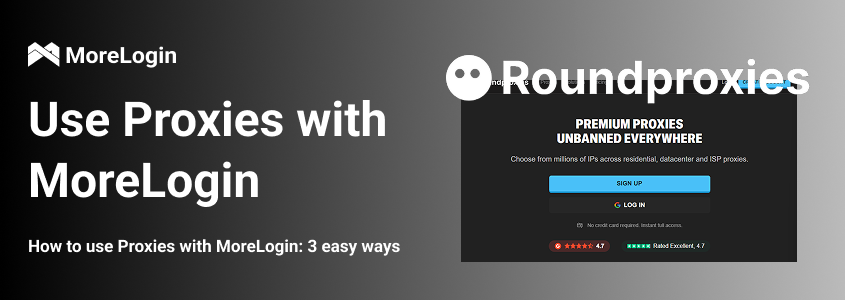
Managing multiple accounts from one device without getting flagged is tricky. Websites track your browser fingerprint, IP address, and behavior patterns. One wrong move and your accounts get banned.
Using proxies with MoreLogin solves this problem by assigning unique IP addresses to each browser profile. This guide walks you through three methods to configure proxies in MoreLogin, from single profile setup to bulk imports and using saved proxies.
MoreLogin is an anti-detect browser that creates isolated browser profiles with unique fingerprints. Each profile mimics a different user, making multi-account management possible without triggering detection systems.
But fingerprint spoofing alone isn't enough. Websites also check IP addresses. Running multiple profiles from the same IP is a red flag. That's where proxies come in.
When you use proxies with MoreLogin, each profile gets its own IP address. The combination of unique fingerprints and different IPs makes your profiles appear as completely separate users browsing from different locations.
MoreLogin paired with proxies works well for affiliate marketing, e-commerce store management, social media automation, ad verification, and web scraping. If you need Residential Proxies, Datacenter Proxies, ISP Proxies, or Mobile Proxies for your MoreLogin setup, providers like Roundproxies.com offer reliable options across all proxy types.
You'll need a few things ready before configuring proxies:
MoreLogin Account: Download the app from the official website. The free plan supports 2 profiles. Paid plans unlock unlimited profiles.
Proxy Credentials: Have your proxy details ready including the host/IP address, port number, username, and password. The format varies by provider.
Supported Protocols: MoreLogin supports HTTP, HTTPS, SOCKS5, and SSH proxies. Most users go with HTTP for browser traffic or SOCKS5 for better performance.
This method works best when you're setting up individual profiles with dedicated proxies. It gives you full control over each profile's proxy settings.
Launch MoreLogin and click the + New Profile button in the top-left corner. The app generates unique fingerprint settings automatically for each new profile.
Click the Advanced create tab to expand additional options. Scroll down to find the Proxy settings section. This is where you'll enter your proxy information.
Click the Proxy type dropdown and choose your protocol. Your options include:
HTTP/HTTPS - Best for general browsing and most use cases
SOCKS5 - Faster and supports UDP traffic
SSH - Encrypted tunnel for additional security
Select the protocol that matches what your proxy provider offers.
Fill in the required fields:
Proxy Host: Enter the IP address or domain (e.g., 192.168.1.1 or residential.roundproxies.com)
Port: The port number provided by your proxy service
Proxy Account: Your username for authentication
Proxy Password: Your password for authentication
Leave username and password blank if you're using IP whitelist authentication instead.
Click the Proxy detection button to verify your configuration. MoreLogin will attempt to connect and display the detected IP address and location.
A successful test shows a green checkmark with your proxy's IP information. If you see errors, double-check your credentials and make sure your IP is whitelisted with the proxy provider if required.
Click OK to save your profile settings. The new profile appears in your Browser Profiles list. Click Start to launch the browser with your configured proxy.
The browser opens with a tab showing your current IP address and location. This confirms the proxy is working correctly.
Managing dozens or hundreds of profiles individually takes forever. The batch import feature lets you add multiple proxies with MoreLogin in one operation.
Create a text file with your proxies. Each line should contain one proxy in the following format:
ProxyType://ProxyHost:ProxyPort:ProxyAccount:ProxyPassword
Or use this alternative format:
ProxyType://ProxyAccount:ProxyPassword@ProxyHost:ProxyPort
Example proxy list:
http://192.168.1.1:8080:user1:pass123
http://192.168.1.2:8080:user2:pass456
socks5://192.168.1.3:1080:user3:pass789
Important notes:
If you omit the proxy type, MoreLogin defaults to SOCKS5
Host and port are required fields
Don't include @ or : symbols in usernames or passwords
Maximum 100 proxies per batch
In the MoreLogin dashboard, expand the left sidebar and click Proxy Service. This opens the proxy management interface where you can view, add, and organize your proxies.
Click the Add proxy button in the top-right corner. Select Batch add from the dropdown menu. A text input area appears where you'll paste your proxy list.
Copy your prepared proxy list and paste it directly into the text box. MoreLogin parses the entries and displays them in a table below the input area.
Review the parsed proxies to make sure the host, port, and credentials were detected correctly. Fix any formatting issues in your source file if needed.
Click the Proxy detection button to test all imported proxies at once. MoreLogin checks each proxy and displays the results in the Test results column.
Working proxies show their detected IP address. Failed proxies show error messages. Remove any non-working proxies before proceeding.
Click OK to save all verified proxies. They're now stored in your proxy library and ready to assign to profiles.
When creating or editing a profile, go to Proxy settings and select Saved Proxies instead of entering new proxy details. Choose a proxy from your library to assign it to that profile.
MoreLogin offers integrated proxy purchasing directly within the app. This method is convenient if you want everything managed in one place.
In the left navigation panel, click Purchase Proxy. MoreLogin displays available proxy types, regions, and pricing options.
Choose from the available proxy types:
Residential Proxies - Real home IP addresses with high trust scores
ISP Proxies - Static IPs from internet service providers
Cloud Platform Proxies - Datacenter-based options
Select your target region and specific city if available. The proxy selection affects which websites trust your connection.
Set the duration for your proxy subscription. Longer durations typically offer better discounts. Choose the quantity based on how many profiles you plan to run.
Follow the checkout process to finalize your order. Purchased proxies appear automatically in your Saved Proxies list.
When configuring a profile's proxy settings, select Saved Proxies and pick from your purchased proxies with MoreLogin. The proxy details are pre-filled automatically.
Different tasks call for different proxy types. Here's a quick comparison:
Rotating vs Static: Rotating proxies change your IP periodically. They work well for scraping and tasks where you don't need a consistent identity. Static proxies keep the same IP, which is better for account management where platforms track your IP history.
Even with correct configuration, you might hit some snags. Here are fixes for common problems.
Check your credentials. A single typo in the username or password causes authentication failures. Copy-paste from your proxy provider's dashboard to avoid errors.
Verify IP whitelist settings. Some providers require you to whitelist your computer's IP address before connecting. Log into your provider's control panel and add your current IP.
Test the proxy outside MoreLogin. Use a browser extension or command-line tool to confirm the proxy works. This helps isolate whether the issue is with MoreLogin or the proxy itself.
Try a closer server location. Proxies far from your target website add latency. Select proxy locations near your target region.
Switch protocols. SOCKS5 often performs better than HTTP for certain tasks. Test both options if your provider supports multiple protocols.
Check for overloaded proxies. Shared proxies can slow down during peak hours. Consider dedicated proxies for consistent performance.
Clear browser data. Previous sessions might have cached location data. Create a fresh profile or clear the existing one's cache.
Verify the proxy's actual location. Use IP lookup tools to confirm where your proxy is really located. Some providers mislabel their proxy locations.
Enable keep-alive settings. Some proxies disconnect after periods of inactivity. Check if your provider offers sticky sessions or longer timeout settings.
Use a more stable proxy type. Residential proxies from mobile connections can be unstable. ISP or datacenter proxies offer more consistent uptime.
Setting up proxies with MoreLogin is just the first step. Follow these practices to keep your accounts safe long-term.
One proxy per profile. Never share the same proxy between multiple profiles. Platforms can link accounts that appear from the same IP.
Match proxy location to account location. If your account claims to be in Germany, use a German proxy. Geographic mismatches raise suspicion.
Warm up new profiles gradually. Don't immediately perform high-volume actions on new accounts. Browse naturally for a few days first.
Keep fingerprint settings realistic. MoreLogin auto-generates fingerprints, but review them for consistency. A profile claiming to be on Windows shouldn't have Mac-specific browser properties.
Monitor proxy health regularly. IPs get flagged over time. Test your proxies weekly and replace any that show detection issues.
Setting up proxies with MoreLogin takes just a few minutes once you understand the process. The single profile method works for small-scale operations. Batch import saves time when managing many profiles. Platform proxies offer convenience at the cost of flexibility.
Whichever method you choose, the key is matching your proxy type to your specific use case. High-trust activities like social media management need residential or mobile proxies. Lower-risk tasks like data collection can work with datacenter options.
For TikTok advertising teams, the proxy is only one part of the account structure. A clear TikTok Business Center multi-account workflow helps match each MoreLogin profile with the correct ad account, client, operator, and permission level.
Test your setup before going live with important accounts. A few minutes of verification prevents headaches later.
The batch import feature supports up to 100 proxies per operation. For larger lists, split them into multiple batches.
Technically yes, but it's not recommended. Free proxies are often slow, unreliable, and already flagged by major websites. They can get your accounts banned faster than using no proxy at all.
HTTP proxies handle web traffic only and work at the application level. SOCKS5 proxies work at a lower network level and support all traffic types. SOCKS5 generally offers better performance but both work fine for browser-based tasks.
Yes. Using the same proxy for multiple profiles defeats the purpose of multi-accounting. Each profile should have its own unique IP address.
Passing the proxy test only confirms connectivity. Websites use additional detection methods like fingerprinting, behavior analysis, and IP reputation scoring. Make sure your fingerprint settings are realistic and your browsing behavior appears natural.
 EN
EN