- Product

- Pricing
- Affiliate Program
- Developers
- Resource
 EN
EN
Super Simple! Follow These Steps to Register Your TikTok Account Easily
First, you need a Gmail account. If you don’t have one, go to the official Google website to register. Make sure your account is in normal status for smooth login to related platforms later.
Create a cloud phone, then launch it after creation.
After entering the cloud phone, log in to your prepared Gmail account, or directly log in to the Google Play Store. This step connects the cloud phone with Google services to prepare for installing and using TikTok.
In the cloud phone logged into Google services, search for and install TikTok from the Google Play Store, or find and install it (a lower version is acceptable) in the app center at the bottom-right corner of the cloud phone.
After installation, open TikTok and browse videos for 3–5 minutes. This lets TikTok initially recognize your usage behavior and improve account activity and preference. If there is no skip button, use the cloud phone’s built-in Google Chrome to visit tiktok.com and watch videos first, then install TikTok.
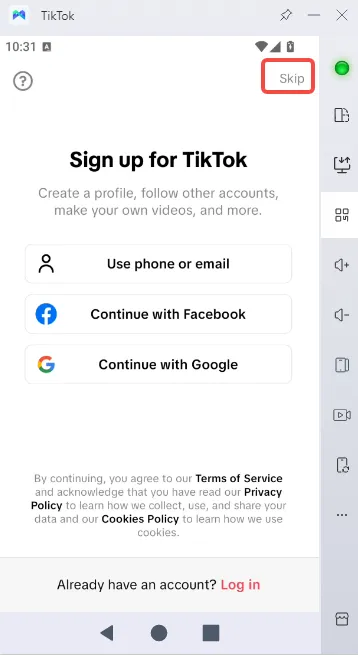
After viewing videos, tap the square button at the bottom of the cloud phone to open the app background manager, find TikTok, and close it.
Relaunch TikTok and watch a few more videos to maintain normal usage.
In TikTok, go to the Shop page.
Find the registration entry and enter the registration process.
Under registration options, select Continue with Google. The system will redirect to the Google login page.
On the redirected page, tap your logged-in Gmail account to link it.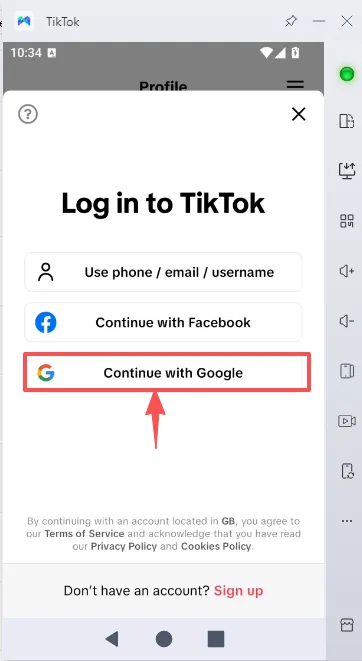
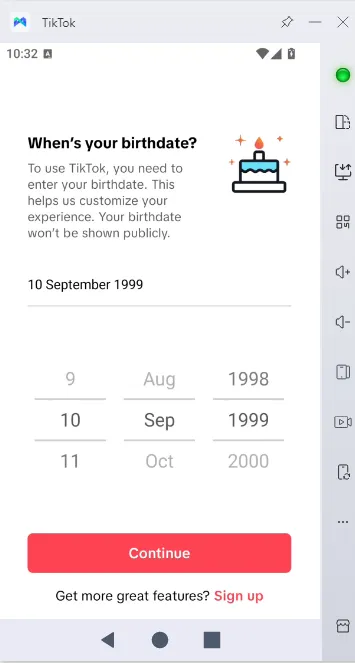
Follow the system prompts to fill in your birthday and username to complete registration.
Note:
If the registration page cannot be skipped (and the Shop page is also inaccessible) due to proxy restrictions in some regions:
Close TikTok from the background, restart it, and log in directly with Google.
After entering your birthday and username, registration is complete.
New accounts need 1–2 days of normal usage (account nurturing) before editing profile information.

 EN
EN