EN
EN
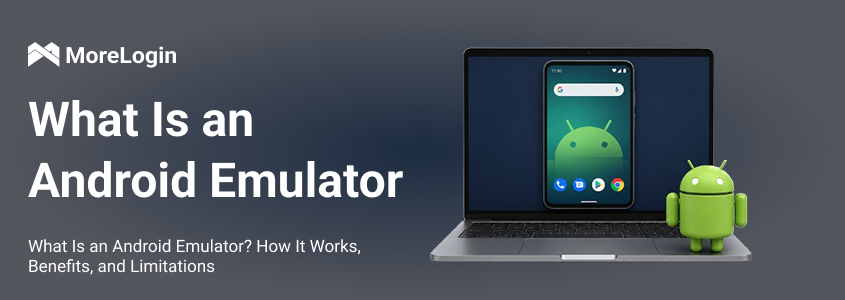
Choosing the best android emulator depends on your goals, whether that is gaming, app testing, running multiple instances, or managing Android tasks on a desktop. An Android emulator creates a virtual Android environment that lets you run mobile apps and games without a physical device.
If you're new to the concept, learn more about what an Android emulator is. This review compares leading emulator options, their strengths, limitations, and ideal use cases, while also covering MoreLogin Cloud Phone as a cloud-based alternative. If you prefer to jump straight to the summary, you can head directly to the "Best Android Emulator Comparison Table" section.
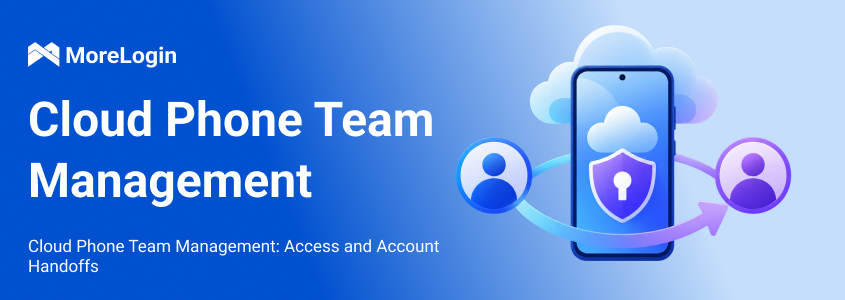
MoreLogin Cloud Phone is not a traditional local Android emulator. It is a cloud-based Android environment built for users who need scalable mobile workflows, account separation, automation, and remote team access.
For users who only want to play one mobile game on a PC, a free emulator may be enough. But for teams handling multi-account operations, app workflows, social media tasks, ecommerce, affiliate marketing, or automation, MoreLogin Cloud Phone is a stronger alternative.
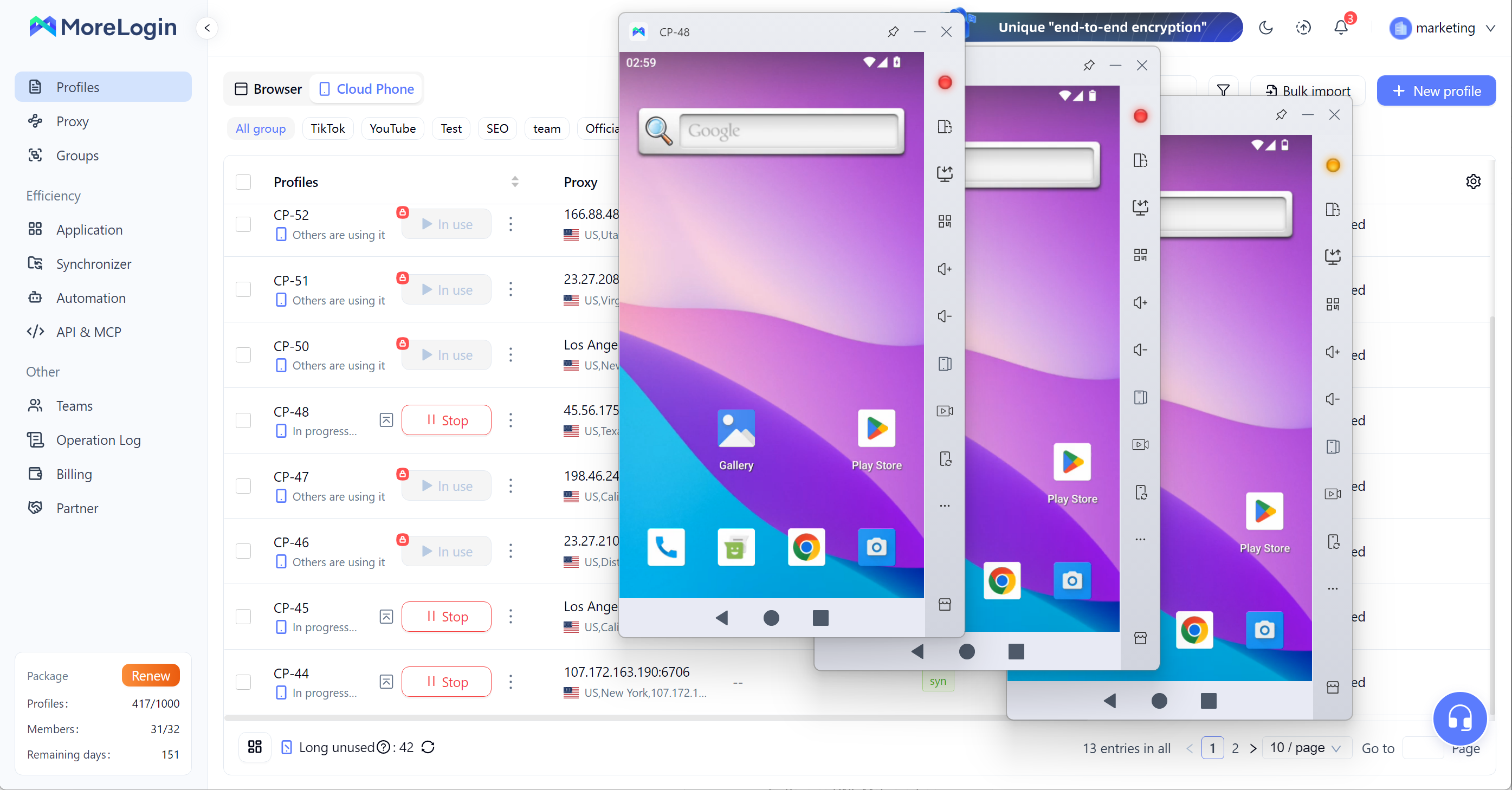
Cloud-based Android environments running on ARM-based infrastructure
Remote access to Android environments from a desktop
App installation, APK upload, file upload, and proxy configuration
Independent Android environments for different accounts, projects, or regions
Unique device parameters for account environment separation
RPA support for workflow automation
API support for powering on devices, installing apps, configuring proxies, and running management tasks
Synchronizer for controlling one device and syncing actions across multiple cloud phones
Batch text input, bulk upload, and multi-device content operations
Team management with permission assignment, access control, and access revocation
More scalable than local Android emulators because workflows do not depend only on one PC’s CPU, RAM, or GPU
Better for multi-account operations because each cloud phone can work as a separate Android environment
Useful for teams that need remote access instead of passing physical phones or shared local machines around
More suitable for long-term account workflows than temporary local emulator instances
Supports automation and batch operations, which helps reduce repetitive manual work
Easier for teams to manage Android environments, members, and permissions from one place
A practical option for users comparing a local Android emulator with cloud-based Android workflows
Not mainly designed for casual mobile gaming
Requires an internet connection because the Android environment runs in the cloud
Multi-account management
Social media account operations
Ecommerce mobile workflows
Affiliate marketing teams
App testing teams that need remote Android access
Automation workflows
Teams that need cloud-based Android environments instead of local emulator windows
BlueStacks is one of the most recognized Android emulators for PC and Mac. It is often the first tool users try when searching for the best android emulator for pc, especially for mobile gaming.
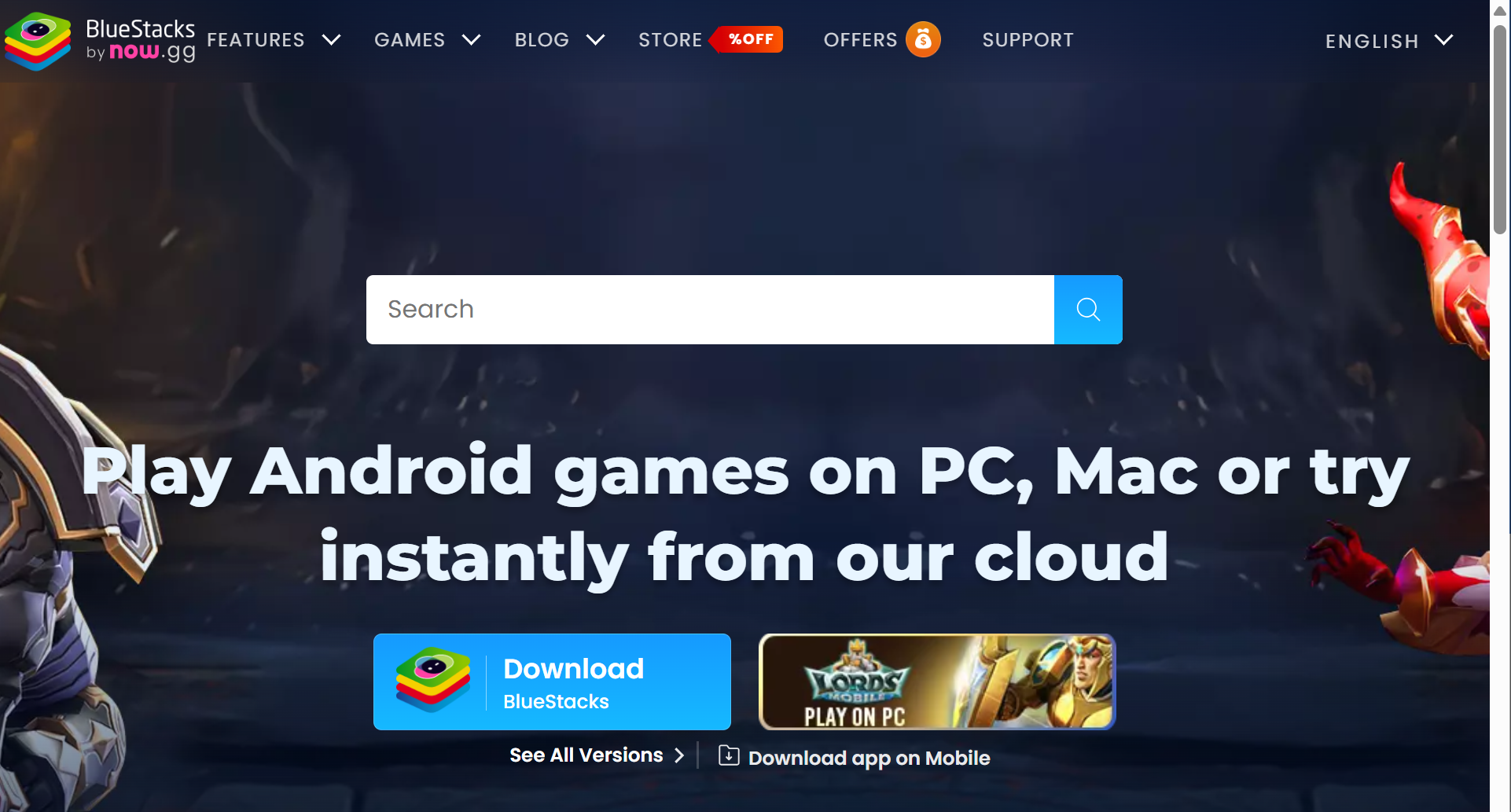
It focuses heavily on Android games, but it can also run many common Android apps. Its long history and large user base make it easier for beginners to find guides, tutorials, and troubleshooting help.
Android game and app support on PC and Mac
Google Play Store access for installing apps and games
Keyboard and mouse controls with key mapping for custom inputs
Gamepad and controller support
Multi-instance support for high-performance gaming and running multiple apps at once
Multi-instance sync
Macros and script features
Eco Mode for reducing resource usage during multi-instance work
High FPS and high-definition display options with gpu acceleration for smoother graphics and 60+ FPS gameplay
Real-time translation and smart control tools
Cloud gaming features for selected games
Easy to install and beginner-friendly
Strong compatibility with many popular Android games, with BlueStacks known for wide compatibility across games and common app use
Large game library and strong gaming focus
Good choice for users who want a familiar Android emulator with many tutorials available
Useful for users who want keyboard and mouse controls for mobile games
Works on both Windows and Mac, which makes it more accessible than Windows-only tools and helps users play Android games on either desktop system
Suitable for users who want a mainstream emulator with a long track record, with improvements made over a decade
Can feel heavy on lower-end hardware, and performance may not run smoothly on lower-end hardware under heavier workloads
Ads, promotions, store features, and extra tools may make the interface feel crowded
Can consume noticeable RAM and CPU when multiple instances are running
Not ideal for professional account isolation or team-based workflows
Multi-instance support is useful, but it does not replace cloud-based Android environment management
Users who only need a clean and lightweight app player may find BlueStacks too feature-heavy
Beginners who want a well-known Android emulator
Casual mobile gamers
Users who need broad game compatibility
PC and Mac users who want keyboard and mouse controls
Users who prefer a mainstream tool with many online guides
LDPlayer is a Windows-focused Android emulator built mainly for mobile gaming. It positions itself as a fast Android emulator for playing mobile games on PC, with features around FPS, performance improvement, lower CPU and GPU usage, and multi-instance management.
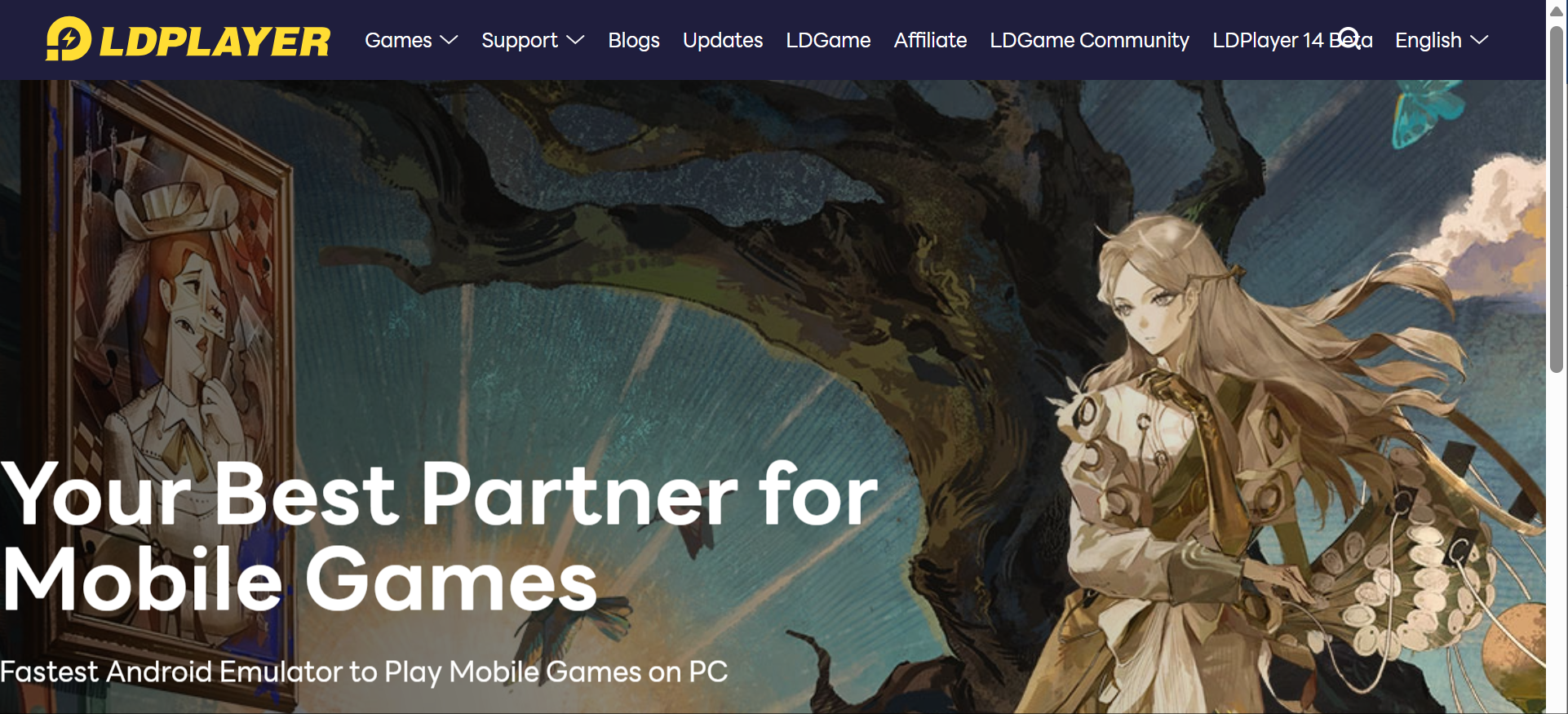
LDPlayer also offers OSLink, a separate remote control tool that lets users remotely control LDPlayer from a phone. This gives LDPlayer a more flexible use case than a basic local emulator, especially for users who want to check AFK tasks or manage emulator windows away from their PC.
Android emulator for playing mobile games on Windows PC
Key mapping for mobile game controls
Multi-instance support for running several emulator windows
Multi-instance AFK task management
Synchronized operation across multiple instances
CPU and GPU performance optimization with GPU acceleration
FPS-focused gaming settings, including OpenGL and DirectX graphics modes that can be switched to help resolve visual issues
Lower CPU and GPU usage positioning
OSLink remote control tool for controlling LDPlayer from a phone
Remote access to LDPlayer running on a home or office PC
Same-account login requirement for OSLink remote control
Local connection or encrypted protocol support for remote control
Strong option for users who mainly want to play Android games on Windows
Better suited for game control customization and tuning than general-purpose app players
Multi-instance and synchronized operation can help users manage repeated gaming tasks
OSLink gives users more flexibility when they are away from their PC
Useful for AFK tasks where users need to check status from a phone
Practical choice for users who want the best android emulator for pc gaming with remote-control support
More focused than BlueStacks if the main goal is mobile games, and can suit gamers better than other emulators when gaming focus matters more than broad app use
Mainly focused on Windows users
OSLink is a separate tool and needs separate installation
Performance can still depend on PC hardware, game type, and local settings; where possible, manually allocate at least 4 cpu cores and 4GB to 8GB of RAM in emulator settings to reduce gaming stutters
Not built for professional cloud-based account isolation
Remote control does not mean the Android environment itself runs in the cloud
Still depends on the PC where LDPlayer is installed, and enabling Hardware Virtualization (VT-x / AMD-V) in BIOS is often necessary for good speed
Users who need team permissions, independent cloud devices, or scalable mobile environments may need a cloud phone solution instead
Windows users who play mobile games on PC
Users who need multi-instance gaming
Users who manage AFK game tasks
Users who want to remotely control emulator windows from a phone
Gamers who need keyboard mapping, higher FPS, and performance settings
Users looking for a gaming-focused Android emulator instead of a business workflow tool
MuMu Player is an Android emulator developed by NetEase. It focuses on running Android games and apps on PC or Mac with a clean interface, low resource usage, high-definition visuals, and multi-instance support.
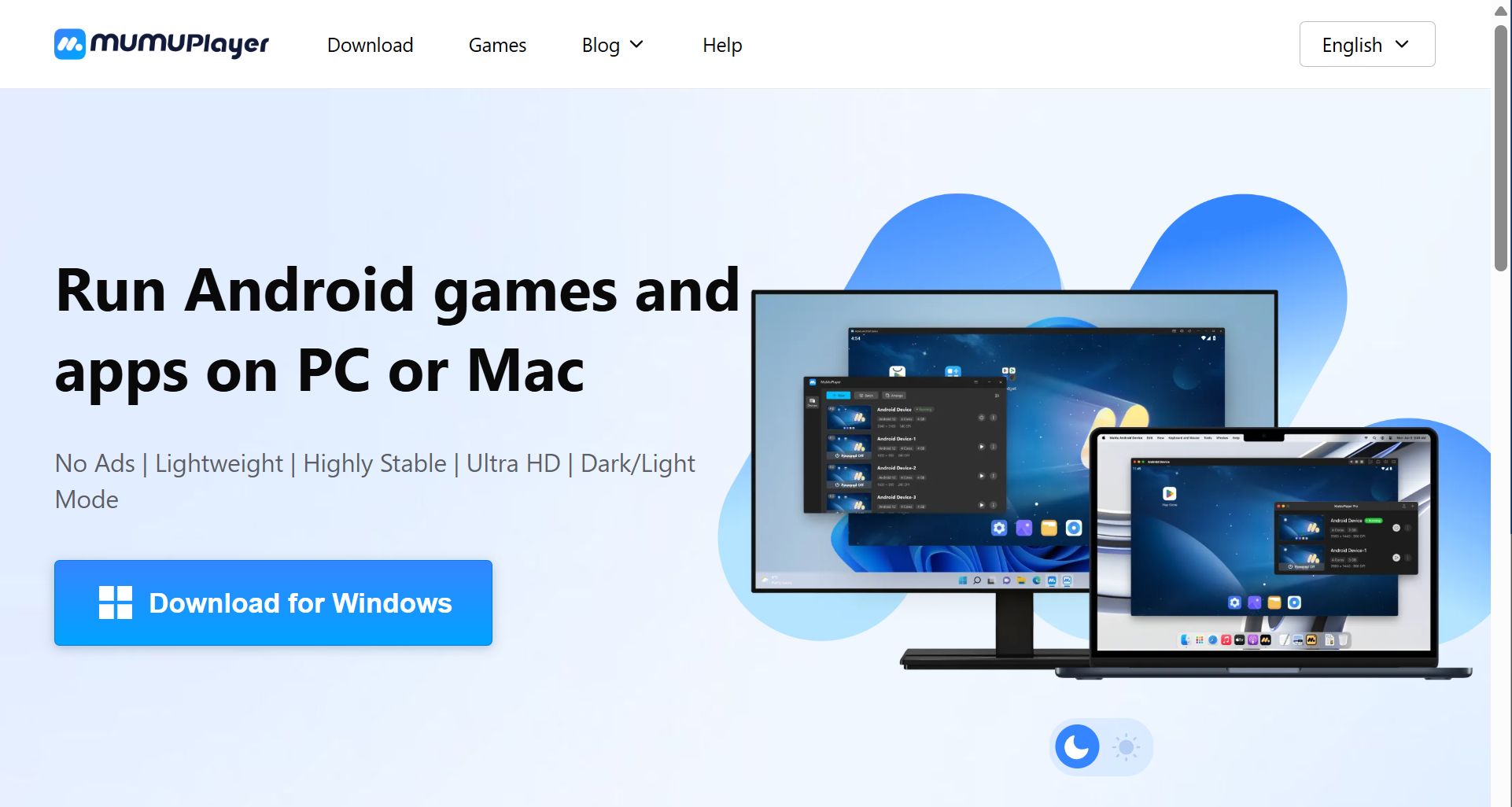
Compared with some heavier emulator tools, MuMu Player is often attractive to users who care about fewer ads, smoother operation, and a cleaner experience.
Android games and apps support on PC and Mac
Windows, macOS, and Windows ARM support
Ad-free interface positioning
Lightweight, versatile emulator design
High stability positioning
Ultra HD display support
Dark and light mode
Keyboard, mouse, and gamepad support
Multi-OS compatibility
High FPS support with screen recording
4K visual support
Unlimited multi-instance support
Lower resource usage positioning for lower-end hardware
Shared folder and virtualization setup guides
Cleaner interface than many ad-heavy emulator tools
Good choice for users who dislike pop-ups and promoted content
Supports both apps and games, not only gaming
Useful for users who want a smoother everyday emulator experience, with better performance on systems that struggle with heavier tools; low-end PCs can also benefit from alternatives like LDPlayer or MuMu Nebula, which are tuned for lower resource use
Multi-instance support makes it suitable for light multitasking
PC-level input controls improve mobile gaming on desktop
Good option for users looking for the best android emulator for windows 11 with a less cluttered interface
Windows ARM and macOS support make it more flexible than Windows-only emulators, with wide compatibility across desktop environments
Game performance can vary by title and hardware
Some demanding games may perform better on another emulator depending on the PC setup
Users may still need to configure virtualization, controls, shared folders, or FPS settings
Not designed for professional multi-account isolation
Multi-instance support is useful, but it is still local emulator-based scaling
Users managing many accounts or team workflows may need stronger permission and environment management
Users who want a cleaner Android emulator experience
PC or Mac users who run both Android apps and games
Users who dislike ads and cluttered launchers
Light gaming and app usage
Users who need multiple emulator instances but not full team workflow management
Users who want a lightweight alternative to heavier emulator tools
MEmu Play is a Windows-based Android emulator for running Android apps and games on PC. It is commonly used by users who want a flexible emulator with multi-instance features, keyboard mapping, and performance settings.
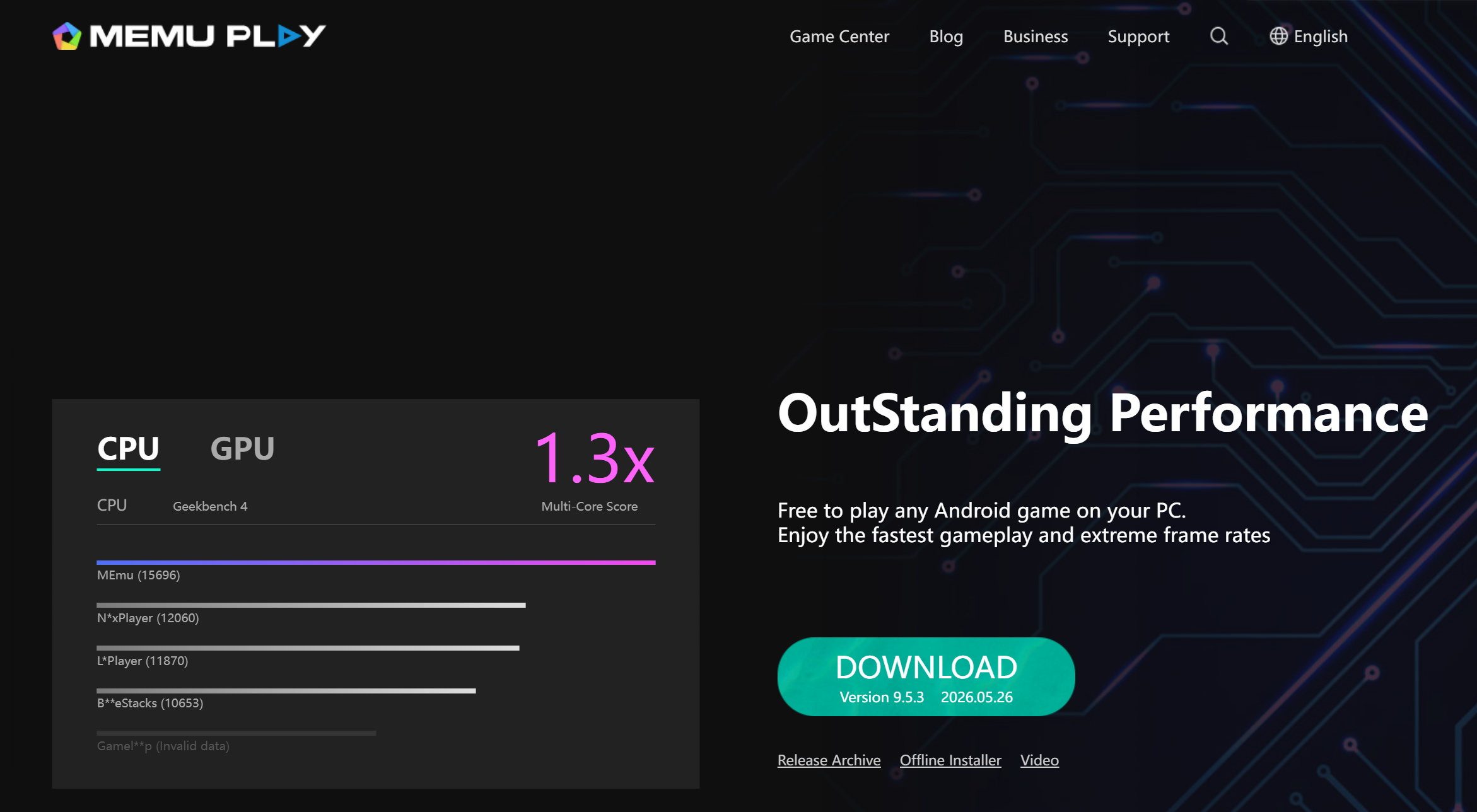
MEmu Play is not as broadly recognized as BlueStacks, but it remains a practical option for users who want a general-purpose Android emulator on Windows.
Android app and game support on Windows PC, including access to the google play store
key mapping for game controls
Multi-instance support, a common high-performance gaming feature in tools such as BlueStacks and MEmu Play
APK sideloading
Shared folder support between Windows and Android environment
CPU and RAM allocation settings
Display and resolution configuration
Support for different Android environments depending on Android version
Mouse and keyboard control customization
Flexible enough to run apps as well as casual games
Useful for users who want more control over emulator resources
Multi-instance support helps with basic repeated workflows
APK sideloading is helpful when apps are not installed through Google Play
Shared folders make file transfer easier between PC and emulator
Good choice for users who want a general Android emulator instead of a gaming-only platform, and a go to emulator for Windows users who want flexibility without a developer-focused setup
Mainly Windows-focused
Ads or promoted content may appear depending on version and setup
App and game compatibility may vary
Performance can decline when multiple instances are open
Not ideal for professional multi-account workflows
Does not offer the same level of cloud access, team permissions, or centralized environment management as MoreLogin Cloud Phone
Windows users who need a flexible Android emulator
Users who run general Android apps on PC
Casual mobile gamers
Users who need APK sideloading
Users who want basic multi-instance support
Users searching for a best pc emulator for android apps without needing cloud infrastructure
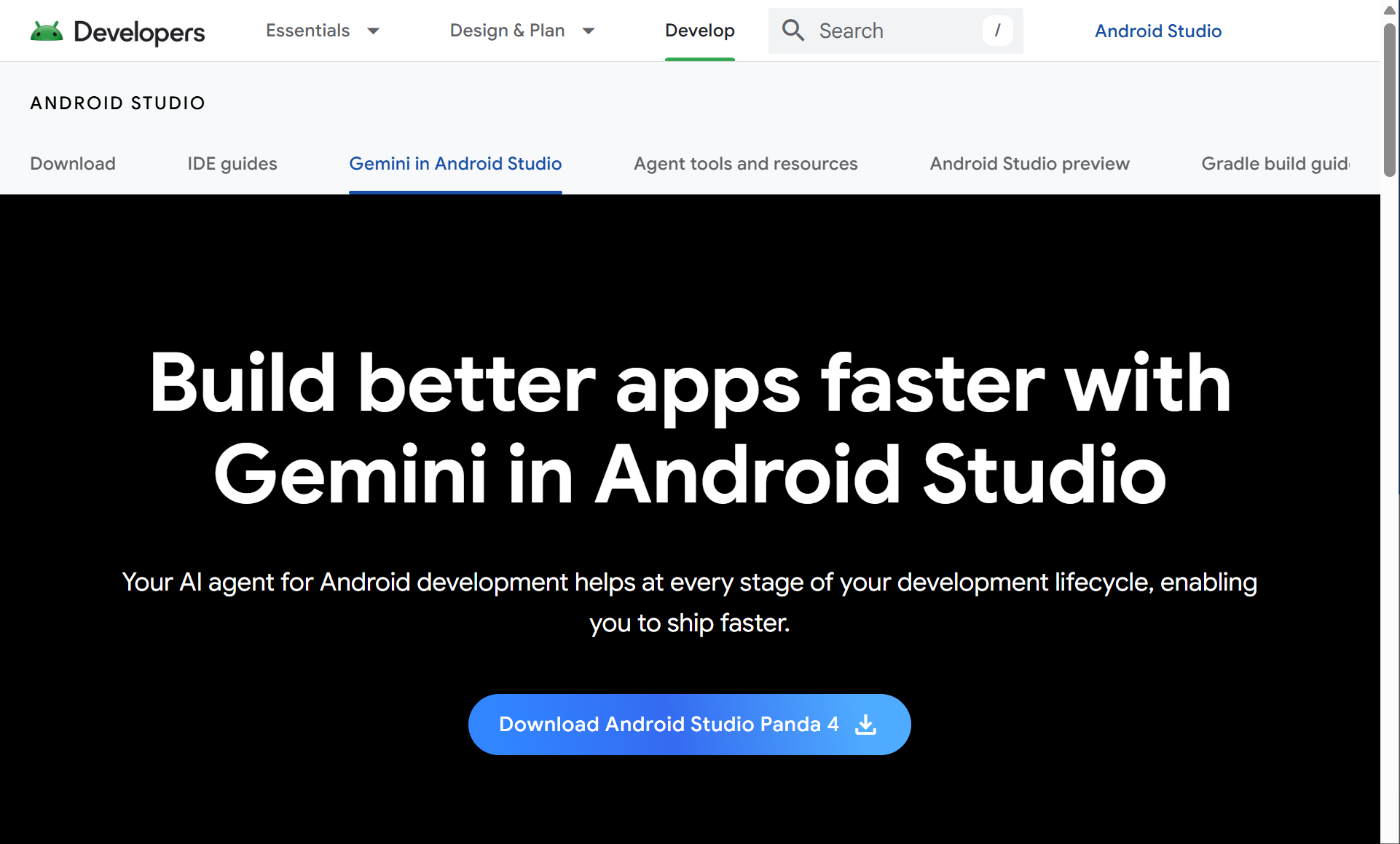
Android Studio Emulator is Google’s official Android emulator for developers. It is part of Android Studio and is built for app development, debugging, and testing rather than casual gaming.
Through android emulation, developers can test apps across Android versions, screen sizes, and hardware profiles without buying multiple physical devices, which makes testing more cost-effective and gives tighter control over variables like location and network conditions. For developers, it is one of the most important tools in the Android ecosystem. For ordinary users who only want to play mobile games, it may feel too technical.
Built into Android Studio
Android Virtual Device support
Multiple device profiles let developers simulate multiple devices in one tool instead of relying on physical hardware.
Different API level support
Screen size and device type simulation
GPS location simulation
Network condition simulation
Debugging tools with support for automated testing in emulator-based development workflows.
Performance profiling
Integration with Android app development workflows
Support for testing different Android versions, screen sizes, and hardware configurations to verify app running across simulated environments without needing physical devices
Official Android development tool from Google
Strong fit for developers and QA testers
Better for app testing than gaming-focused emulators
Allows testing across different Android versions, screen sizes, hardware configurations, and device profiles, reducing dependence on physical hardware for broad compatibility checks and making wide coverage more cost-effective than buying multiple devices
No gaming-style ads or promoted app stores
Useful for debugging, profiling, and checking app behavior before release, while giving developers tighter environment control than testing only on a real device through options like spoofed location and network settings
Reliable choice when accuracy matters more than casual convenience
Not designed for casual mobile gaming
Setup is more technical than consumer emulators
Can require strong PC hardware
Less convenient for users who only want to run Android apps on a desktop
Not built for multi-account business operations
Not the best option for users who want a simple, lightweight app player
Android developers
QA testers
App development teams
Users who need accurate testing environments
Users who test apps across screen sizes and Android versions
Technical users who need debugging and profiling tools
The tools above cover most common needs, but there are a few other Android emulator options worth knowing before you choose, and many emulators now fall into either gaming-focused or development/testing-focused categories.
Google Play Games for PC: A clean option for users who only want to play supported Android games on Windows. It is not a full Android emulator because it does not support general Android apps, does not offer full Play Store access, and does not support APK sideloading.
Genymotion: A developer-focused emulator platform for app testing, QA, automation, automated testing, and cloud-based testing workflows. It is more suitable for technical teams than casual users.
GameLoop: A gaming-focused emulator mainly used for selected mobile games, especially Tencent-related titles. It can work well for supported games, but it is not a strong choice for general Android app use.
NoxPlayer: An older Android emulator option with multi-instance and control customization features. It may still fit some users, but it is no longer the strongest first choice compared with BlueStacks, LDPlayer, or MuMu Player.
If your main goal is gaming, BlueStacks, LDPlayer, and MuMu Player are the main choices in this review. Google Play Games for PC and GameLoop can also be considered for specific supported games.
BlueStacks is better for users who want broad game compatibility and many built-in gaming features. LDPlayer is better for Windows users who care about gaming controls, multi-instance AFK tasks, and remote control through OSLink. MuMu Player is better for users who want a cleaner and lighter gaming experience. For smoother high-FPS play, support for gpu acceleration can also matter, especially if you want more stable graphics performance and 60+ FPS in demanding titles.
The best android emulator for gaming depends on the game, your PC hardware, and whether you need keyboard mapping, high FPS, remote control, or multiple instances. A VPN may also help improve stability for some online games or app connections.
For app testing, Android Studio Emulator is the stronger choice because it lets developers test apps across Android versions, screen sizes, and hardware configurations without needing multiple physical devices. It supports Android Virtual Devices, API levels, device profiles, debugging, and performance testing, while also being more cost-effective for broad testing and offering stronger environment control through settings like spoofed locations and network conditions.
Consumer emulators can help with quick app checks, but they are not built for serious development workflows. If your goal is to test an app before release, choose a development-focused emulator instead of a gaming-focused one.
The best android emulator for windows 11 depends on your use case.
BlueStacks is easier for beginners. LDPlayer is stronger for Windows gaming. MuMu Player is cleaner and lighter. MEmu Play is flexible for general Android apps.
Before choosing, check CPU and RAM usage, virtualization settings, GPU support, update frequency, and whether you plan to run one instance or many instances.
For low-spec PCs and lower-end hardware, do not choose based only on feature count. A tool with many features may also use more system resources.
Look for an emulator that offers lower memory usage, fast startup, adjustable CPU and RAM settings, and fewer background processes. LDPlayer or MuMu Nebula may be better starting points than heavier emulator setups on low-end PCs because they are optimized for lower resource consumption, but performance still depends on your hardware. If your system allows it, manually allocating around 4 cpu cores and 4GB to 8GB of RAM can also help reduce stutters during gaming.
Local emulators can open multiple instances, but multi-instance is not the same as professional environment isolation.
If you manage accounts for social media, ecommerce, affiliate marketing, app testing, or client work, you need more than several emulator windows. You may need independent Android environments, proxy configuration, remote access, team permissions, automation, and centralized management.
That is where MoreLogin Cloud Phone becomes more suitable than a local emulator. It is designed for scalable Android workflows rather than casual desktop app use.
A quick note: searches like best emulators for android or best ds emulator for android often refer to console emulators that run on Android phones. That is different from Android emulators for PC, which run Android apps on desktop computers.
Traditional Android emulators rely on local hardware. Running one emulator may be fine, but opening several instances can quickly consume CPU, RAM, disk space, and GPU resources.
This becomes a bigger issue when users need to scale workflows. Even the best android emulator can slow down if the local machine is not powerful enough.
Most emulators in the free tier rely on ads, promoted apps, stores, rewards, or extra software offers. This does not always mean the emulator is unsafe, but it can affect the free version user experience.
Users should download emulators only from official websites and avoid unknown installer files.
Not every Android app or game works well in an emulated environment, and compatibility can also depend on the supported android version. Some apps may have issues with graphics rendering, Google services, payment systems, region settings, or anti-cheat systems, and while some emulators offer software rendering as a fallback, it can reduce visual performance.
This is one reason there is no single best android emulator for every user.
Most local emulators support multi-instance features for running multiple apps. But opening multiple emulator windows does not automatically create clean, stable, and scalable account environments.
For casual gaming, this may not matter, and local emulators can handle multiple apps. For account operations, it matters a lot. Users managing many accounts need to think about environment consistency, proxy setup, device parameters, team access, and long-term workflow stability.
Some platforms may detect emulator-like environments. This can be a problem for users who need stable Android environments for account management, app workflows, ad verification, or social media operations.
Traditional emulators are useful, but they are not always the safest or most scalable choice for professional mobile workflows.
MoreLogin Cloud Phone solves many local emulator limits by moving Android environments to the cloud. Users can access Android environments remotely, reduce dependence on local PC resources, and manage multiple cloud phones from one place.
Each cloud phone can work as a separate Android environment, which supports more consistent separation than relying on a single local android phone or basic emulator windows. This helps users separate accounts, projects, clients, or regions. For teams, MoreLogin also supports permission management, access control, automation, batch operations, and remote collaboration, which is better suited to android devices workflows that need centralized management.
For multi-account operations, the Cloud Phone vs Android Emulator choice should be based on infrastructure, environment separation, team access, automation, and scalability rather than gaming features alone.
The best android emulator, and in many cases the best emulator, depends on your real goal and whether you need gaming, development, or multi-account workflow features. A casual gamer, an Android developer, a low-spec PC user, and a multi-account team should not choose the same tool.
BlueStacks is a strong choice for beginners and broad game compatibility. LDPlayer is useful for Windows gaming, multi-instance AFK tasks, and remote control through OSLink. MuMu Player is better for users who want a cleaner and lighter emulator experience. MEmu Play is flexible for general Android apps on PC. Android Studio Emulator is the official emulator from Google and the better option for developers and app testing.
But if your goal is not just to run one Android app on a PC, a local emulator may not be enough. For multi-account workflows, automation, remote access, team management, and scalable Android environments, MoreLogin Cloud Phone is a stronger alternative to traditional Android emulators.
What is the best Android emulator?
The best android emulator depends on your goal. For gaming, BlueStacks, LDPlayer, and MuMu Player are strong options. For app testing, Android Studio Emulator is a better choice. For multi-account workflows and cloud Android environments, MoreLogin Cloud Phone is worth considering.
What is the best android emulator for PC gaming?
For PC gaming, users often choose BlueStacks, LDPlayer, or MuMu Player. BlueStacks is beginner-friendly, LDPlayer is useful for Windows gaming and AFK tasks, and MuMu Player is a good choice for a cleaner and lighter experience.
What is the best Android emulator for Windows 11?
The best Android emulator for Windows 11 depends on your use case. BlueStacks is easier for beginners, LDPlayer is stronger for gaming, MuMu Player is lighter and cleaner, and MEmu Play is flexible for general Android apps.
Can I use an Android emulator for app testing?
Yes. For serious app testing, Android Studio Emulator is the better option because it supports Android Virtual Devices, API levels, device profiles, debugging, and testing across different screen sizes.
Is a local Android emulator suitable for multi-account workflows?
Not always. A local emulator can open multiple instances, but that is not the same as professional environment isolation. For accounts, team permissions, proxy setup, automation, and centralized management, a cloud phone solution is usually more suitable.
How is MoreLogin Cloud Phone different from a traditional Android emulator?
A traditional Android emulator usually runs on a local PC. MoreLogin Cloud Phone runs in the cloud and supports remote access, separate Android environments, automation, batch operations, and team permission management.
 EN
EN