EN
EN
WebGL is a browser technology for showing 2D and 3D graphics on web pages. You may see it when you play a browser game, rotate a product model, open an interactive map, or view a 3D page.
Most users do not notice it. It works behind the page. But it matters because it uses your device's graphics system. That means it can also expose some browser and device signals. These signals may become part of a browser fingerprint.
This guide explains what WebGL is, how it works, where it is used, how to enable it in Chrome, and why it matters for browser fingerprint risks.

WebGL stands for Web Graphics Library. It is a JavaScript API that lets a browser render 2D and 3D graphics without extra plugins.
A normal image is already made before you see it. A 3D browser scene is different. It can move, react, change angles, and respond to user actions in real time.
This API usually works with HTML canvas. The canvas is the area on the page where the browser draws the final image.
The main value is simple. A website can show complex graphics directly in Chrome, Firefox, Edge, Safari, or another supported browser. The user does not need to install a desktop app.
It also uses the GPU. The GPU is the graphics processor in your device. It is built to handle visual calculations. That is why browser graphics can run smoothly when the device and browser support them.
The basic process is not hard to understand.
The web page creates a canvas area.
JavaScript sends drawing instructions.
The browser sends graphics work to the GPU.
The GPU calculates points, shapes, colors, textures, and light.
Shaders decide how objects and pixels should look.
The browser shows the final result on the page.
A 3D object is usually made from many triangles. Each triangle has points. When the object moves, the browser needs to calculate where those points should appear.
The GPU handles this better than the CPU because it can process many visual tasks at the same time.
Shaders are small programs that run on the GPU. They control how the graphics are drawn. One shader can handle object position. Another shader can handle color, texture, shadow, and light.
This is why native WebGL is powerful but difficult. Developers often need to deal with shaders, object position, cameras, lights, and rendering logic. Libraries such as Three.js make this easier. They let developers build 3D scenes with less low-level code.
For most users, the core idea is enough. The browser provides the page. JavaScript controls the logic. The GPU draws the graphics.
There are two main versions. Most users do not need to choose between them. The website and browser handle that.
WebGL 1 is enough for many browser graphics tasks. It can support basic 3D objects, textures, simple scenes, and visual effects.
WebGL 2 adds more graphics features. It gives developers more control for advanced rendering. For example, it can help with more complex textures and visual processing.
For users, the difference is usually not visible. If the browser, GPU, and driver support the feature, the page can use it. If one part does not support it, the page may fail or fall back to a simpler version.
This technology is used in many websites. It is not only for games. It is also useful for product pages, maps, learning tools, and business dashboards.
Many websites use 3D visuals to make pages easier to explore.
A product page can let users rotate an item. A design site can show a 3D model. A brand page can use motion and depth to make the page more interactive.
Common examples include:
3D product previews
Interactive landing pages
Creative portfolios
Architecture previews
Interior design previews
Car or furniture model views
The point is not just visual style. A 3D view can help users understand shape, size, and structure faster than a flat image.
Browser games are a common use case. A game needs movement, objects, user input, effects, and fast updates. GPU rendering helps make this possible in a browser tab.
Simulations also use browser graphics. Education sites, training platforms, and science tools can show how something works instead of only explaining it with text.
Virtual tours use the same idea. Real estate sites, museums, showrooms, and travel pages can let users explore a place online.
The advantage is access. A user can open the experience through a link. No separate app is needed.
Some websites need to show large or complex data. This can include maps, 3D charts, network graphs, scientific data, or business analytics.
GPU rendering can help these pages run more smoothly. It can make large visuals easier to move, zoom, and explore.
Product configurators are another common use. A user can change a color, material, size, or model and see the result right away. This is useful for furniture, cars, fashion, electronics, and home design.
In these cases, WebGL helps users make decisions. They can see the change instead of only reading about it.
Many people search for how to enable WebGL in Chrome because a page shows an error or a 3D feature does not load.
In most modern Chrome versions, it is already enabled. If it does not work, the problem is usually related to hardware acceleration, graphics drivers, browser settings, extensions, or device limits.
Open Chrome and type this in the address bar:
chrome://gpu
Then check Graphics Feature Status.
If graphics features are available or hardware accelerated, Chrome can usually run supported 3D content.
You can also use a browser graphics test page. It can show whether your current browser setup supports this feature.
If it is disabled, blocked, or unavailable, Chrome may not be using the GPU correctly.
Use these steps:
Open Chrome.
Go to Settings.
Open System.
Turn on Use graphics acceleration when available.
Restart Chrome.
Test the website again.
This setting lets Chrome use the GPU for graphics work. If it is off, some 3D pages may not load or may run poorly.
Try these steps:
Update Chrome.
Update your graphics driver.
Restart Chrome.
Restart your device.
Turn on hardware acceleration.
Disable extensions that may block scripts.
Check whether security software is blocking graphics features.
Test the same page in another browser.
These steps fix many common problems. They do not fix every case. If the GPU is too old or the driver is not supported, the page may still fail.
WebGL is not malware. It is not a virus. It is a normal browser graphics feature.
The risk comes from the signals it can expose. A website may use graphics-related data as part of a browser fingerprint.
A browser fingerprint is not based on one signal. It is usually built from many details. These can include screen size, timezone, language, user agent, fonts, canvas output, audio data, IP address, and graphics behavior.
Different devices can draw graphics in slightly different ways.
The result can depend on:
GPU model
Graphics driver
Operating system
Browser version
Supported extensions
Shader behavior
Rendering backend
A website can test some of these details. It may check what graphics features are supported or how the browser renders a small scene.
One signal alone may not identify a user. The risk grows when many signals are combined.
For privacy and multi-account work, the issue is not only whether graphics rendering is on or off. The bigger issue is whether the browser environment looks consistent.
A WebGL fingerprint and a canvas fingerprint are related, but they are not the same.
A canvas fingerprint usually comes from how the browser draws 2D content. The result can be affected by fonts, anti-aliasing, operating system, and graphics behavior.
A WebGL fingerprint is more connected to the graphics environment. It can reflect GPU behavior, supported features, and rendering differences.
The key point is consistency.
A browser profile should look like one real environment. The user agent, timezone, language, screen size, proxy location, canvas output, and graphics signals should not conflict with each other.
For example, a profile may look like a normal Chrome browser in one area but show unusual graphics signals in another. Or many accounts may share the same graphics-related signals while using different proxies and identities.
That can look unnatural.
For multi-account management, changing one field is not enough. The full browser profile needs to make sense as a whole.
A normal browser is made for daily browsing. It is not made for running many separated account environments.
If many accounts use the same browser, they may share cookies, cache, local storage, device signals, and graphics signals. This can create problems for teams that need clean account separation.
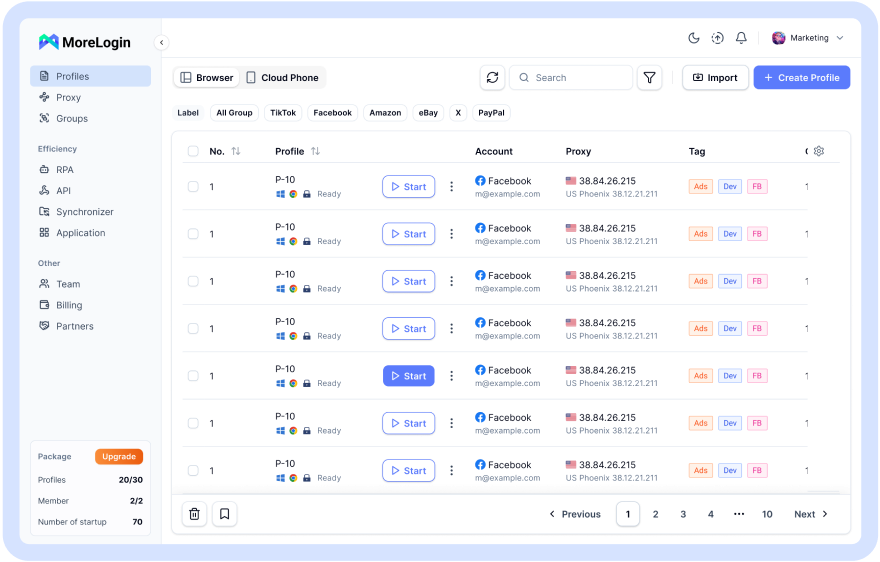
An antidetect browser helps by creating separate browser profiles. Each profile can have its own cookies, proxy, timezone, language, screen size, and fingerprint settings.
This does not mean WebGL should simply be blocked. Many websites need it. Blocking it can break normal pages and make a profile harder to use.
A better approach is to manage it with the full browser profile. WebGL, Canvas, proxy, timezone, language, browser version, device settings, and cookies should match each other.
For teams, this is useful because account safety is not only about passwords. It is also about the environment used to access each account.
MoreLogin helps teams create separate browser profiles for different accounts, clients, projects, or team members. It gives users a cleaner way to manage profiles, proxies, fingerprint settings, and access workflows without mixing sessions in one browser.
WebGL is a browser technology for 2D and 3D graphics. It helps websites run games, simulations, maps, product configurators, data visuals, and 3D pages without plugins.
In Chrome, it usually works by default. If it does not, the cause is often hardware acceleration, outdated drivers, browser settings, extensions, or device limits.
For privacy and multi-account management, WebGL matters because it can become part of a browser fingerprint. Graphics signals can be combined with Canvas, screen size, timezone, language, user agent, proxy, and cookies.
For teams that need separated browser environments, MoreLogin provides a structured way to manage browser profiles, proxies, fingerprint settings, and account workflows in one workspace.
What is WebGL?
WebGL is a JavaScript API that lets browsers render 2D and 3D graphics inside web pages. It works with HTML canvas and uses the device GPU for graphics rendering.
Is WebGL enabled by default in Chrome?
Yes. In most modern Chrome versions, it is enabled by default. It may still fail if hardware acceleration is off, the driver is outdated, or the device does not support the feature.
How do I enable WebGL in Chrome?
Open Chrome Settings, go to System, turn on Use graphics acceleration when available, and restart Chrome. You can also check chrome://gpu to see graphics status.
Why is WebGL not working in Chrome?
Common reasons include disabled hardware acceleration, outdated drivers, old Chrome versions, blocked graphics features, browser extensions, security software, or unsupported hardware.
Is WebGL related to browser fingerprinting?
Yes. It can expose graphics-related signals. These signals can be combined with other browser and device data as part of a browser fingerprint.
Should I disable WebGL for privacy?
Disabling it may reduce some graphics signals, but it can also break websites that need 2D or 3D graphics. For multi-account work, it is usually better to manage the full browser profile instead of only disabling one feature.

 EN
EN