- Product

- Pricing
- Affiliate Program
- Developers
- Resource
 EN
EN
Manual work breaks momentum fast. One task turns into five: open a browser environment, prepare a cloud phone task, enter parameters, check the result, then repeat the same steps for the next account or workflow. That is exactly where Make automation becomes useful. Instead of treating MoreLogin as a separate tool you need to operate by hand, you can connect it to Make and turn repeated actions into a structured workflow.
This matters even more when your setup includes cloud phones, browser environments, templates, webhooks, or external triggers from forms, spreadsheets, or internal systems. A good automation flow does not just save clicks. It reduces mistakes, keeps logic consistent, and Makes it easier to scale.
In this guide, you will learn what Make automation means in a MoreLogin context, what you need before setup, how to connect MoreLogin inside Make in five steps, and which workflows are worth building first.
At a practical level, Make automation means building visual workflows in Make that trigger actions across connected services. Instead of writing a script from scratch, you assemble a scenario with modules, conditions, and mapped parameters. One event starts the flow, and the rest of the actions follow based on the logic you define.
For MoreLogin users, that changes the role of automation completely. Make is not just passing data between generic apps. It becomes a control layer for real tasks such as creating a cloud phone task, running an automation template, or launching a browser environment.
If you are new to Make, the structure is simple:
A Scenario is the full workflow.
A Module is one action inside that workflow.
A Trigger starts the process.
Mapping passes the right values into the right fields.
Run once lets you test before using the workflow live.
That structure is what Makes Make flexible. You can start with one clean action, then add more logic only when the process is stable.
The main reason is control. MoreLogin already gives you the environment layer for secure multi-account work. Make adds the workflow layer. When you combine them, tasks that used to be manual can be triggered, parameterized, and repeated in a cleaner way.
This is where Make automation becomes more than a no-code trend. It gives MoreLogin users a way to connect task execution with real business triggers. A webhook can start a cloud phone action. A form submission can trigger a template. A state change in another system can launch a browser environment automatically.
There is also a practical efficiency gain. If you are already evaluating platform costs before building workflows, it helps to review Make pricing first so your scenario design matches the plan you actually use. On the MoreLogin side, if your workflow depends on device-based actions, the Cloud Phone product is usually the part you want to connect first.
Before building your first scenario, keep the setup simple. You need four things:
You need access to Make so you can create a new scenario and add the MoreLogin module.
To connect your account, prepare:
API ID
API Key
You can get both from MoreLogin Dashboard → API Management.
Depending on the action, this may include:
Cloud Phone ID
Template ID
Task name
Dynamic parameters
Do not start with a vague idea like “automate everything.” Start with one real event. That could be:
a webhook call
a form submission
a scheduled scenario
an HTTP request
another Make scenario
That approach keeps the first build small enough to test properly.
This is the core setup. Once these five steps work, you can expand the workflow later.
Log in to Make, create a new Scenario, and add the MoreLogin module.
This is the starting point for your workflow. Instead of building a generic flow and trying to force MoreLogin into it later, begin with the module that will actually execute the task. That keeps the scenario aligned with the action you want to control.
If you are building Make automation for the first time, this is the right place to stay focused. One module, one job, one test.
After adding the module, choose the action based on your actual use case.
Common examples include:
Create Cloud Phone Task
Run Automation Template
Launch Browser Environment
This choice matters because it defines the parameters you will need next. A cloud phone task will require one type of setup. A browser launch may require another. A template run usually depends on IDs and mapped values passed from the previous step in the scenario.
Do not choose an action because it sounds flexible. Choose the one that matches the real output you need.
Now connect the MoreLogin module with your API ID and API Key.
This step is straightforward, but it is also where many bad setups begin. If the connection is wrong, nothing after it will behave reliably. Use the credentials from Dashboard → API Management, confirm the account connection inside Make, and only move forward when the module is properly authorized.
In a practical Make automation workflow, stable authentication is not a side detail. It is the base layer for every task that follows.
This is the step that determines whether your automation is actually useful or just technically connected.
Fill in the required task details, such as:
Cloud Phone ID
Template ID
Task name
Then use Make’s visual mapping to pass dynamic values where needed. This could be data from a webhook, a spreadsheet row, a form response, or another module earlier in the scenario.
For example:
a webhook can send a specific Cloud Phone ID
a form can pass a task name
an HTTP module can supply a template parameter
a scheduled scenario can rotate through predefined IDs
This is where Make automation stops being abstract. Good mapping lets one workflow behave differently depending on the input, without needing manual edits each time.
You can also combine MoreLogin with other Make tools here. Webhooks, HTTP requests, filters, routers, and other scenarios all Make the flow more flexible. Just avoid adding too much logic too early. If the first version works with one trigger and one action, that is enough.
Click Run once to test the Scenario.
Do not skip this. Testing is where you confirm:
the module can connect
the action returns a valid result
the IDs are correct
the mapped parameters are being passed in the expected format
If the module returns a successful result, your MoreLogin workflow is ready for real use.
A lot of failed Make automation projects are not caused by the platform. They fail because people move to live execution before checking the details. Test first. Then scale.
The setup becomes easier to understand when you tie it to actual use cases.
This is one of the cleanest starting points. An external system sends a webhook to Make. The scenario receives the payload, extracts the required fields, and then triggers a MoreLogin cloud phone task automatically.
This works well when another system already decides when the task should start.
A user submits a form. Make captures the data, applies the necessary mapping, and passes the values into a MoreLogin template action.
This is useful when the trigger comes from an operational workflow rather than a developer-controlled API call.
A spreadsheet update, CRM change, or internal signal can trigger a scenario that launches a browser environment in MoreLogin. After that, the same flow can continue with notification, record keeping, or a follow-up HTTP request.
This is where Make.com automations become more valuable than isolated one-off actions. You are not just running a task. You are connecting it to a wider process.
A good first build is better than a complicated unfinished one. Pick one trigger and one MoreLogin action, then test it.
Most setup problems are not dramatic. They are simple issues: wrong Cloud Phone ID, wrong Template ID, missing parameter, or bad mapping.
Routers, filters, and HTTP modules are useful. They are not a requirement for every scenario. Add them when the process actually needs branching or external data.
Once one flow works, clone it or extend it. Do not redesign the full system before proving the first action is stable.
A workflow that looks smart but is hard to maintain will not help your team. Keep names clear, inputs clean, and outputs easy to verify.
Some teams compare Make power automate options when choosing a workflow platform. That is a fair comparison at a platform level. But for MoreLogin users, the more important question is simpler: can the workflow pass the right parameters and trigger the right action reliably? If the answer is yes, the integration is doing its job.
The most common problems are predictable:
A bad connection breaks the whole scenario before it starts.
The module may run, but the wrong target Makes the result useless.
A scenario that always uses fixed values is hard to scale.
Testing is not optional when task execution depends on specific IDs and inputs.
MoreLogin actions are task-driven. The setup works better when you design around task execution, not around a vague “app sync” idea.
Make automation becomes much more valuable when it is tied to a real execution layer. That is exactly why the MoreLogin integration matters. Instead of manually launching environments or configuring the same actions again and again, you can connect MoreLogin to Make, map the right inputs, and let the workflow handle the repetition.
The process itself is simple: add the MoreLogin module, choose the action, connect your account, configure the task parameters, and test with Run once. Once that structure works, you can expand into webhooks, template-based flows, cloud phone tasks, and larger process chains.
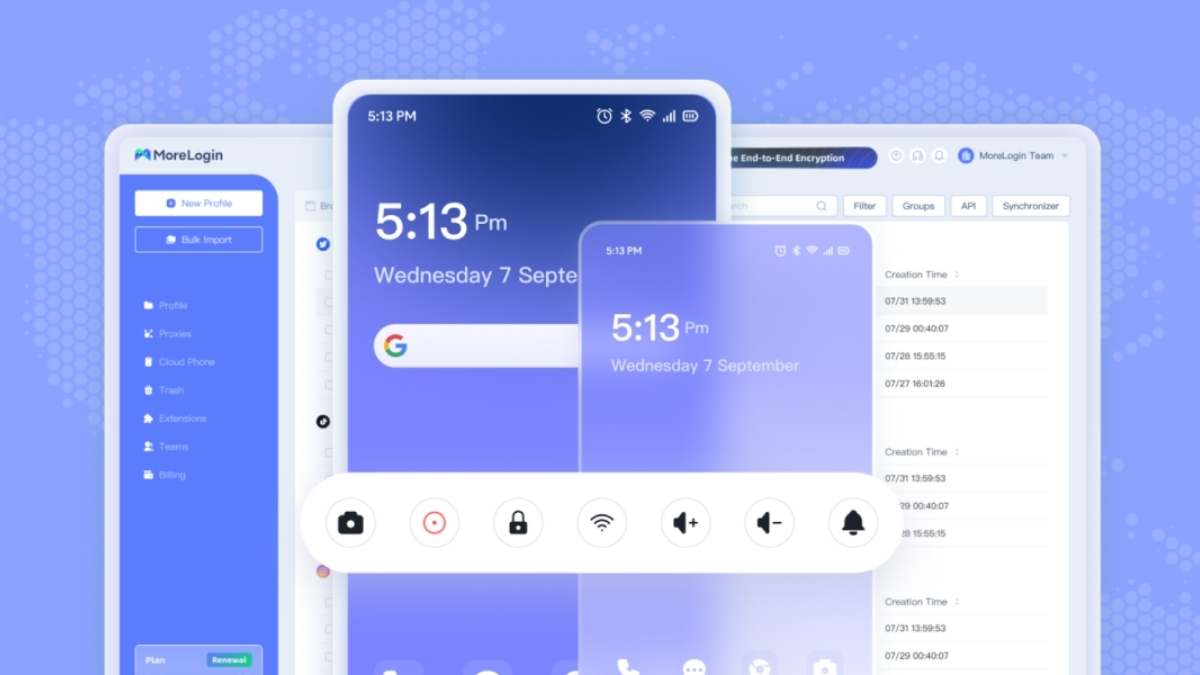
If your team already relies on Make but still handles multi-account tasks manually, this is the obvious next step. MoreLogin helps you move those actions into a controlled workflow and cut down on repetitive work. And if your automation depends on mobile execution, browser isolation, or scalable device workflows, combining Make with MoreLogin is a direct way to improve efficiency without adding unnecessary operational overhead.

 EN
EN